Help Docs
HelmStation Online Documentation
The HelmStation Window
HelmStation’s main window is the chart window. Your charts, boat, waypoints, routes, track, AIS targets and weather all appear on it. Everything else opens in a window of its own.
The first time you open HelmStation, it asks you to sign in with your Apple Account and to give it access to some of your folders. See Installing and First Launch.
The chart window
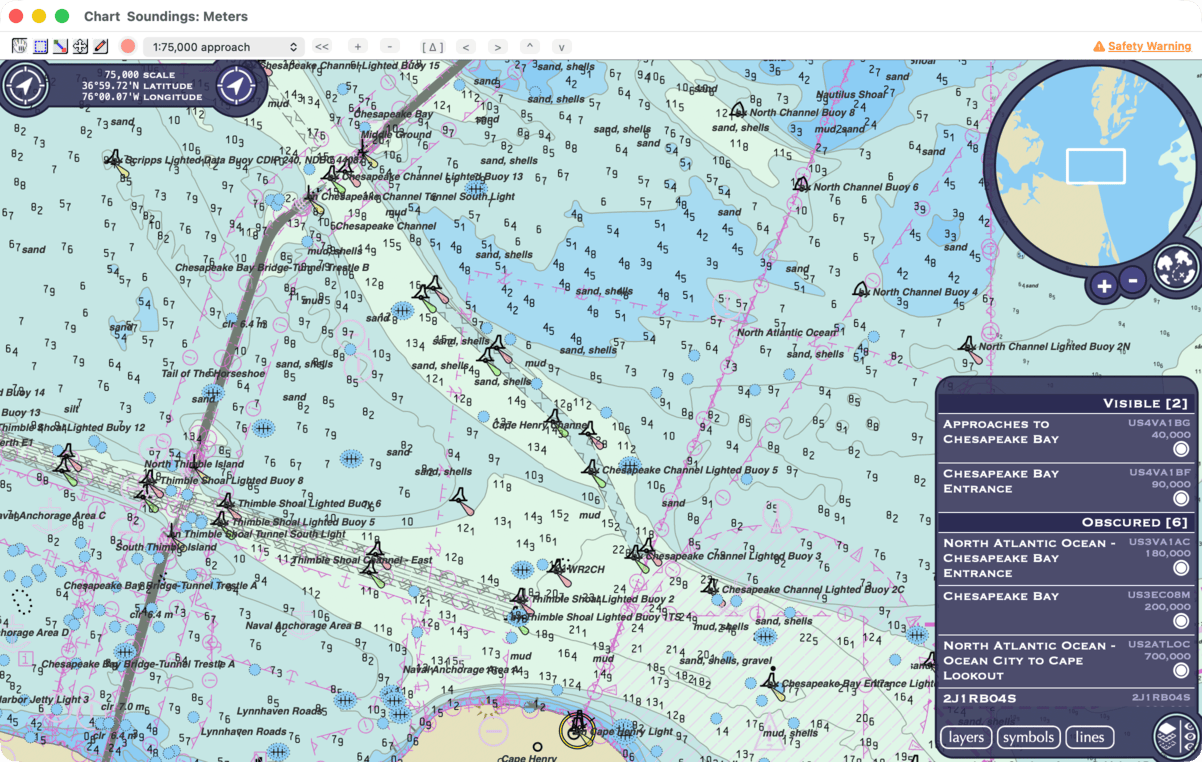
The toolbar runs along the top of the chart window. The five buttons at its left set what dragging on the chart does: “Grab Move Mode” moves the chart, and the others zoom in on an area you select, measure, move a waypoint and draw annotations. Hold the pointer over a button to see its name. Then come the annotation color, the scale menu with buttons for the previous scale and for zooming, a button that centers the chart on your position or a waypoint, and arrows that scroll the chart. More controls sit on the chart itself. At the top left, a readout shows the scale and the latitude and longitude of the chart’s center; the round button beside it shows or hides all of these controls. At the top right is a mini-map, and at the bottom right a panel that lists the charts in view and sets which kinds of symbols the chart shows. Each has its own round button to open and close it. In “Grab Move Mode”, click an object on the chart, such as a buoy or a light, to see its details in a panel at the bottom left. See Using the Chart, What the Chart Shows and Measuring and Annotating.
While any of your charts has expired, an amber Safety Warning link appears at the right end of the toolbar. See Expired Charts.
The title bar shows the units of the soundings on the chart, which you set in Settings. If you close the chart window, choose File > Open Chart (⌘O) to open it again.
Other windows
Under way
- Open the Navigation window with Window > Navigation (⇧⌘N). It follows a Goto: the bearing, distance and time to go to the waypoint, how far you are off course, and the legs of your route. See Waypoints and Routes.
- Open the GPS window with GPS > Connect (⌘G). It shows your position, course and speed over ground. See GPS and Position.
- Open the Instruments window with Instruments > Connect (⌘I). It shows depth, boat speed, wind and heading from your instruments. See Instruments.
- Open the AIS window with AIS > Connect. It lists the vessels your AIS receiver picks up. See AIS Targets.
- Open the TCP/IP NMEA Data window with GPS > TCP/IP. It brings in NMEA data from your boat’s network. See Network Connections.
- Open the Waypoints window with Waypoints > Open. See Waypoints.
- Open the Routes window with Routes > Open. See Routes.
- Open the Track window with Track > Open (⌘T). It shows the record of where you have been. See Tracks.
- Open the Weather window with Weather > Show. It steps through a GRIB weather forecast and sets how it is drawn. See Weather.
To set up the GPS, Instruments and AIS connections, see Connecting Your Instruments.
Charts
- Open the Chart Manager window with File > Chart Manager (⌘F). It lists every chart catalog on your Mac, and it is where you install ENCs from other providers. See Chart Manager and Third-Party ENCs.
- Open the HelmStation Chart Account window with File > HelmStation Chart Account (⌘N). It shows your license, your chart subscriptions and their downloads. See Chart Account and Delivery.
- Open the HelmStation Store window with File > HelmStation Store. Buy chart subscriptions there. See HelmStation Store.
- Open the NOAA Charts window with File > NOAA Charts. Choose the US Coast Guard districts whose NOAA charts you want. See NOAA Chart Service.
Settings and help
- Open the Settings window with HelmStation > Settings… (⌘,). It covers your connections, position icon, alarms, units and more. See Settings.
- Open the Vessel Settings window with HelmStation > Vessel Settings…. It sets your boat’s safety depth, used to shade the chart. See Settings.
- The HelmStation License window opens by itself when you need to start a trial or buy a license. There is no menu command for it. See Trial and License.
- Open the Contact Support window with Help > Contact Support. Use it to contact our support team and send us support data. See Getting Support.
The menus
| Menu | What it’s for | See |
|---|---|---|
| HelmStation | About HelmStation, Settings…, Vessel Settings…, and hiding or quitting HelmStation | Settings |
| File | Open Chart (brings the chart window to the front), Chart Manager, HelmStation Chart Account, HelmStation Store, NOAA Charts, and printing the chart | Chart Sources |
| Edit | Cut, copy and paste text | |
| View | Zooming, true or magnetic bearings (True Bearings), Course Up, keeping the chart centered on your boat (Position), object and symbol options (Objects, Simplified Symbols), showing annotations and chart outlines (Annotation, Bounds), and Low Light for night use | Using the Chart, What the Chart Shows |
| Waypoints | The Waypoints window, showing waypoints on the chart, the Arrival Alarm and Cross Track Alarm, and Transfer to and from files | Waypoints, Alarms |
| Routes | The Routes window, showing the selected route, reversing it (Invert), making one from your track (New From Track), Auto Next, and Transfer | Routes |
| Track | The Track window, showing and recording your track (Show, Capture), how often it records a point (Time Interval), and saving it to a file (Transfer) | Tracks |
| GPS | Connecting your GPS, a network connection (TCP/IP), a simulated GPS (Simulate), playing back a recorded file (File…), and the Anchor Alarm | Connecting Your Instruments, GPS and Position |
| Instruments | Connecting your instruments, and the Depth Alarm | Instruments, Alarms |
| AIS | Connecting your AIS, choosing which vessels to Show, and the Proximity Alarm | AIS Targets, Alarms |
| Weather | Opening a GRIB weather file (Open GRIB…), requesting a forecast by email (Request GRIB), and showing it on the chart (Show) | Weather |
| Window | Minimizing windows, bringing them all to the front, showing or hiding the Navigation window, and switching between open windows | |
| Help | This help, the HelmStation website, and Contact Support | Getting Support |
For every keyboard shortcut, see Keyboard, Mouse and Trackpad.