Help Docs
HelmStation Online Documentation
Chart Account and Delivery
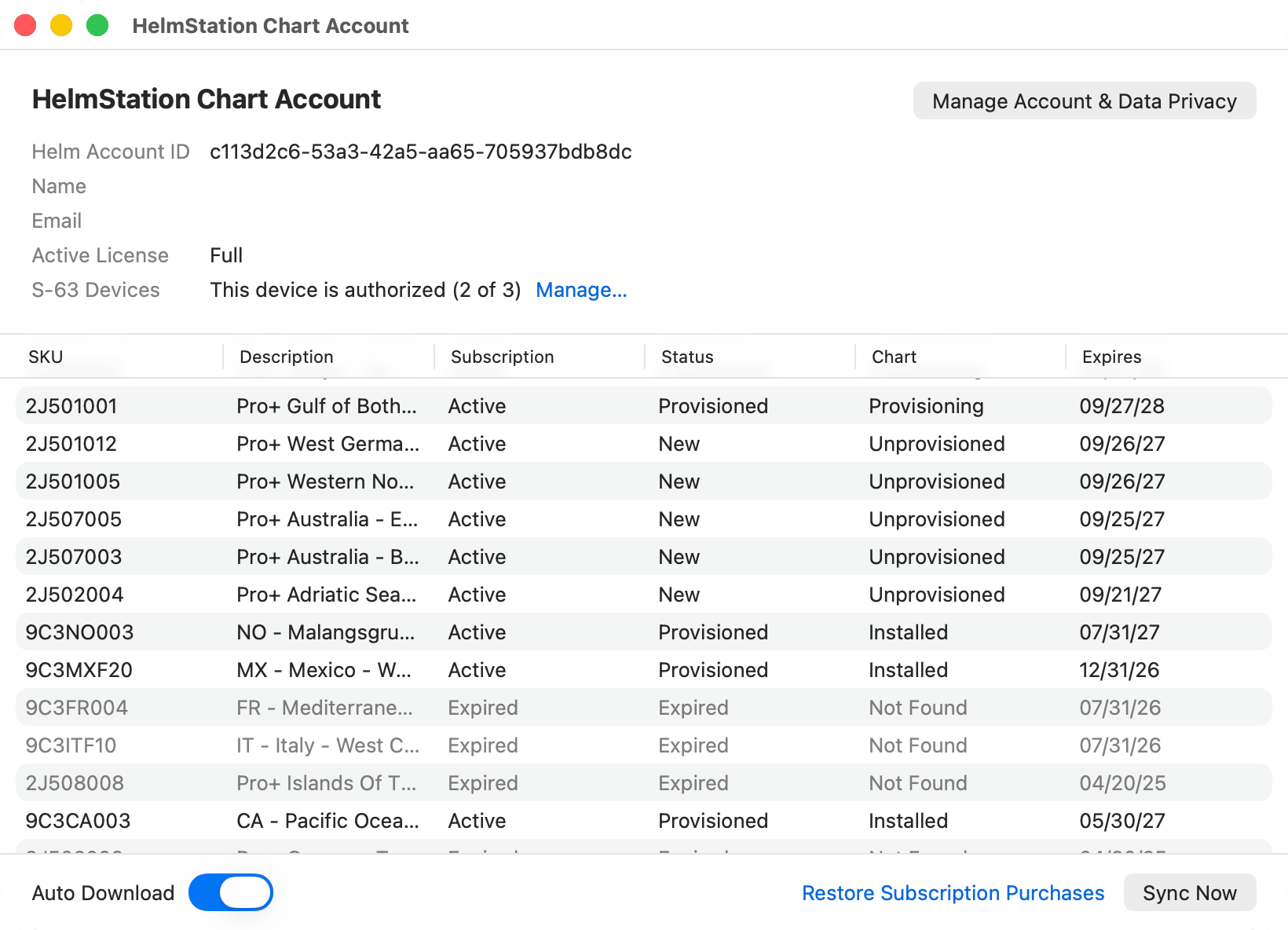
File > HelmStation Chart Account (⌘N) shows your HelmStation account and every chart subscription on it, with how far each one has got in delivery. Use it to check that charts you bought have arrived, to download charts when you choose, and to restore subscriptions that are missing.
Account details
The top of the window shows:
- Helm Account ID, your HelmStation account’s identifier. You can select and copy it, for example to quote it to support.
- Name and Email, as held for your account.
- Active License. See Trial and License.
- S-63 Devices, which says whether this Mac is authorized for S-63 charts: for example “This device is authorized (2 of 3)”, or, in orange, “This device is not authorized (3 of 3 in use)”. Manage… opens the Authorized Devices list. See Devices and New Macs.
Manage Account & Data Privacy, at the top right, is where you change your name and email, request refunds, manage your Macs and delete your account. See Your HelmStation Account.
The subscriptions table
The table lists one row per chart subscription, including ones that have expired, been refunded or been revoked. Those rows are grayed out.
| Column | Shows |
|---|---|
| SKU | The chart’s product code, as in the HelmStation Store |
| Description | The chart’s name |
| Subscription | Apple’s status for the subscription |
| Status | HelmStation’s delivery of the charts to your account |
| Chart | Whether the charts are on this Mac |
| Expires | When the current term ends, as month/day/year |
Subscription
| Value | Meaning |
|---|---|
| Active | The subscription is current. |
| Expired | The term has ended. The charts stay on your Macs but no longer update. See Expired Charts. |
| Billing Issue | Apple couldn’t take the renewal payment and is retrying. Your charts aren’t treated as expired meanwhile. Check the payment method for your Apple Account. |
| Refunded | Apple refunded the subscription. Its charts are removed from your Macs. |
| Revoked | Apple withdrew the subscription. Its charts are removed from your Macs. |
Status
| Value | Meaning |
|---|---|
| New | Your purchase has arrived and the charts are being prepared for your account. |
| Renewed | A renewal has arrived and the updated charts are being prepared. |
| Provisioned | The charts are ready for your account and can download to your authorized Macs. |
| Expired | The update service has ended. |
Chart
| Value | Meaning |
|---|---|
| Unprovisioned | The charts aren’t ready yet, so there is nothing to download. |
| Provisioning | The latest charts are waiting to download to this Mac, or are downloading. |
| Installed | The latest charts you are entitled to are on this Mac. |
| Not Found | The subscription has expired and its charts aren’t on this Mac. |
| — | Not tracked here. NOAA Chart Service rows always show this: manage NOAA charts in File > NOAA Charts. See NOAA Chart Service. |
Downloading charts
HelmStation brings your HelmStation Store charts up to date at two moments: when it opens, and when you click Sync Now. Leaving HelmStation running doesn’t refresh your charts.
Auto Download, at the bottom left, is on unless you turn it off. While it’s on, HelmStation downloads new and updated charts each time it opens; while it’s off, it waits for you to click Sync Now. Turn it off if you’d rather choose when to download, for example on a slow or metered connection.
Sync Now checks your subscriptions with our servers and downloads new and updated charts straight away, whether or not Auto Download is on. While it works, “Syncing… this can take a few minutes.” appears beside the button, and the table refreshes when it’s done. Sync Now also finishes any Non-Renew purchase that hadn’t yet been confirmed with our servers.
This window’s Auto Download and Sync Now cover HelmStation Store charts only. NOAA charts have their own Auto Download switch and Sync button in File > NOAA Charts, so you can let one kind of chart download automatically and not the other. See NOAA Chart Service.
S-63 charts download only to a Mac that is authorized for them.
Restore Subscription Purchases
Use Restore Subscription Purchases when an active subscription shows in your Apple Account but not in this window. It finds only active subscriptions. “Restoring subscriptions…” appears while it works, then the result appears below the account details.
| Message | What it means |
|---|---|
| “1 subscription restored. Your charts are being updated.” (or the number restored) | Missing subscriptions were added. HelmStation starts downloading them, as Sync Now does. |
| “Everything is up to date. None of your subscriptions needed restoring.” | Nothing was missing. |
| “No active subscriptions were found for this Apple Account.” | Apple has no active HelmStation subscriptions for this Apple Account. Check that you’re signed in with the Apple Account you bought them with. |
| “Your subscriptions could not be restored to this account.” | Contact support. |
| “Couldn’t reach the server to restore.” | Check your internet connection and try again. |
| “Restore failed. Please try again.” | Try again. |
| “Can’t sync yet — account isn’t fully set up.” | HelmStation hasn’t finished setting up your account on this Mac. Quit and reopen HelmStation. If the message still appears after a second restart, contact support. |
Subscriptions from a deleted account
If every active subscription Apple finds belongs to a HelmStation account that has been deleted, the Subscriptions from a deleted account sheet appears. It lists those subscriptions with Apple’s reference for each. They can’t be restored or moved to your current account. Apple keeps billing for them until you cancel them in your App Store subscription settings; each stays active until the end of the term already paid for. The sheet appears each time you restore, until none of them is active. Click OK to close it.
If a chart seems stuck
- Check the S-63 Devices line. If this Mac isn’t authorized, its S-63 charts won’t download, and the Chart column stays at Provisioning. Click Manage… to authorize it, then click Sync Now to download its charts straight away.
- Status New or Renewed. Your charts are still being prepared. If they have been waiting more than 30 minutes, click Sync Now (or quit and reopen HelmStation): HelmStation then asks for them to be prepared again.
- Status Provisioned, Chart Provisioning. The charts are ready but not on this Mac yet. Click Sync Now.
- The subscription isn’t listed. Click Restore Subscription Purchases.
- Still stuck? Contact support and quote your account ID.