Help Docs
HelmStation Online Documentation
What the Chart Shows
HelmStation draws all your charts together, using the most detailed one available for each part of the view. For moving around the chart, see Using the Chart.
The charts in view
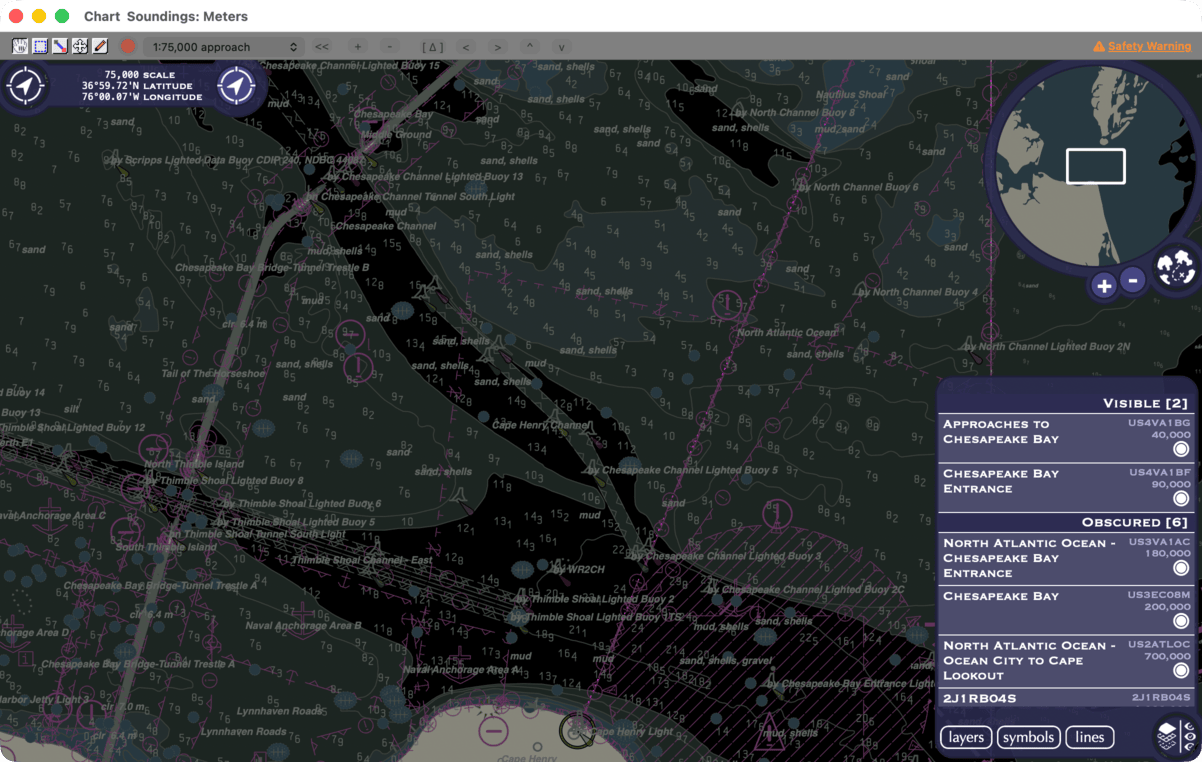
The panel at the bottom right of the chart has two pages, chosen with the layers and symbols buttons along its bottom edge. The round button in the corner  hides the panel or shows it again.
The layers page lists every chart that covers part of the window, with its title, cell name and scale. The charts are grouped by what they are doing, and the number in brackets, as in Visible [3], counts the charts in each group. The list updates when you stop moving the chart.
| Group | What it means |
|---|---|
| Visible | The chart is drawn, at least in part. |
| Obscured | The chart is loaded, but more detailed charts cover all of it in this view. |
| Miniscule | The chart covers too small an area to draw at this scale. Zoom in to see it. |
| Loading | HelmStation is loading the chart. It appears when loading finishes. |
| Unavailable | HelmStation can’t open charts right now, for example while starting up or without access to your Documents folder. |
| Corrupted | HelmStation can’t read the chart’s file: it is missing or damaged. |
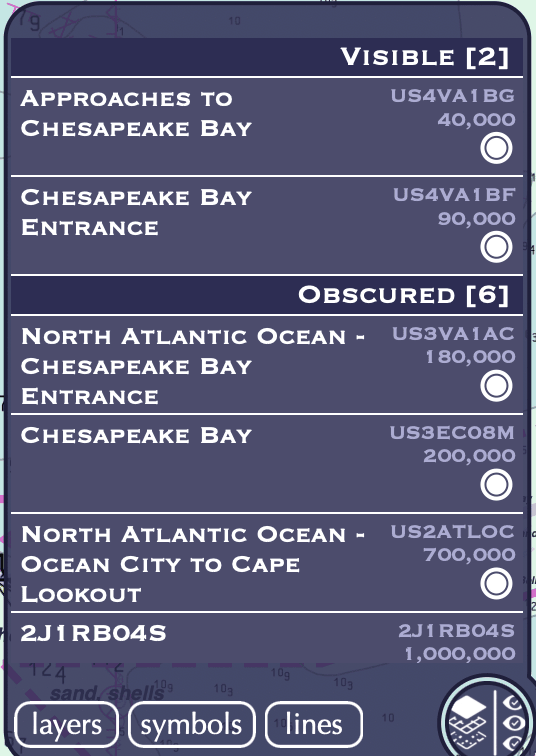
- Click a chart’s row in Visible or Obscured and its area flashes on the chart.
- Hide a chart with the round button at the right of its row
 : filled means shown, empty means hidden. A hidden chart stays in the list so you can show it again. To hide a whole catalog, turn off its Show switch in File > Chart Manager. See Chart Manager and Third-Party ENCs.
Choosing the symbols
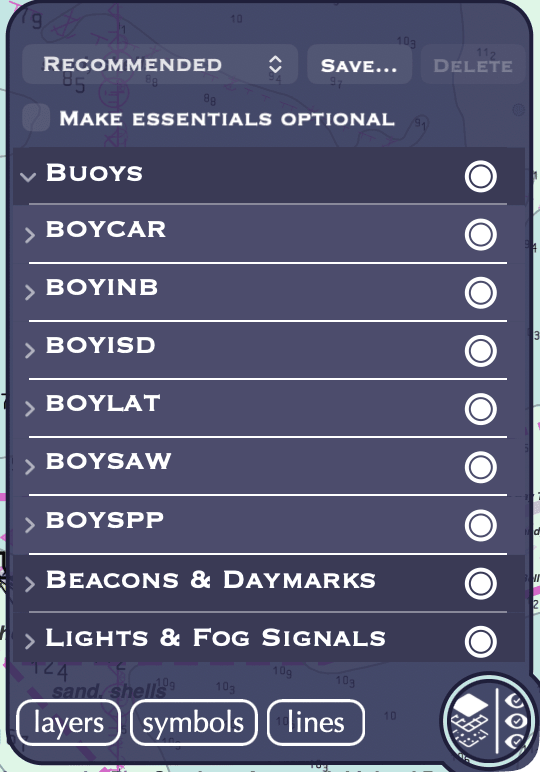
The symbols page chooses what is drawn. At the top are the preset menu and the Save… and Delete buttons, then Make essentials optional, then the list of symbol groups.
| Preset | What it shows |
|---|---|
| All | Every group. |
| Recommended | Every group except Charting & Reference, Pilotage & Services, Signals & Radar, Tidal Data, Waterways & Nature and Zones & Boundaries. HelmStation starts with this preset, and we recommend it for navigation. |
| Essential | A minimal set: the essentials (see below), plus Beacons & Daymarks, Lights & Fog Signals and Obstructions & Hazards. Use it as a clean starting point: turn on the groups you want, then save the result as your own preset. |
| Skin of Earth | Land and water areas only, with no symbols. It is in the menu only while Make essentials optional is on. |
The groups are Buoys, Beacons & Daymarks, Lights & Fog Signals, Signals & Radar, Depths & Seabed, Obstructions & Hazards, Traffic & Routes, Pilotage & Services, Anchorage & Regulated Areas, Zones & Boundaries, Ports & Harbours, Land & Landmarks, Coastline & Shore, Structures, Cables & Pipelines, Waterways & Nature, Charting & Reference and Tidal Data.
Each row has a round button at its right: filled when all of it is shown, faint when some of it is, empty when none of it is. Click it to turn the row on or off. Open a group to see its object types, listed by their six-letter chart codes such as BOYLAT; hold the pointer over a code for its name, such as “Lateral Buoy”. Open an object type to see its symbols and turn single symbols on or off. Any change makes the preset menu show Custom.
Your own presets. To keep a combination, click Save…, enter a name and click Save. It appears at the bottom of the preset menu. To delete one of your presets, choose it, click Delete and confirm. The built-in presets can’t be deleted.
Essentials. Some features are always drawn and aren’t in the list, such as the coastline, shoreline constructions, bridges, overhead cables and pipelines, obstructions, offshore platforms, dams, locks and gates. To be able to turn them off, select Make essentials optional, then click Include when HelmStation asks “Include base symbols?”. The essentials appear in their groups, and Skin of Earth joins the preset menu. Deselect it to show every essential again. Land and water areas are drawn under every preset.
Finding out about an object
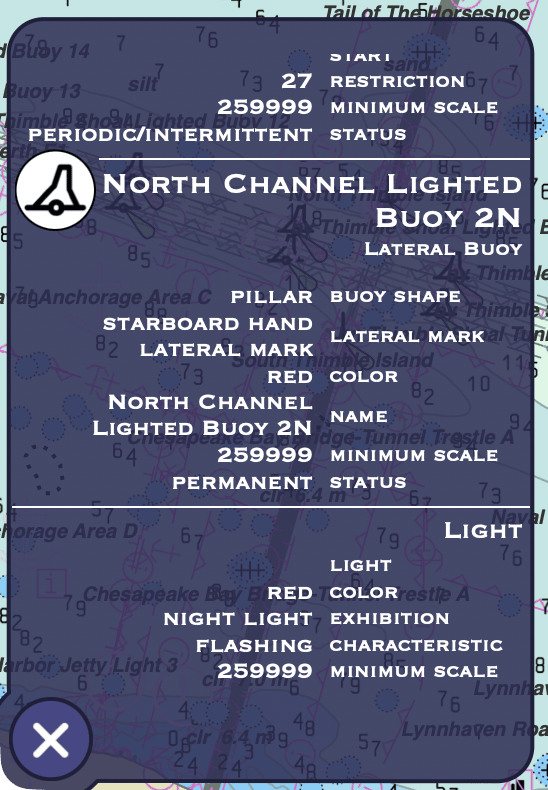
In “Grab Move Mode”, click an object on the chart, such as a buoy, light or wreck. A panel at the bottom left lists every object at that spot, named ones first, each with its symbol, name, type and properties. Click another object to see its details instead.
- Notes. Some objects carry a longer written note. Click notes to read it in a wider panel beside the details.
- Turning a type of object off. Click an object’s symbol in the panel to stop drawing that type of object. The symbol dims; click again to undo. An essential can’t be turned off this way unless Make essentials optional is on; HelmStation shows “Essential” instead.
- Closing. Click the round × button at the bottom left of the panel
 . It closes the notes too.
View > Objects > Double Click For Info makes the details open on a double-click instead of a single click, so a click while you pan doesn’t open them. Once the panel is open, a single click still changes what it shows. HelmStation remembers the setting.
View menu options
- View > Simplified Symbols draws the simplified style of point symbols, such as buoys and beacons, instead of the traditional paper-chart style. It is available once you have charts in Chart Manager.
- View > Annotation shows or hides the lines you have drawn. See Measuring and Annotating.
- View > Bounds outlines the area of each chart, with the chart’s title inside it at scales closer than 1:2,500,000.
- View > Objects > Reduce Numeric Text hides short labels beside some objects, such as buoy and beacon names, clearances under bridges and cables, and current speeds. They are still in the object’s details. HelmStation remembers the setting.
The last two commands in View > Objects are maintenance, for a chart that doesn’t draw as it should:
- Resync Chart Cache rebuilds HelmStation’s stored outlines of all your charts, then redraws the chart.
- Re-scan Chart Cell Scales in View reloads the charts in view whose scale wasn’t recorded when they were first loaded.
Low Light
View > Low Light (⌘L) switches the chart to its night colors and darkens the toolbar and the data fields of windows such as GPS and Instruments, for use at night. Choose it again for daylight colors. HelmStation remembers the setting.
Shading by your safety depth
To shade the water to suit your boat, choose HelmStation > Vessel Settings….
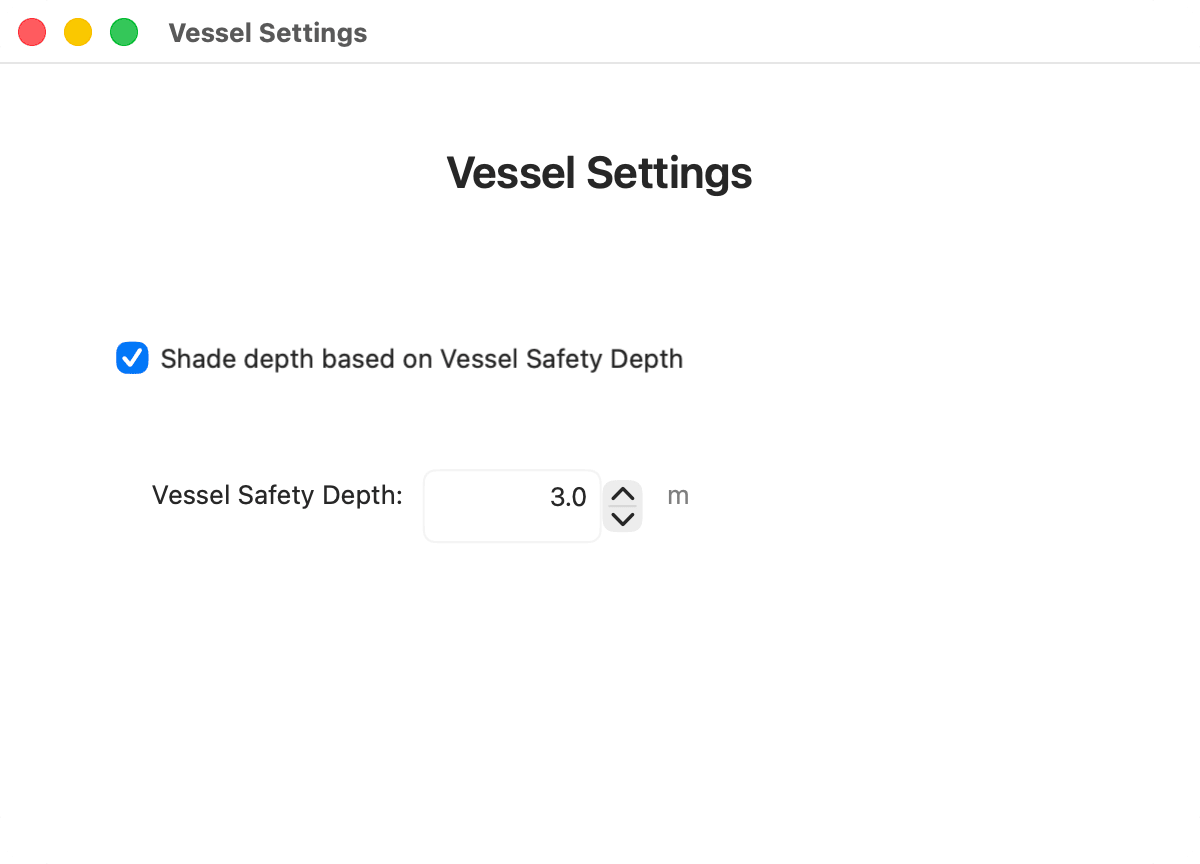
- Shade depth based on Vessel Safety Depth turns the shading on. While it’s off, HelmStation uses its standard shading.
- Vessel Safety Depth is the depth you need: your draft plus the clearance you want under the keel. It is in the depth units chosen in the Units group of Settings (ft, m or ftm), starts at 3 m (9.8 ft) and goes up to 100 ft (30 m, 17 ftm). Type it or use the arrows. It is available only while the shading is on.
Your changes take effect when you close the window. With the shading on, the chart changes as follows:
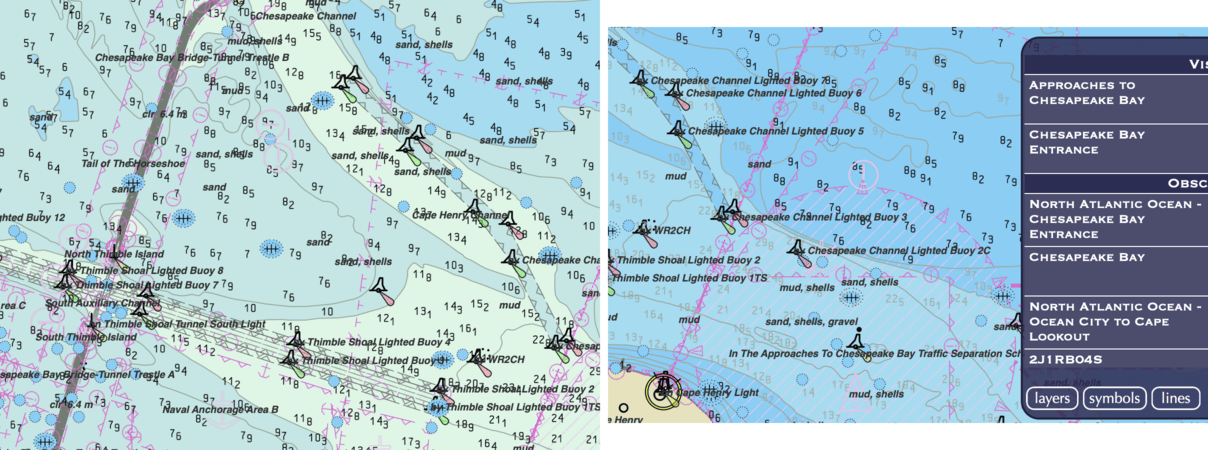
- Water shallower than your safety depth gets the shallowest shade. Deeper water changes shade again at each of the next two standard depths.
- Soundings at or shallower than your safety depth are drawn to stand out from deeper ones.
- A wreck with a known depth at or shallower than your safety depth shows the isolated danger symbol.
For all three, HelmStation uses the first charted depth contour at or deeper than your safety depth: 1, 2, 3, 5, 10, 20, 50 or 100 fathoms (6, 12, 18, 30, 60, 120, 300 or 600 ft). For example, a safety depth of 2.5 m (8.2 ft) uses the 2-fathom contour (12 ft, 3.7 m). A depth area is shaded as unsafe if any part of it is shallower than that contour, and deeper water is shaded in two further steps, at the next two contours.
Expired charts
While expired charts are showing in the view, a yellow caution triangle appears at the top left of the chart, just right of the scale and position readout. Hold the pointer over it to see “Expired charts are in view — their updates have stopped. Click to highlight them.” Click it and the expired charts in view flash yellow. The layers page marks them with a yellow triangle too. Expired charts are not safe to navigate by. See Expired Charts.