Help Docs
HelmStation Online Documentation
Network Connections
Many boats share NMEA 0183 data over Wi-Fi or Ethernet, through a network multiplexer or an NMEA 2000 gateway. HelmStation can receive that data, pass the data from your serial devices on to other apps on the network, and send steering sentences to an autopilot. For serial connections and the GPS, Instruments and AIS windows, see Connecting Your Instruments.
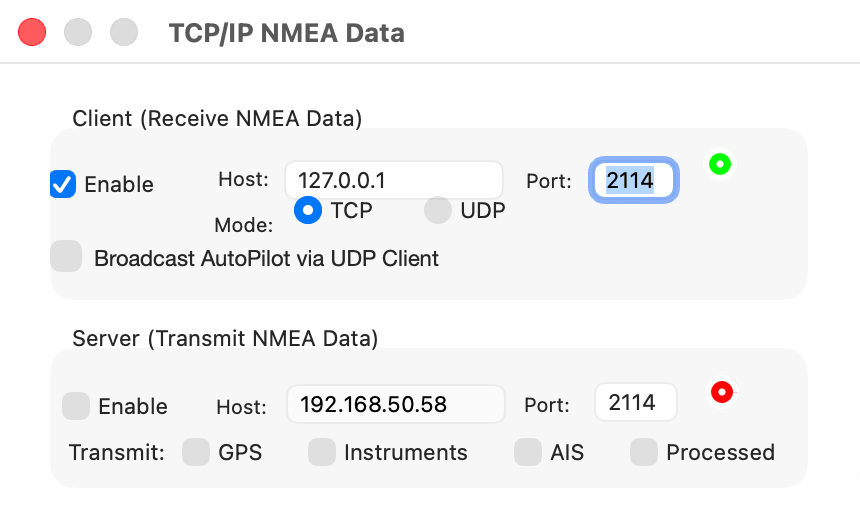
Choose GPS > TCP/IP to open the TCP/IP NMEA Data window. It has two boxes: Client (Receive NMEA Data) and Server (Transmit NMEA Data). Closing the window leaves both running.
Allowing local network access
On macOS Sequoia 15 or later, the first time HelmStation connects over the network, macOS asks whether HelmStation may find and connect to devices on your local network. Click Allow. Without this permission, the client can’t receive data and the server can’t send it.
If you clicked Don’t Allow, open System Settings, choose Privacy & Security > Local Network, and turn on HelmStation. You don’t need to change the macOS firewall settings.
Receiving data
The Client (Receive NMEA Data) box connects HelmStation to your network device. Its manual or setup app gives the address, port and protocol to use.
- Mode sets the protocol. TCP connects to the device at Host and Port. UDP receives the data the device sends or broadcasts to Port; Host is dimmed.
- Host is the device’s IP address or name. It starts with your Mac’s own address.
- Port is the device’s port number. It starts at 2114.
- Turn on Enable to connect.
The status light is yellow while HelmStation waits for the device, green once it’s connected (TCP) or data arrives (UDP), and red while the client is off.
If HelmStation can’t start the connection, it shows “Failed to connect”. Enable turns itself off if a TCP device doesn’t answer within 30 seconds, if no UDP data arrives within 90 seconds, or if the device closes the connection. Editing Host or Port, or changing Mode, also turns it off; turn it on again when you’re done.
HelmStation doesn’t turn the client on when it opens. Turn on Enable each time.
Where received data goes
Everything the client receives goes to the GPS window, as if it had arrived on the GPS window’s own port. To get instrument and AIS data from the same stream, turn on Use GPS Port in the Instruments and AIS windows’ settings drawers (both start with it on). See Sharing one port.
In the GPS window’s settings drawer, set Type to TCP/IP Network. Port and Rate are then dimmed, and HelmStation doesn’t open a serial port for the GPS. Once the client is receiving, choose GPS > Connect (⌘G) to open the GPS window, and use its Monitor to watch the sentences arrive. See Checking that data is arriving.
Sending data to other apps
The Server (Transmit NMEA Data) box lets other apps and devices on your network connect to HelmStation and receive the NMEA data arriving on the GPS, Instruments and AIS windows’ ports.
- Host shows your Mac’s network address, to enter in the other app. It reads “unknown” if the Mac has none.
- Port is the port the other app connects to. It starts at 2114.
- Transmit has GPS, Instruments and AIS boxes, all on at first. Each sends the sentences arriving on that window’s own port. Data that the Instruments or AIS window reads through Use GPS Port goes out with GPS. Data received by the client isn’t sent on.
- With Processed off, every sentence is sent. With it on, only the sentence types the window reads are sent (see What differs by window).
- Turn on Enable to start the server. If HelmStation can’t start it, it shows “Failed to connect”.
The status light is red while the server is off. It turns yellow while the server is running, and green once another app is connected and a Transmit box is on. The number beside it counts the connected apps.
If Enable is on when you quit, the server starts again the next time you open HelmStation. Editing Port turns it off.
While you follow a Goto with GPS on, the server sends HelmStation’s steering sentences (see below) in place of the GPS’s own. Along a route, it also sends the route’s waypoints (WPL) and the route itself (RTE).
Steering an autopilot
While you follow a Goto started in HelmStation, to a waypoint or along a route, HelmStation can send steering sentences to your autopilot. About every two seconds, while data is arriving on the GPS connection, it sends XTE, VTG, BOD, WPL, BWC, RMB and APB sentences for the Goto waypoint, with the talker ID GP. VTG is sent only while the GPS reports both speed and course. See Waypoints and Routes.
The sentences sent to the autopilot also appear in the GPS window’s monitor.
Over a serial port
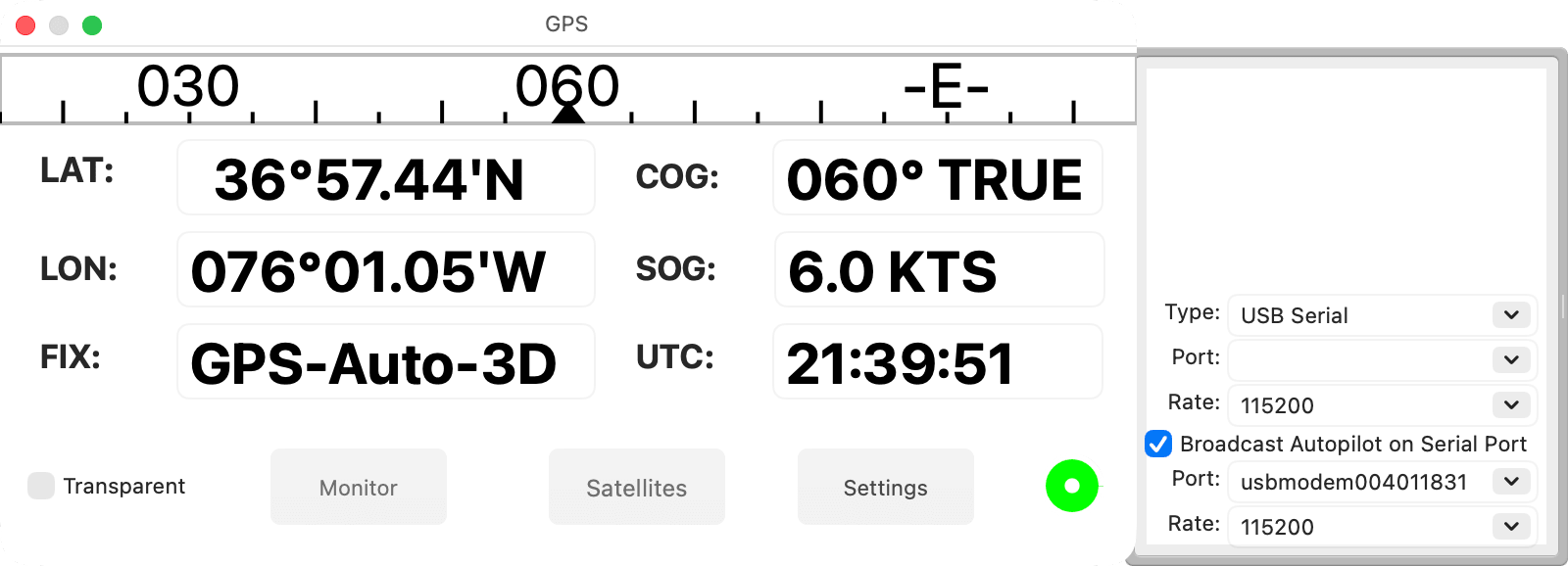
In the GPS window’s settings drawer, turn on Broadcast Autopilot on Serial Port, then choose the Port and Rate below it for your autopilot. HelmStation opens that port when the GPS connects, and closes it when the GPS disconnects. If you choose the port the GPS or Instruments window already has open, HelmStation sends through that connection at its rate, and Rate is dimmed.
Over the network
Broadcast AutoPilot via UDP Client, in the client box, sends the same sentences as a UDP broadcast to your network, on the client’s Port. It needs the UDP client: set Mode to UDP and turn on Enable first, or HelmStation shows “UDP Client must be enabled first”. Broadcasting pauses whenever the UDP client is off.