Help Docs
HelmStation Online Documentation
Measuring and Annotating
HelmStation can measure the bearing, distance and time to go between two points on the chart, and lets you draw your own lines on it. Both are modes of the chart window’s toolbar.
Chart modes
The five buttons at the left of the toolbar, along the top of the chart window, set what dragging on the chart does. They have no labels: hold the pointer over one to see its name.
- To measure, click the third button, “Measure Line Mode”
 .
. - To draw, click the fifth button, “Annotation Pen Mode”
 .
. - To go back to panning the chart, click the first button, “Grab Move Mode”
 . HelmStation always opens in this mode.
To pan briefly without leaving a mode, hold down Space while you drag.
Measuring
Click “Measure Line Mode”, then drag on the chart. HelmStation draws a blue line from a green dot, where the measurement starts, to a red dot at the pointer. A readout beside the pointer shows the result. Both clear when you let go of the mouse button.
Where the line starts depends on how you drag:
| How you drag | The line starts at |
|---|---|
| Drag | Your boat, whenever HelmStation has a position from your GPS. Otherwise, where you press, or the waypoint you press on |
| ⌘-drag | Where you press, or the waypoint you press on |
| ⌥-drag | The waypoint selected in the Waypoints window |
The end of the line jumps onto any waypoint under the pointer. Hold ⇧ while you drag to see the reciprocal bearing, from the end of the line back to its start.
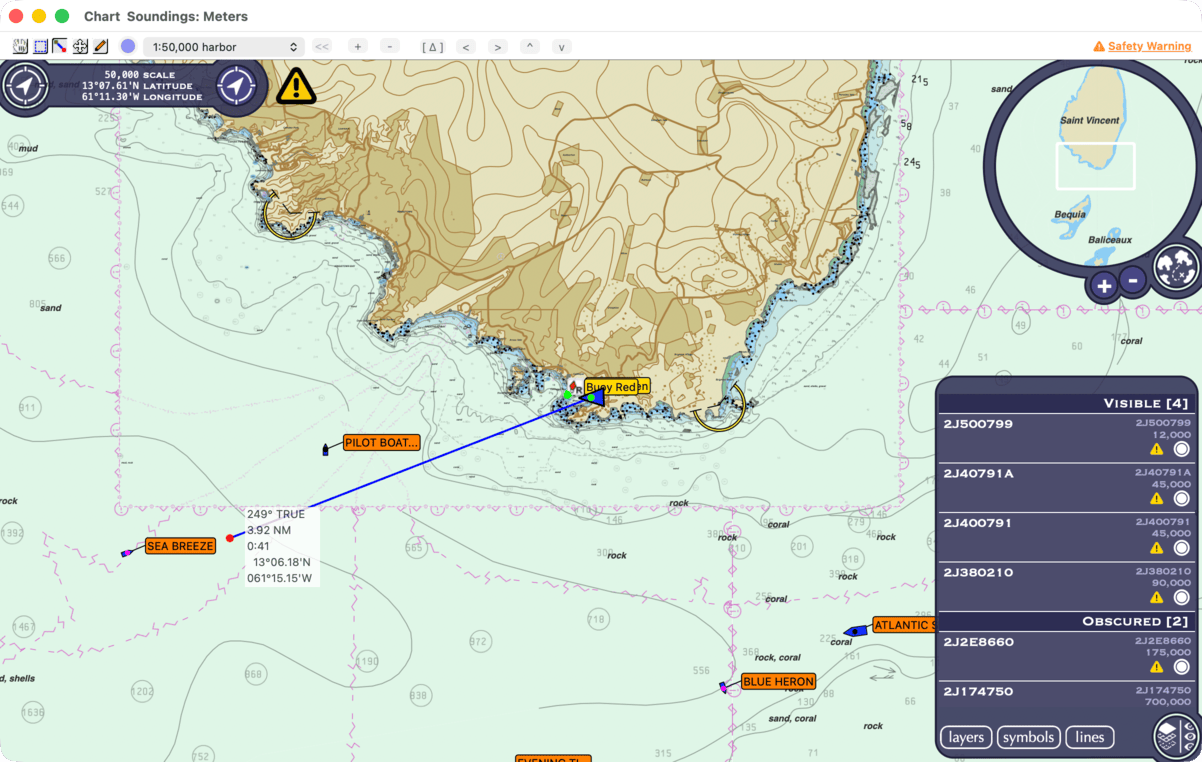
The readout
The readout has no labels. From the top, it shows:
- the bearing from the start of the line to its end.
- the distance.
- the time to go.
- the latitude and longitude of the end of the line.
Bearing. It is given in degrees, followed by TRUE or MAG to tell you which it is. With View > True Bearings on, bearings are true. With it off, HelmStation applies the magnetic variation, which it takes from your GPS unless you set it yourself with Manual in the Variation group of Settings.
Distance and position. These use the units you choose with Select… in the Units group of Settings. With Nautical Miles/Yards or Nautical Miles/Meters, distances under 1 NM show in yards or meters. See Settings.
Time to go. This is how long you would take to reach the end of the line at your current velocity made good (VMG) towards it, from your GPS speed and course over ground. It shows hours and minutes, for example 1:35, and only when the line starts at your boat. Otherwise, or when you are stopped or heading away, it reads —.
When you aren’t dragging, in Measure and Annotate modes the readout shows just the latitude and longitude of the pointer, or of the waypoint under it.
Adding a waypoint
In Measure mode, double-click where there is no waypoint to create one there. It is also added to the current route if Add new Waypoint to current Route automatically is on in the Other group of Settings (on unless you change it), or if you hold ⌘ as you double-click. See Waypoints and Routes.
Annotating
Click “Annotation Pen Mode”. The scale menu in the toolbar is replaced by a menu with Point and Line, and the color well just right of the mode buttons (“Annotate color”) becomes available. If annotations are hidden, HelmStation turns View > Annotation back on.
- Point draws freehand: the pen follows the pointer for as long as you drag.
- Line draws a straight line from where you press to where you let go.
A click without dragging draws nothing. HelmStation starts with Point each time it opens.
To change color, click the color well and pick one in the Colors window before you draw. Each annotation keeps the color it was drawn in, and HelmStation remembers your choice.
Annotations are lines only, with no text or symbol. Each stays fixed to its place on the chart as you pan and zoom.

Deleting an annotation
In Annotate mode, point at the middle of an annotation; for a large one, point at the center of the area it covers, not at the line itself. It turns dashed to show it is selected. Then press Delete, or Control-click and choose Delete. There is no confirmation and no undo.
An annotation can’t be moved, reshaped or recolored. Delete it and draw it again.
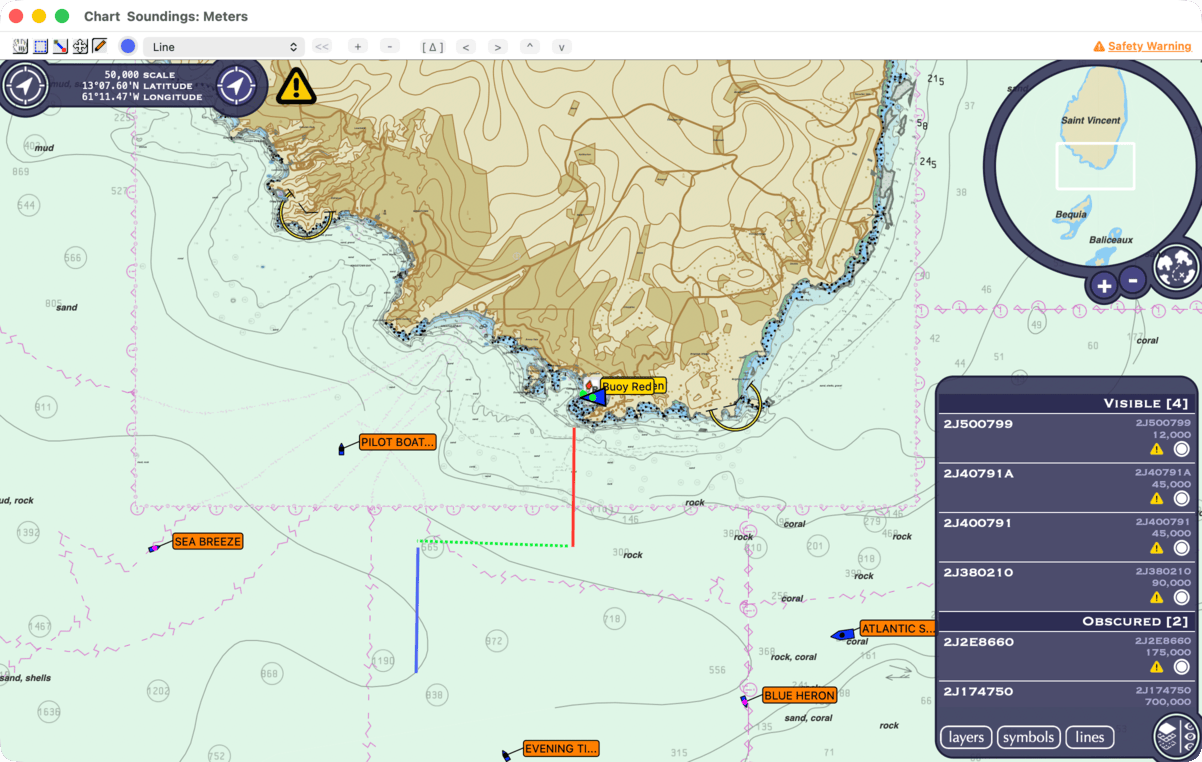
Making a route from an annotation
To turn a sketch into waypoints, select a route in the Routes window, then select the annotation, Control-click and choose Add to Route. HelmStation places waypoints where the annotation bends and adds them to the end of that route, in the “Imported” group of the Waypoints window. See Routes.
Showing, hiding and deleting all
View > Annotation shows or hides all annotations. Hidden annotations can’t be selected.
To delete every annotation, choose HelmStation > Settings… (⌘,) and click Delete All in the Annotation group. HelmStation asks “Delete all annotation?”. Click Delete to remove them all, or Don’t Delete to keep them. This can’t be undone.
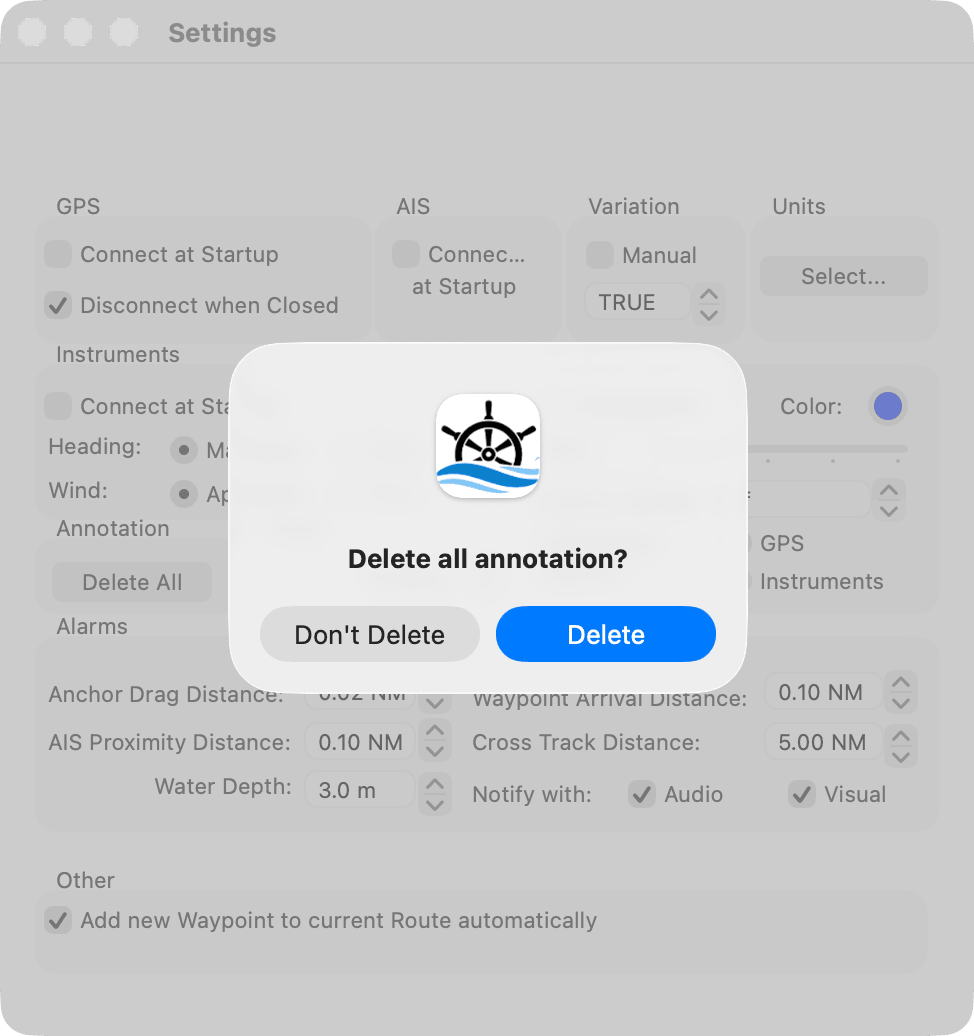
Where annotations are kept
- On this Mac. Annotations stay on the Mac where you drew them. They aren’t part of your HelmStation account, and there is no way to save them to a file. HelmStation saves them when you quit it, so annotations drawn since it opened are lost if it’s forced to quit or the Mac loses power.
- From MacENCx64. If you moved from MacENCx64, HelmStation brought your annotations across with the rest of your data.
- Support data. Your annotations are included if you click Upload support data in Help > Contact Support.