Help Docs
HelmStation Online Documentation
Routes
A route is an ordered list of your waypoints. Follow a route with a Goto and HelmStation takes you from one waypoint to the next. A route uses the same waypoints as the Waypoints window: move or rename a waypoint and every route that uses it changes too. See Waypoints.
The Routes menu
| Command | What it does |
|---|---|
| Open | Opens the Routes window |
| Show Selected | Shows the route selected in the Routes window on the chart |
| Save (⇧⌘S) | Saves your changes to routes |
| Invert | Reverses the order of the selected route |
| New From Track | Makes a route that follows your track |
| Auto Next | Moves on to the next waypoint when you reach each one |
| Transfer > Selected To File > CSV…, GPX… or KML… | Saves the selected route to a file |
| Transfer > From File… | Adds routes from a file |
The Routes window
Choose Routes > Open.
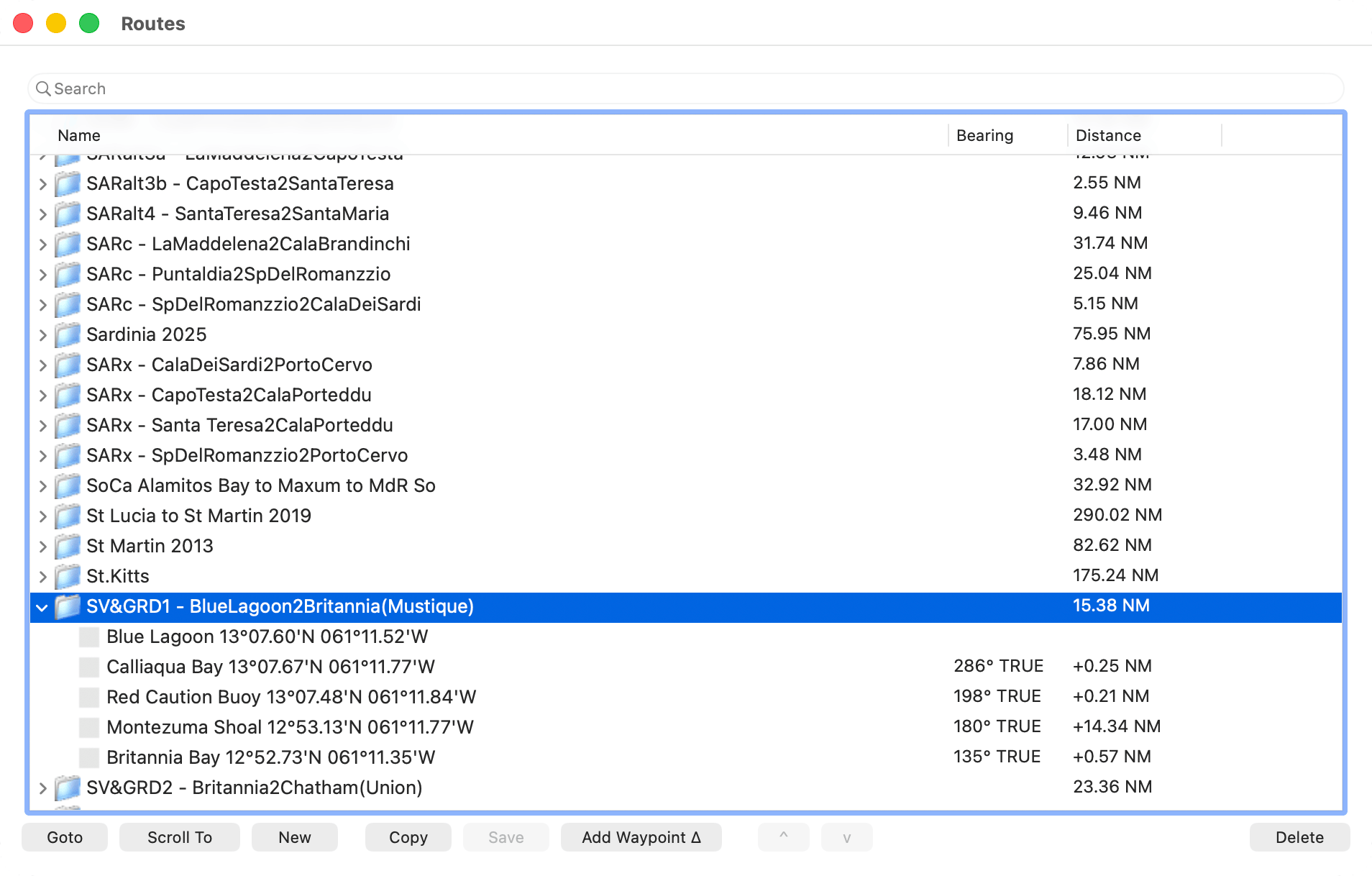
Each route is listed with a folder icon. Click the triangle beside it to see its waypoints in order, each with its icon, name, position and description. For each waypoint after the first, Bearing and Distance give the bearing and length of the leg from the previous waypoint. Beside the route’s name, Distance gives its total length. Click the Distance heading to show distances added up from the start of the route instead, and again to switch back.
New routes are named RT0001, RT0002 and so on. To rename a route, select it and click its name. Each name must be unique. Type in the search field to list only the routes whose names match, or that include a waypoint whose name or description matches.
Below the list are these buttons:
- New makes an empty route. Save saves your changes.
- Delete deletes the selected route, after asking “Delete route?” if it has waypoints. With a waypoint selected, Delete takes it out of the route, but it stays in the Waypoints window.
- Add Waypoint ∆ shows a menu of the waypoints listed in the Waypoints window. Choose one to add it at the end of the selected route, or after the selected waypoint.
- ^ and v move the selected waypoint up or down the route.
- Goto starts following the route (see below). It becomes Next while you do.
- Copy makes a copy of the selected route, named for example “RT0004 (Copy of: Harbor Run)”.
- Scroll To centers the chart on the selected waypoint, or on the route’s first waypoint.
To swap a waypoint in a route for another, double-click it and choose the replacement. You can also drag a waypoint from the Waypoints window to the Routes window: drop it on a route to add it at the end, or between two of the route’s waypoints to insert it there.
Building a route on the chart
- Control-click (or right-click) the chart and choose New > Route, or click New in the Routes window. The new route is selected in the Routes window.
- Add waypoints in the order you will sail them:
- Control-click where you want the next waypoint and choose New > Waypoint (in Route).
- Or click “Measure Line Mode”
 or “Waypoint Move Mode”
  in the chart toolbar, then double-click an empty spot on the chart.
 - To add a waypoint you already have, Control-click its name and choose Add to Route. Or, in one of those two modes, ⌘-double-click its name.
Each waypoint goes into the route selected in the Routes window: at the end, or after the route’s selected waypoint. If you have no routes yet, HelmStation starts one.
A double-click adds its new waypoint to the route only while Add new Waypoint to current Route automatically is on in the Other group of HelmStation > Settings… (⌘,). It is on unless you change it. Hold ⌘ as you double-click to add the waypoint whatever the setting.
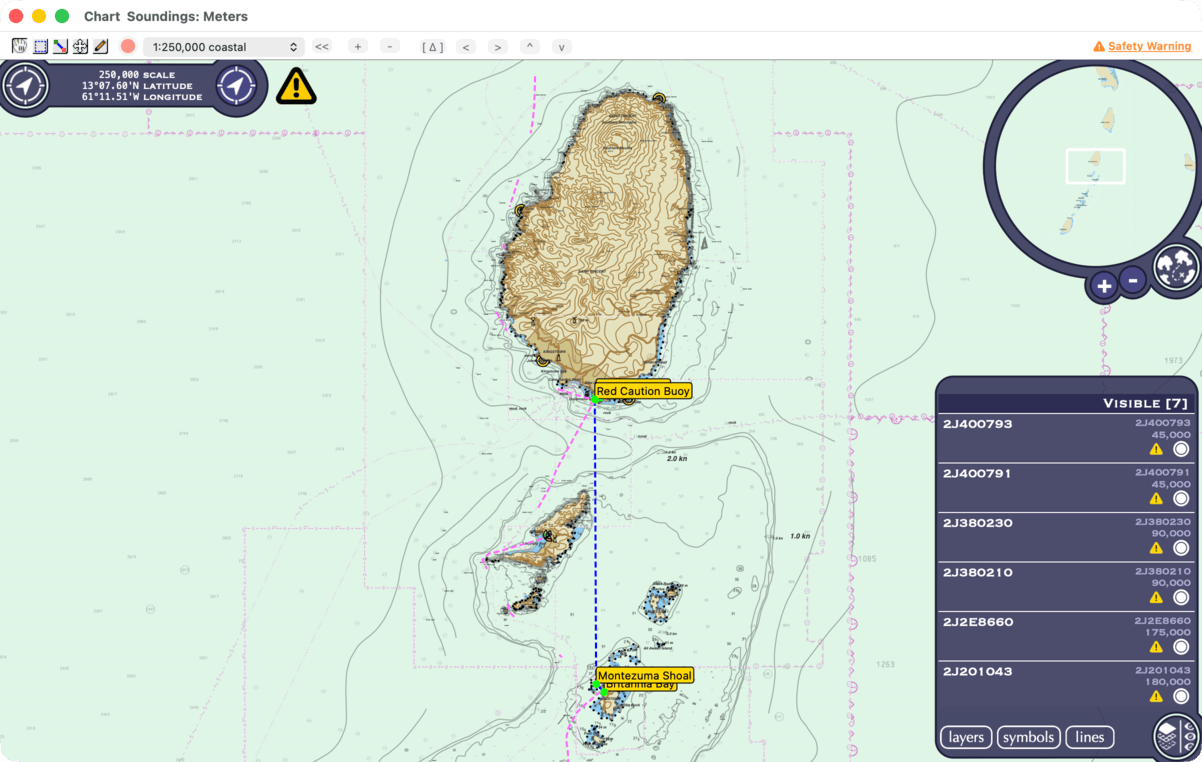
With Routes > Show Selected on, as it is to begin with, the route selected in the Routes window is drawn on the chart as a blue line, with all its waypoints. To reshape a route, move its waypoints with “Waypoint Move Mode”. To make a route from an annotation, see Measuring and Annotating.
Following a route
You need a position from your GPS, and the chart window must be open, not minimized. See GPS and Position.
Select a route in the Routes window and click Goto to head for its first waypoint, or select one of its waypoints to start there. HelmStation starts a Goto to that waypoint, as described in Waypoints, marks the route’s waypoints in red and turns on the Arrival Alarm. If there are more waypoints ahead, Routes > Auto Next is turned on for you.
Auto Next. When you come within the Waypoint Arrival Distance of the waypoint, or pass it, HelmStation moves the Goto on to the next waypoint and turns the Arrival Alarm on again. See Alarms. When the Goto moves to the last waypoint, Auto Next turns off, and the Goto stays on that waypoint until you end it.
Moving on yourself. Turn Routes > Auto Next off, then click Next in the Routes window each time you want to go on. With Auto Next on, Next skips the waypoint you are heading for.
The Route tab. While you follow a route, the Navigation window (Window > Navigation, ⇧⌘N) has a Route tab with the route’s name and waypoints: those you have passed in gray, the one you are heading for in red. For that waypoint and each one after it, Distance is how far it is from your boat along the route, and Time To Go how long that takes at your current velocity made good. Bearing is the bearing to the waypoint you are heading for, then of each later leg.
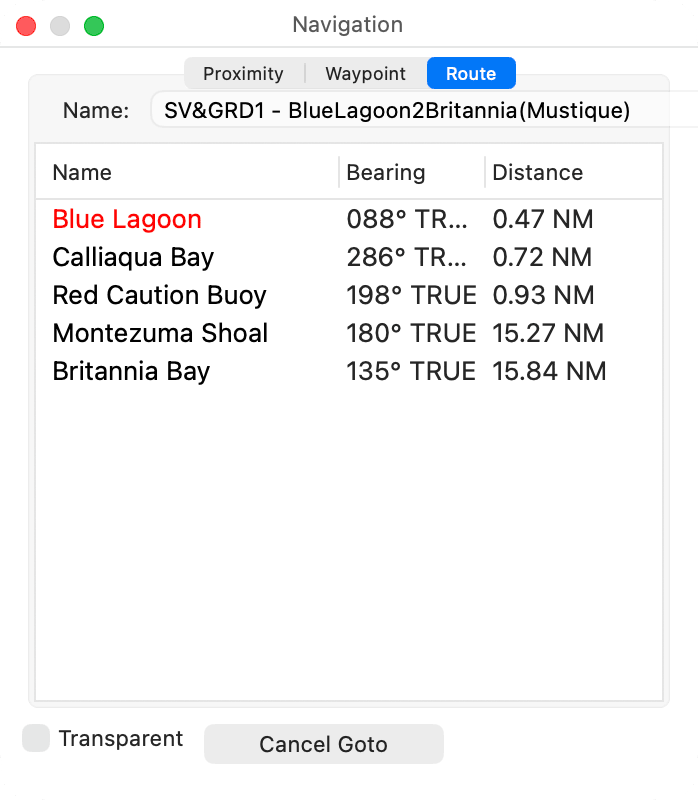
Ending. Click Cancel Goto in the Navigation window. While you follow a route, you can’t delete or rename it, or remove the waypoint you are heading for.
The Cross Track Alarm works one leg at a time; see Alarms. HelmStation can also send steering information to an autopilot as you move along the route; see Network Connections.
Inverting a route and making one from a track
Routes > Invert reverses the order of the selected route’s waypoints, for the passage home. The route needs at least two waypoints. To keep the original too, click Copy first and invert the copy.
Routes > New From Track makes a new route that follows your track. If you have selected two or more records in the Track window, it uses those; otherwise the whole track. HelmStation places waypoints at the start of the track and wherever it changes direction, and puts them in the Imported group of the Waypoints window. See Tracks.
Saving and files
Changes to routes are kept only when you save them: click Save in the Routes window or choose Routes > Save (⇧⌘S). If you quit with unsaved changes, HelmStation asks “Routes have changed. Save?”. Click Save or Don’t Save. A route with no waypoints isn’t saved. A route refers to its waypoints by name, so save new waypoints too (Waypoints > Save, ⌘S).
Saving to a file. Select a route, then choose Routes > Transfer > Selected To File and a format. The file is named after the route. See File Formats.
Adding from a file. Choose Routes > Transfer > From File…. From a GPX, KML or KMZ file, HelmStation adds the file’s routes with their waypoints, and any other waypoints it holds. From a CSV file, it makes a new route named after the file, with one waypoint per line, laid out as in a waypoints CSV file (see Waypoints). New waypoints go into the Imported group. A waypoint with the same name as one you already have moves yours to the position in the file, rather than adding a second one.
Where routes are kept. Routes stay on the Mac where you made them, not in your HelmStation account. To use them on another Mac, move them in files. If you moved from MacENCx64, HelmStation brought your routes across with the rest of your data. Routes are included if you click Upload support data in Help > Contact Support.