Help Docs
HelmStation Online Documentation
Tracks
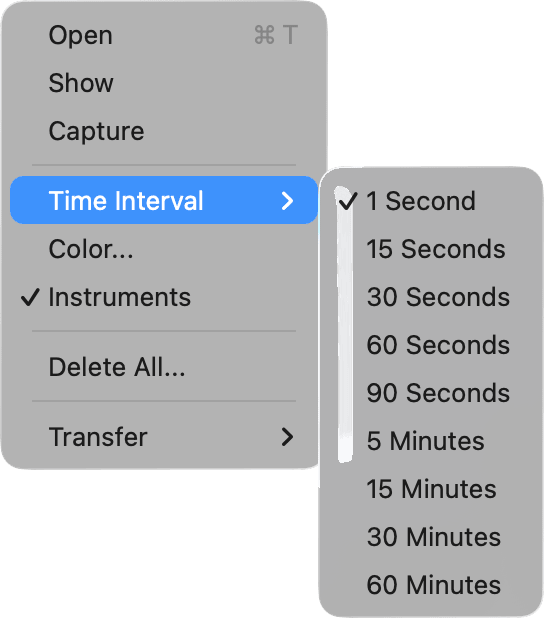
HelmStation can keep a record of where your boat has been. While Capture is on, it adds a track record at regular intervals, with the time, your position, your course and speed, and readings from your instruments. The records are listed in the Track window and drawn on the chart as a dashed line.
Recording a track
Choose Track > Capture. A checkmark shows while it’s on; choose it again to stop. Capture is available once HelmStation has a position from your GPS. Turning it on also turns on Track > Show, so you can watch the track grow. Capture stays on until you turn it off, including the next time you open HelmStation. See GPS and Position.
Each time your GPS reports a position, HelmStation adds a record if the time set in Track > Time Interval has passed since the last one. The choices are 1 Second, 15 Seconds, 30 Seconds, 60 Seconds, 90 Seconds, 5 Minutes, 15 Minutes, 30 Minutes and 60 Minutes. A checkmark shows the current one; it’s 60 Seconds until you change it. Like Capture, these are available once HelmStation has a GPS position.
If you choose 1 Second, HelmStation asks first: “Longer intervals work best (30 seconds or more). Shorter intervals can slow down the app.” Click OK to use it, or Cancel to keep the interval you had.
What a record holds
| Column | What it shows |
|---|---|
| Index | The record’s place in the list |
| Date | The date and time of the record, in your Mac’s local time |
| Latitude, Longitude | Your position from the GPS |
| COG, SOG | Course and speed over ground from the GPS |
| Notes | A note of your own |
Each record also holds the Heading, Speed, Depth, Temperature, WindAngle and WindSpeed from your instruments, when they are connected. Choose Track > Instruments to show these as extra columns in the Track window, and again to hide them. They are recorded either way. See Instruments.
How many records
HelmStation keeps your most recent 50,000 track records. Once the track is full, each new record removes the oldest one, so the track always holds the latest 50,000. At 60 Seconds that is about 35 days of continuous recording; at 1 Second, about 14 hours. To keep a passage before it rolls off, save it to a file (see Saving the track to a file).
Showing the track on the chart
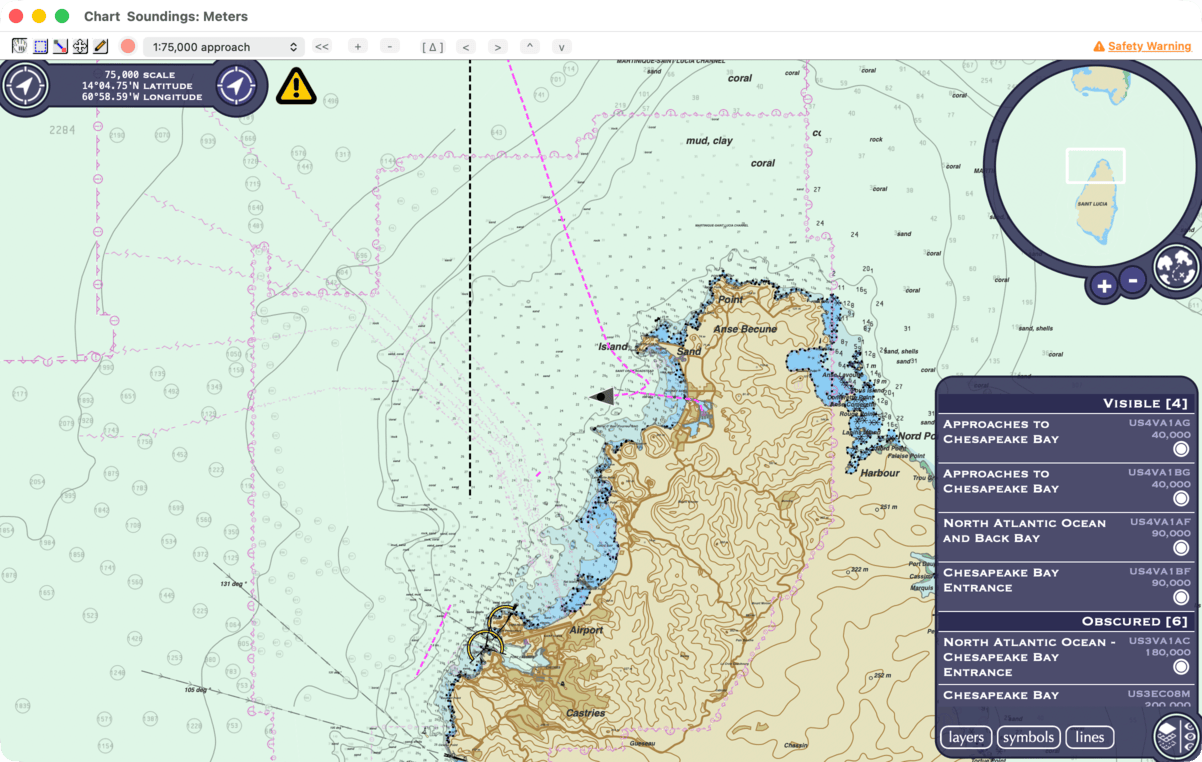
Track > Show draws the track on the chart as a dashed line; choose it again to hide it. It’s available while the chart window is open.
Track > Color… opens the Colors window. New records are drawn in the color you pick, and so are the records selected in the Track window. The track starts in black, and HelmStation remembers your choice.
Segments
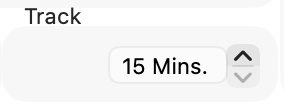
The track is drawn in segments, so that a break in recording isn’t bridged by a straight line. A new segment starts where two records are further apart in time than the setting in the Track group of Settings, and where the color changes. The Cumulative totals in the Track window leave out the gaps between segments.
To change the setting, choose HelmStation > Settings… (⌘,) and click the arrows beside the field in the Track group (“Start new track segment interval after minutes of non activity”). It goes from 15 Mins. to 165 Mins. in 15-minute steps, then Never, which doesn’t start a segment for a gap in time. It is 15 minutes until you change it. See Settings.
The Track window
Choose Track > Open (⌘T). The window lists your records in date order.
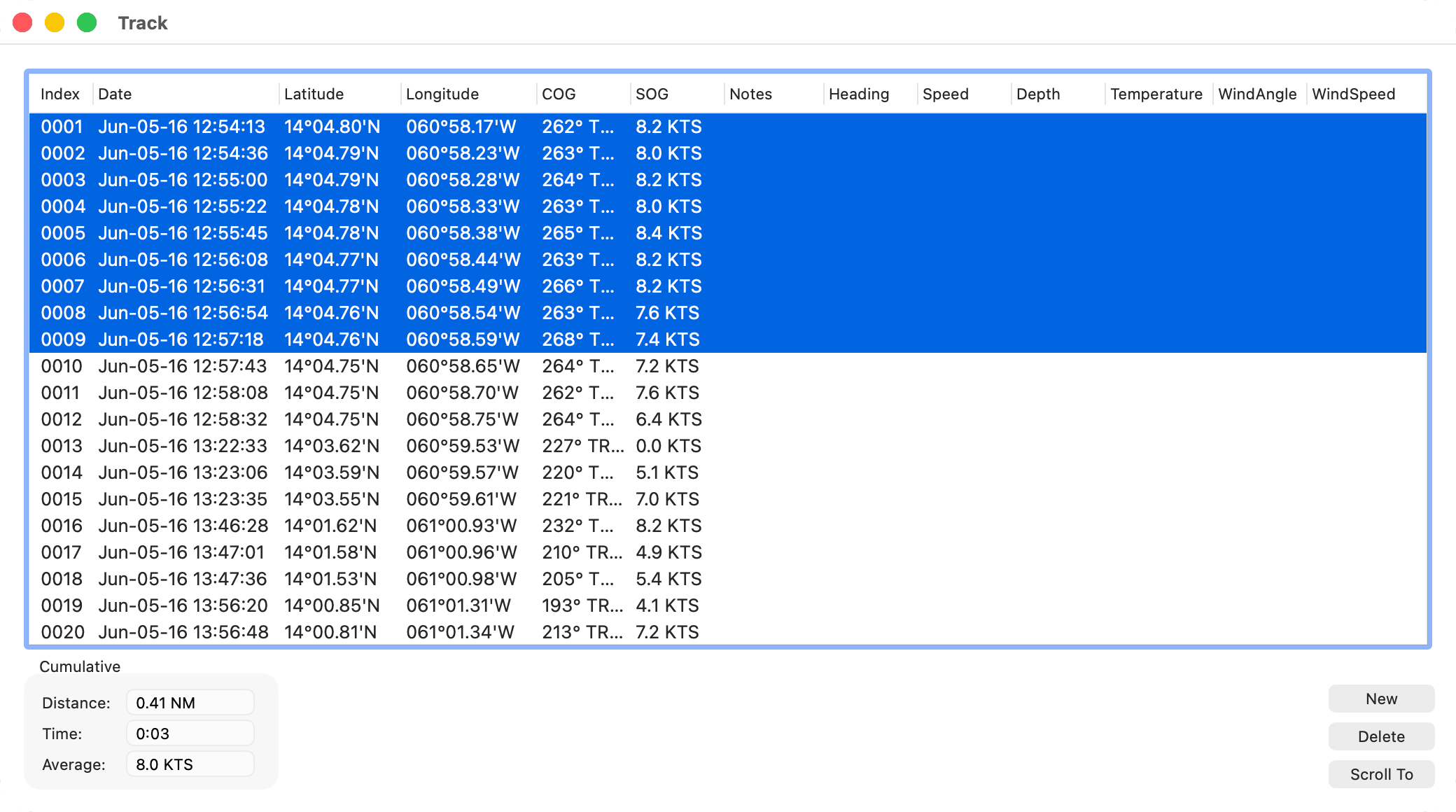
- Click a record to select it. With Track > Show on, HelmStation marks it on the chart with the position symbol, turned to the record’s course over ground. ⇧-click or ⌘-click to select more than one.
- Scroll To moves the chart to the selected record, and turns on Track > Show if it’s off. Double-clicking a record does the same.
- New records one point at your next GPS position. With Capture off, that adds a single record where you are; with Capture on, the next position is recorded without waiting for the interval. It doesn’t start a separate track. It’s available while HelmStation has a GPS position.
- Delete removes the selected records straight away, without asking.
- To add a note, double-click the record’s Notes cell, type, and press Return.
The Cumulative box shows the Distance, Time and Average speed of the whole track, or of the selected records when you select two or more. Time is in hours and minutes. Distance and speed use the units you chose with Select… in the Units group of Settings.
Selecting records on the chart
With Track > Show on, ⌘-click the track on the chart to select the nearest record within a quarter of a nautical mile. HelmStation brings the Track window forward and scrolls to that record. Then ⌘⇧-click another point on the track to select every record from the one already selected to the one you click, and the Cumulative box totals that stretch. A waypoint or AIS target under the pointer is selected instead of the track.
Deleting the track
To remove some records, select them in the Track window and click Delete.
To remove the whole track, choose Track > Delete All…. HelmStation opens the Track window and asks “Delete all track?”. Click Delete to remove every record, or Don’t Delete to keep them. This can’t be undone.
Making a route from a track
Choose Routes > New From Track to turn your track into a route. HelmStation creates a new route with waypoints where the track bends, and puts the waypoints in the “Imported” group of the Waypoints window. To use part of the track, select two or more records in the Track window first; otherwise the whole track is used. The item is available once the track has at least two records. See Routes and Waypoints.
How your track is kept
Each record is saved on your Mac the moment it’s recorded, and so is every change you make: deleting records, editing a note or changing the color. There’s nothing to save and nothing to lose when you quit.
Saving the track to a file
Track > Transfer > To File saves the whole track as CSV…, GPX… or KML…. HelmStation suggests a name with today’s date, such as TRACK_093026, and shows “Export complete” when it’s done. GPX and KML files keep the segments separate. These items are available when the track has records.
Track files are for keeping a record of a passage and for use in other apps. HelmStation doesn’t open track files: there is no track import. See File Formats.
Your track stays on the Mac where you recorded it; it isn’t part of your HelmStation account.