Help Docs
HelmStation Online Documentation
AIS Targets
AIS lets you see vessels around you that broadcast their identity, position, course and speed. HelmStation lists them in the AIS window and draws them on the chart. To connect your AIS receiver or transponder, see Connecting Your Instruments.
HelmStation needs your own position, from your GPS, to give each vessel’s bearing and distance and to warn you when one comes close. See GPS and Position.
The AIS window
Choose AIS > Connect to open the AIS window. It lists every vessel HelmStation receives, nearest first while HelmStation has your position, otherwise by name.
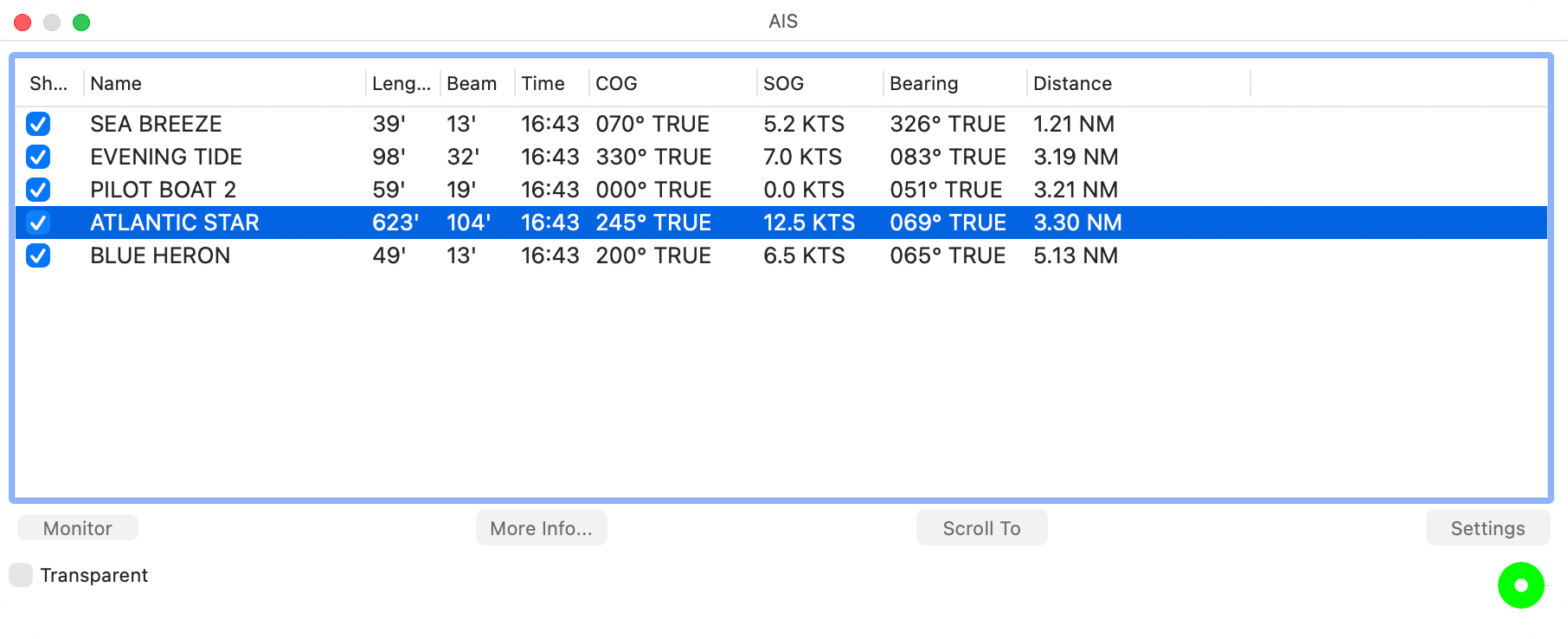
| Column | Shows |
|---|---|
| Show | Clear the box to hide the vessel on the chart; tick it to show it again |
| Name | The vessel’s name. Until its name arrives, a tilde and its MMSI number, for example ~235012345 |
| Length, Beam | The vessel’s size, once it reports it |
| Time | When its last report arrived |
| COG, SOG | Its course and speed over ground |
| Bearing, Distance | Its bearing and distance from you |
Distances and speeds use the units you choose with Select… in the Units group of HelmStation > Settings… (⌘,). Courses and bearings are followed by TRUE or MAG (see Magnetic variation).
A name in gray means the vessel hasn’t reported for 5 minutes. After 15 minutes without a report, HelmStation removes it. A name in green is your own boat, as reported by your AIS transponder, or a position from a GPS on the AIS connection.
- More Info… shows the details of the selected vessel. You can also double-click its row.
- Scroll To centers the chart on the selected vessel.
- Transparent makes the window see-through, so the chart shows behind it. HelmStation remembers the setting.
The round light shows whether data is arriving, and Settings and Monitor are covered in Connecting Your Instruments. The window hides while another app is active, and View > Low Light darkens the list.
More Info…
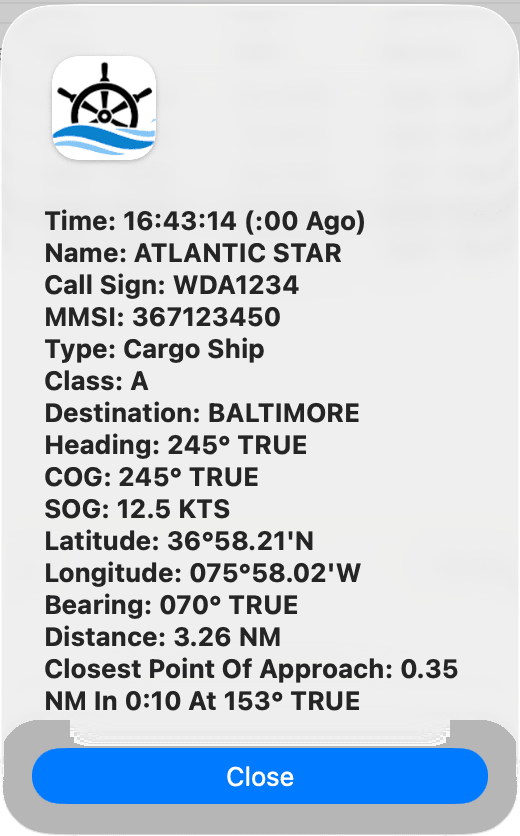
The sheet updates every second and shows what HelmStation knows about the vessel:
- Time, when its last report arrived, and how long ago.
- Name, Call Sign and MMSI.
- Type, for example Sailing Vessel, Tug or Cargo Ship, and Class, A or B.
- Destination, when the vessel reports one.
- Heading, COG and SOG.
- Latitude and Longitude.
- Bearing and Distance from you.
- Closest Point Of Approach, described below.
Click Close when you’re done.
Closest Point Of Approach shows one of three things:
- A distance, a time and a bearing, for example “0.35 NM In 0:10 At 153° TRUE”, appear when the vessel is closing. They tell you how close the two of you will pass, how long until then, and the bearing to the vessel at that moment, if both of you keep your current course and speed. 0.00 NM means a collision course. The bearing shown is then the current bearing to the vessel, which stays steady as the distance closes.
- Not closing means the vessel is holding its distance or moving away, for example on a parallel course at the same speed.
- Unavailable means it can’t be worked out, because HelmStation doesn’t have your position, speed and course from your GPS, or the vessel isn’t reporting its speed and course.
HelmStation has no alarm based on the closest point of approach. The Proximity Alarm works on the current distance only (see below). More Info… isn’t available for a vessel that hasn’t reported for 5 minutes, and the sheet closes by itself if the vessel stops reporting.
Targets on the chart
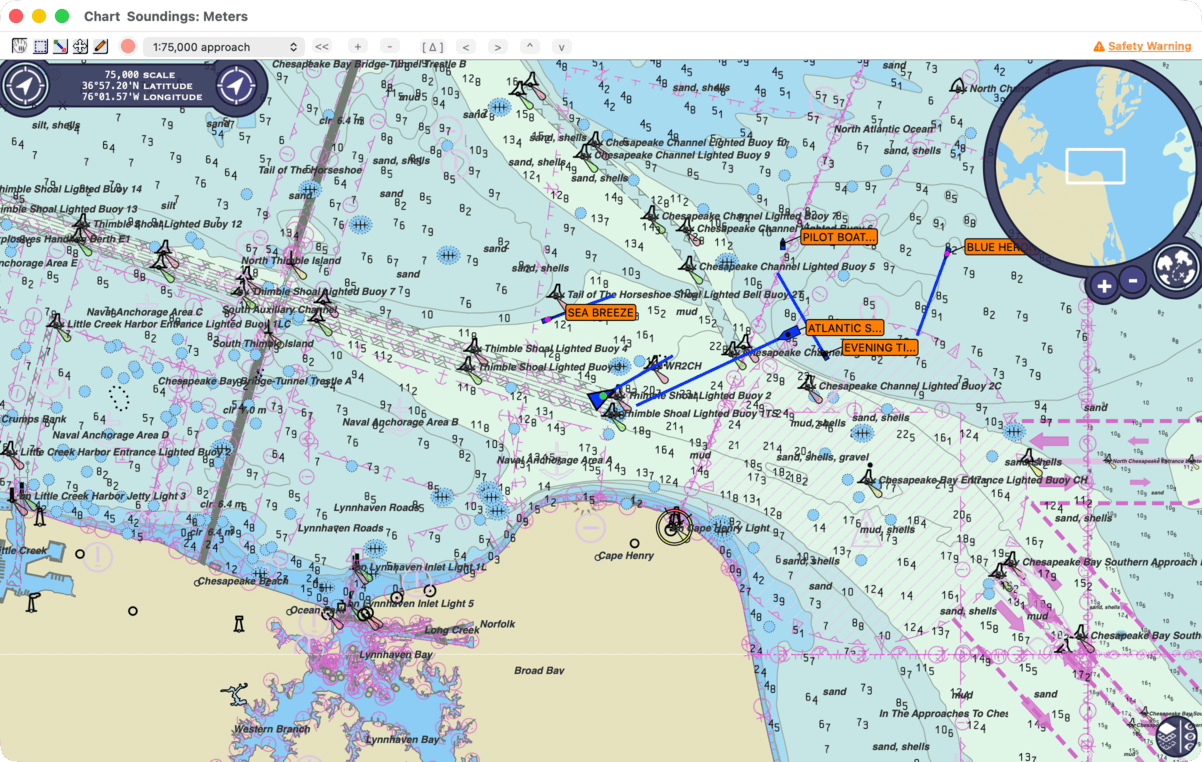
Each vessel is drawn at its position as a pointed symbol, aimed along its heading, or along its course over ground if it doesn’t report a heading. If it reports neither, it’s a circle.
- The dot in the middle is black for Class A, the kind of AIS carried by ships, and magenta for Class B, used by many smaller craft.
- Size, color and velocity vector come from the Position Icon group of Settings, as for your own boat (see Your boat on the chart). With Transparent on there, symbols are outlines only. Vessels known to be shorter than 200 ft (about 60 m) are drawn half size.
- Gray means the vessel hasn’t reported for 5 minutes.
- Name tags, in orange, show the first 10 characters of each name while AIS > Show > Names is on.
Turn on velocity vectors
We recommend turning on velocity vectors, set to at least 5 minutes. They start Off. Choose HelmStation > Settings… (⌘,) and set Velocity Vector in the Position Icon group. See Settings.
Your boat and every vessel on the chart then carry a line showing where each will be after that many minutes at its current course and speed. If the end of your line and the end of a vessel’s line come together, you will both reach the same place at the same time. In the AIS window, a vessel whose Bearing stays steady while its Distance falls is on a collision course.
To pick out a vessel on the chart, point at its name tag while names are shown, or at its symbol while they’re hidden. ⌘-click it to select it in the AIS window, then click More Info… there for its details. To hide just that vessel, Control-click or right-click it and choose Hide. It stays in the AIS window with its Show box cleared; click the box to show it again.
Choosing which targets to show
The AIS > Show submenu filters the vessels on the chart. A checkmark shows which are on.
- Underway shows vessels moving faster than 0.3 knots.
- Stationary shows all others, including vessels that haven’t reported a speed.
- Class B shows Class B vessels. While it’s off, no Class B vessel is shown, under way or not.
- Names shows the name tags.
The items become available once HelmStation has received a vessel. All four are turned on each time HelmStation opens and each time you choose AIS > Connect. Vessels hidden this way, or with Hide, stay in the AIS window.
Proximity Alarm
AIS > Proximity Alarm warns you when any vessel comes within the AIS Proximity Distance set in the Alarms group of Settings. It counts every vessel HelmStation receives, including those you have hidden, and needs your GPS position. See Alarms.