Help Docs
HelmStation Online Documentation
Settings
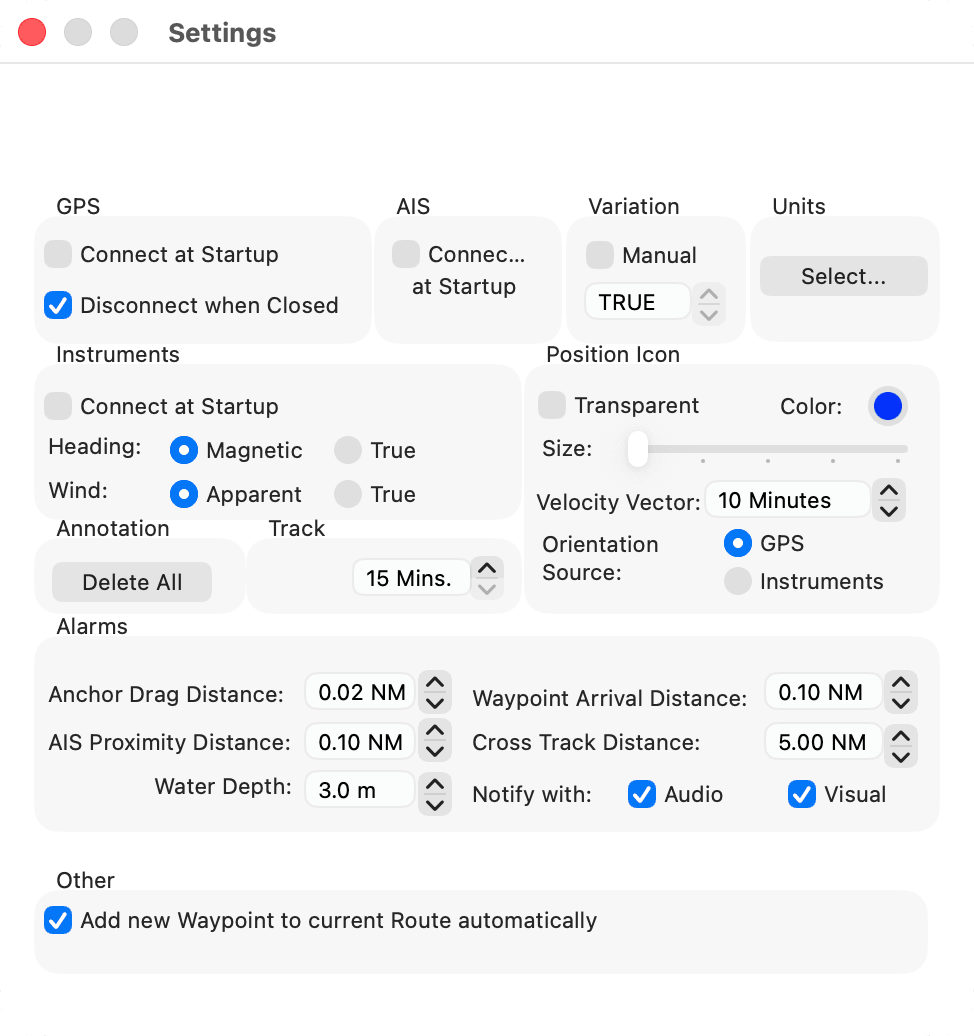
The Settings window holds the settings for your connections, your boat’s position icon, your alarms and the units HelmStation uses. Choose HelmStation > Settings… (⌘,).
There is no Save or OK button: HelmStation uses each setting as soon as you change it. The number fields can’t be typed in. Change a value with the arrows beside its field.
HelmStation keeps your settings, here and in its other windows such as GPS > TCP/IP, when you quit it. If HelmStation is forced to quit, or the Mac loses power, settings you changed since it opened aren’t kept.
The depth shading for your boat is set separately, in HelmStation > Vessel Settings…. See Vessel Settings below.
GPS
- Connect at Startup opens the GPS window and connects to your GPS a few seconds after HelmStation starts, and again when your Mac wakes from sleep. It is off unless you turn it on.
- Disconnect when Closed ends the GPS connection when you close the GPS window. Turn it off to keep the GPS connected with its window closed. It is on unless you change it. A GPS simulation always stops when you close the GPS window.
Minimizing the GPS window never disconnects it. See Connecting Your Instruments and Alarms.
AIS
Connect at Startup opens the AIS window and connects to your AIS a few seconds after HelmStation starts, and again when your Mac wakes from sleep. It is off unless you turn it on. See Connecting Your Instruments.
Instruments
Connect at Startup does the same for the Instruments window. It is off unless you turn it on. See Connecting Your Instruments.
For Heading, choose Magnetic or True to match the heading your instruments send. HelmStation uses only headings of the kind you choose, and shows them as HDM (magnetic) or HDT (true) in the Instruments window. Magnetic is the default. With Magnetic, HelmStation applies the magnetic variation (below) to find your true heading for the chart.
For Wind, choose Apparent or True in the same way. HelmStation uses only wind of the kind you choose, and shows it as AWA and AWS (apparent) or TWA and TWS (true). Apparent is the default.
Variation
HelmStation uses the magnetic variation to show magnetic bearings. The field shows the variation in use, for example 12.5°W.
- With Manual off, the default, HelmStation takes the variation from your GPS. If your GPS doesn’t report one, HelmStation works it out for your position.
- With Manual on, HelmStation uses the value you set. Use the arrows to change it in steps of 0.1°, up to 90° east or west.
With View > True Bearings on, bearings are true: the field reads TRUE and Manual is turned off. Clicking Manual turns True Bearings off again.
Position Icon
The position icon marks your boat on the chart whenever HelmStation has a position from your GPS.
- For Color, click the color well to choose the icon’s fill color. It starts blue.
- Transparent draws the icon as an outline only, and dims the color well. It is off unless you turn it on.
- For Size, drag the slider to one of five sizes. The smallest is the default.
- With Orientation Source set to GPS, the default, the icon points along your course over ground. With Instruments, it points along the heading from your instruments. With no course or heading to show, the icon is a circle.
- Velocity Vector draws a line ahead of your boat, along its course over ground, as long as the distance you will cover in that many minutes at your current speed over ground. AIS targets get vectors for the same number of minutes, from their own course and speed. Set it from 1 to 60 minutes, or Off, the default.
Alarms
This group sets when each alarm goes off: Anchor Drag Distance, Waypoint Arrival Distance, AIS Proximity Distance, Cross Track Distance and Water Depth. Notify with sets how an alarm gets your attention: Audio, Visual, or both (the default). Distances and depth display in the units you choose under Units.
The alarms themselves are turned on from the menus. See Alarms for each alarm’s range, default and behavior.
Annotation
Delete All removes every annotation you have drawn on the chart, after asking you to confirm. See Measuring and Annotating.
Track
The Track group has one setting: how long a gap in your track starts a new segment. When two track records are further apart in time than the value shown, HelmStation starts a new segment there:
- the chart shows the segments as separate lines, without joining them across the gap.
- the cumulative distance and time in the Track window leave the gap out.
- GPX and KML files you save keep the segments apart.
Set it from 15 Mins., the default, to 165 Mins. in 15-minute steps, or to Never to treat the whole track as one segment. See Tracks.
Units
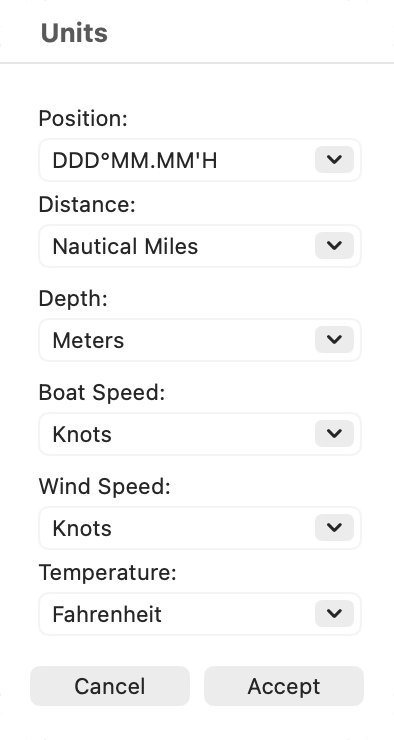
Click Select… to open the Units window. Choose from each menu, then click Accept, or Cancel to leave the units unchanged.
| Setting | Choices | Default |
|---|---|---|
| Position | DDD°MM.MM’H, HDDD.MM.MMM, DDD.DDDDDDH, DDD°MM’SS.S”H | DDD°MM.MM’H |
| Distance | Nautical Miles/Yards, Nautical Miles/Meters, Nautical Miles, Kilometers, Statute Miles | Nautical Miles |
| Depth | Feet, Meters, Fathoms/Feet | Feet |
| Boat Speed | Knots, Miles Per Hour, Kilometers Per Hour | Knots |
| Wind Speed | Knots, Miles Per Hour, Kilometers Per Hour, Meters Per Second | Knots |
| Temperature | Fahrenheit, Celsius, Kelvin | Fahrenheit |
- Position sets how latitude and longitude are shown and how you type them. It also sets how positions are written to and read from CSV files. See File Formats.
- With Distance set to Nautical Miles/Yards or Nautical Miles/Meters, distances under 1 NM show in yards or meters.
- Depth also sets the units of the soundings on the chart, and of Vessel Safety Depth in Vessel Settings.
Other
Add new Waypoint to current Route automatically is on unless you change it. When you double-click the chart to make a waypoint, in “Measure Line Mode” or “Waypoint Move Mode”, HelmStation also adds the waypoint to the route selected in the Routes window. With it off, hold ⌘ as you double-click to add a new waypoint to the route. See Waypoints, Routes and Keyboard, Mouse and Trackpad.
Vessel Settings
HelmStation > Vessel Settings… shades the chart for your boat’s safety depth. It has its own window rather than a group in Settings. See Shading by your safety depth.