Help Docs
HelmStation Online Documentation
Using the Chart
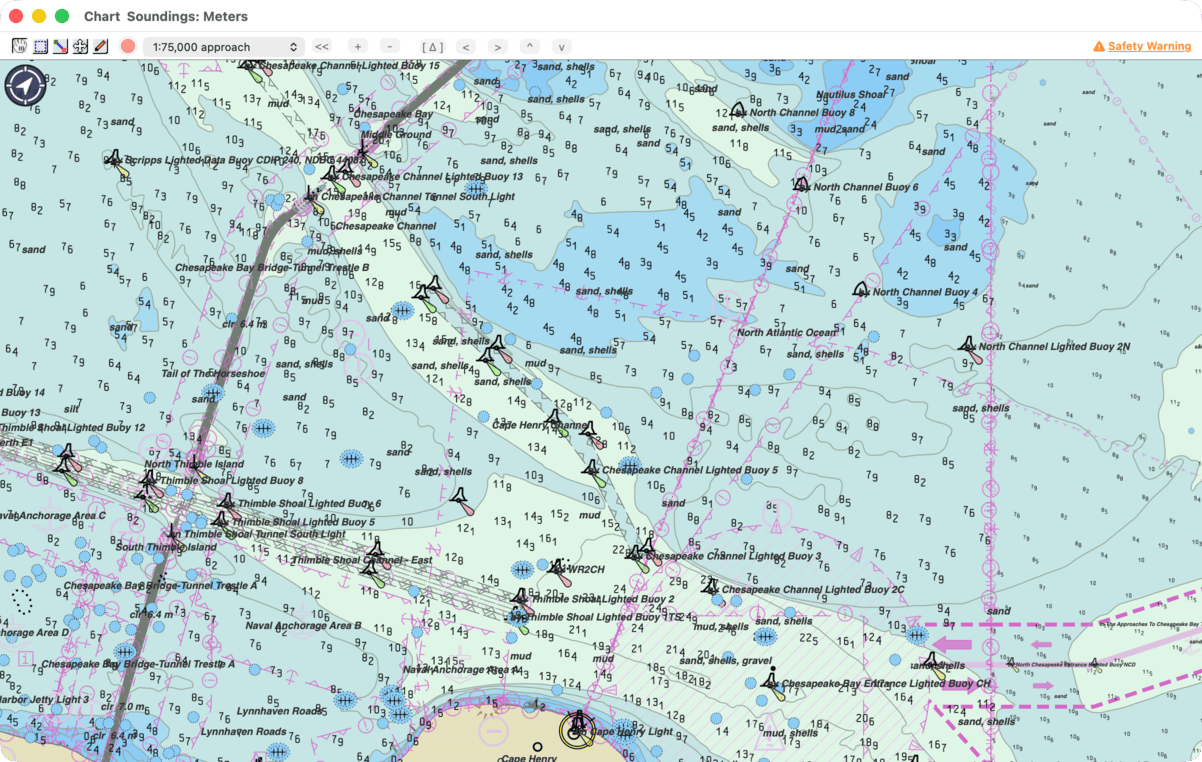
The chart window is where you navigate. This page covers moving around the chart, changing its scale and keeping your boat in view. For what the chart shows and how to change it, see What the Chart Shows.
The chart window at a glance
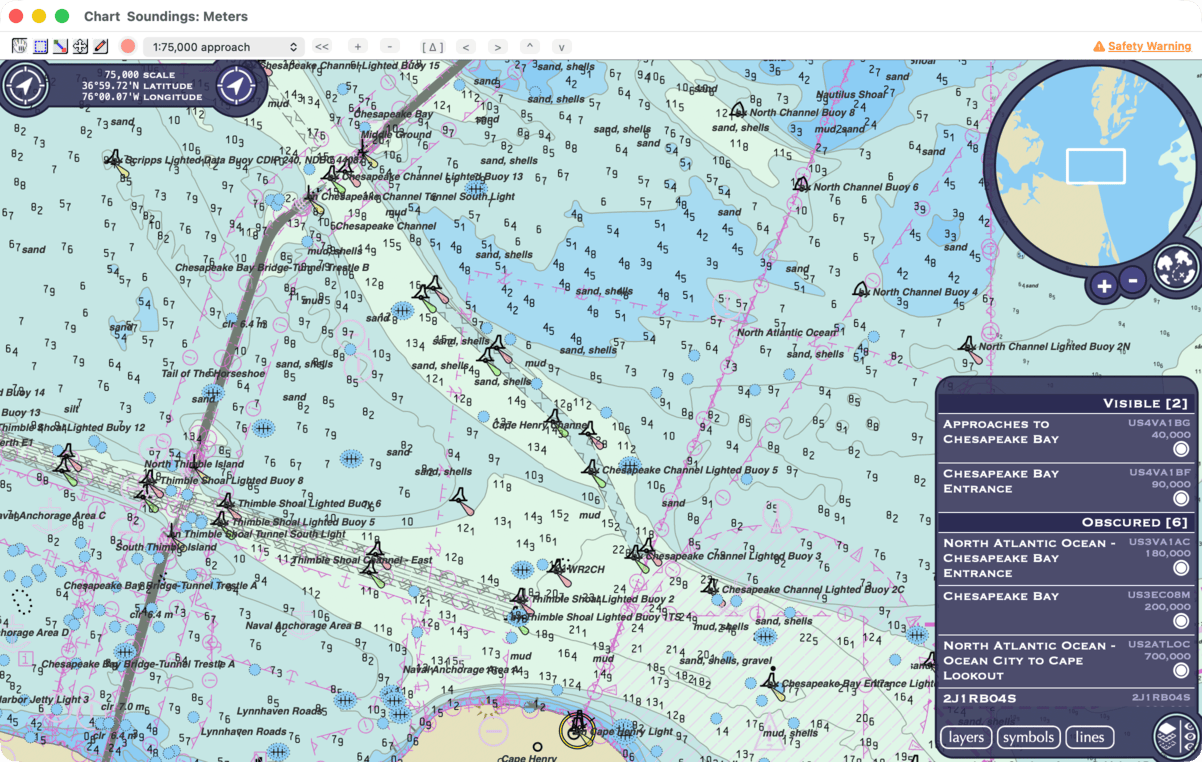
The toolbar runs along the top of the window. At its left are five buttons that set what dragging on the chart does. They have no labels: hold the pointer over one to see its name. HelmStation always opens in the first.
- “Grab Move Mode”
 drags the chart. This is also the mode in which clicking an object shows its details.
 - “Select Zoom Mode”
 zooms in on an area. Drag a box around it. When you let go, HelmStation picks the scale that best fits the box and centers the chart on it.
 - “Measure Line Mode”
 measures bearing, distance and time to go. See Measuring and Annotating.
 - “Waypoint Move Mode”
 moves waypoints. Drag a waypoint to its new position. Double-clicking where there is no waypoint creates one. See Waypoints.
 - “Annotation Pen Mode”
 draws on the chart. See Measuring and Annotating.
The rest of the toolbar holds the scale controls and the scroll buttons, described below. While any of your charts has expired, an amber Safety Warning link appears at the right end. See Expired Charts.

On the chart itself, you’ll find the following:
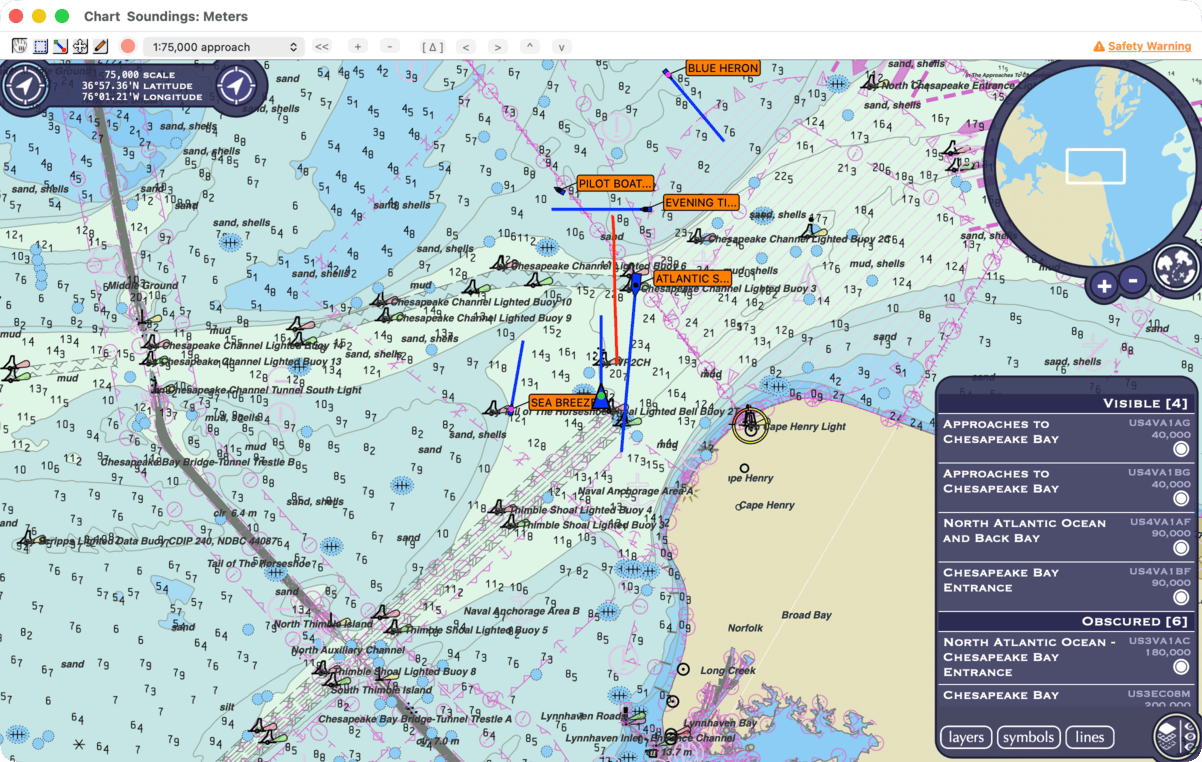
- At the top left is a round button with a compass arrow, and beside it the scale and position readout.
- At the top right is the mini-map.
- At the bottom right is a panel listing the charts in view and the symbols shown. See What the Chart Shows.
- At the bottom left are the details of an object you click. See What the Chart Shows.
The window’s title tells you the units of the chart’s soundings, for example Soundings: Meters. Change them with Select… in the Units group of Settings. See Settings.
If you close the chart window, File > Open Chart (⌘O) opens it again.
Moving around
- Drag the chart in “Grab Move Mode”. In any other mode, hold down Space while you drag; the mode comes back when you let go of Space.
- On a trackpad, swipe with two fingers.
- On the keyboard, the arrow keys move the chart a short step. Page Up and Page Down (fn-↑ and fn-↓ on a laptop) move it almost a full window up or down.
- Click the scroll buttons <, >, ^ and v in the toolbar (“Scroll chart left”, “Scroll chart right”, “Scroll chart up” and “Scroll chart down”). Hold one down to keep moving.
- ⌥-click a point to center the chart on it.
- [ ∆ ] (“Scroll to selected position”) opens a menu of places to go: Position, your boat, whenever HelmStation has a GPS position, followed by the waypoints listed in the Waypoints window. Choose one to center the chart on it.
Going to a latitude and longitude
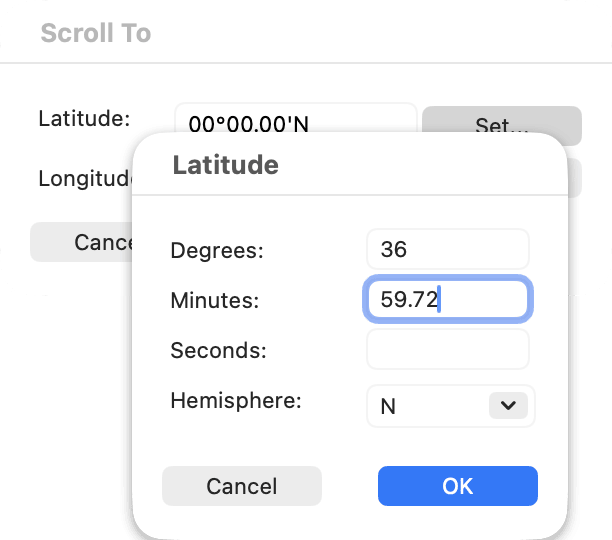
Control-click the chart and choose Scroll To…. The Scroll To window has a Latitude and a Longitude line, each with a Set… button. Click Set… to enter that value: a window opens with Degrees, Minutes, Seconds and Hemisphere (N or S, E or W). Fill them in and click OK.
The boxes you can fill in follow the Position format chosen with Select… in the Units group of Settings. With DDD.DDDDDDH you enter decimal degrees, with DDD°MM’SS.S”H degrees, minutes and seconds, and with the other two formats degrees and decimal minutes.
Click Scroll To to center the chart on the position, or Cancel to leave it where it is.
Changing scale
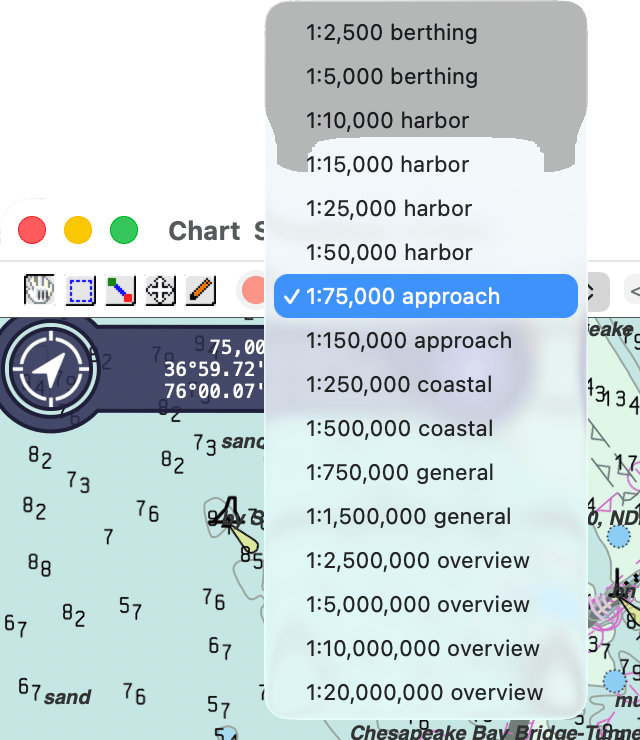
The scale menu in the toolbar (“Select scale”) lists 16 scales from 1:2,500 to 1:20,000,000. Each is followed by the kind of chart made for that scale: berthing, harbor, approach, coastal, general or overview.
To change scale, do one of the following:
- Choose from the scale menu.
- Click + (“Zoom in”) or - (“Zoom out”) in the toolbar, choose View > Zoom In or View > Zoom Out, or press + (or =) or -. The same commands are in the menu when you Control-click the chart.
- Turn the wheel of a mouse, or pinch on a trackpad. Each step of the wheel moves one scale.
- Use “Select Zoom Mode” to fit an area to the window.
Zooming keeps the center of the window in place, or keeps your boat centered when View > Position > Centered is on.
« (“Previous scale”) takes you back to the scale and place you were at before the last change of scale. It becomes available each time you change scale.
The scale and position readout
At the top left of the chart, beside the round compass-arrow button, the readout shows:
- scale, the current scale, for example 50,000 for 1:50,000.
- latitude and longitude, the position of the center of the window, in the format chosen in the Units group of Settings.
The mini-map
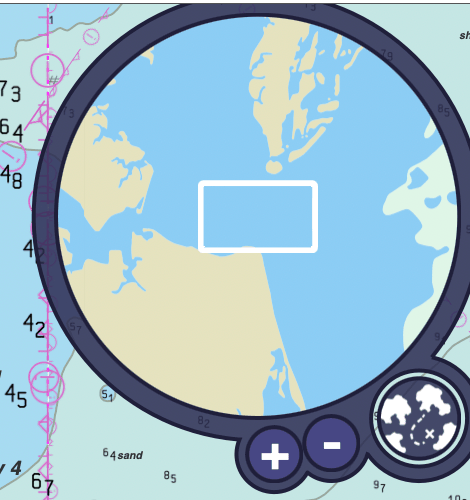
The round mini-map at the top right shows a wider area than the chart. A white rectangle marks the part shown in the window, and it follows as you move and zoom.
- Click a point on the mini-map to move the chart there.
- The mini-map’s own + and - buttons, on its edge, zoom the mini-map in or out without changing the chart.
- The round map button at the lower right of the mini-map
 hides it or shows it again.
Clearing the chart
To see the whole chart, click the round compass-arrow button at the top left  . The readout, the mini-map, the bottom-right panel and any object details disappear, and only the button stays. Click it again to bring them back. HelmStation remembers what you had showing.
Following your boat
Centered, Offset Using Course and Course Up need a position from your GPS. See GPS.
View > Position > Centered keeps your boat in the middle of the window. It is on unless you turn it off. As the boat moves, HelmStation recenters the chart, but not while you are dragging it. While you are under way, the chart comes back to your boat shortly after you pan away; to look elsewhere, turn Centered off.
View > Position > Offset Using Course is available while Centered is on. It places your boat off center, towards the stern, so you see more of the chart ahead. It follows your course over ground, smoothed so the chart doesn’t swing with every wave, and takes effect once you are making half a knot or more. In Course Up it applies at any speed.
View > Course Up (⌘U) turns the chart so that your course is at the top:
- It is available at scales of 1:500,000 or closer.
- It turns Centered on, and Centered can’t be turned off while Course Up is on.
- The top of the chart is your course over ground. During a Goto it is the bearing to the Goto waypoint. If Orientation Source in the Position Icon group of Settings is set to Instruments, it is your heading instead. See Instruments.
- The chart turns when the course changes by 15° or more, so it isn’t constantly moving.
- It turns off by itself if you zoom out beyond 1:500,000 or HelmStation loses your GPS position.
View > True Bearings shows bearings as true rather than magnetic. See Measuring and Annotating.
The world behind the charts
Where you have no chart, HelmStation shows satellite imagery of the world from Apple Maps. It gives you your bearings when zoomed out, and is sharpest at small scales. It is not a chart: don’t navigate by it.
The first time HelmStation opens with an internet connection, it fetches the imagery in the background, showing a plainer world map until it’s ready. After that the imagery is kept on your Mac and shows without an internet connection.
Seeing a place in Maps
To see what’s ashore, or a closer view of an anchorage, Control-click a spot on the chart (or right-click it, or click or tap with two fingers on a trackpad) and choose Maps. The Maps app opens at that position in satellite view, showing about the same area as the chart. In Maps you can switch to another view, such as the one with roads and streets. Maps needs an internet connection.
For a list of keyboard shortcuts, see Keyboard, Mouse and Trackpad.