Help Docs
HelmStation Online Documentation
Installing and First Launch
HelmStation is available in the Mac App Store and requires macOS Sonoma 14.6 or later. Install it as you would any other app from the Mac App Store. For more about HelmStation, visit helmstation.com  .
.
The first time you open HelmStation, it takes you through three steps: signing in with Apple, giving it access to two folders (and bringing across your MacENCx64 data, if this Mac has any), and choosing a license. Make sure your Mac is connected to the internet for this first launch.
If you are moving from MacENCx64, also read What’s New for MacENCx64 Users.
Sign in with Apple
HelmStation uses Sign in with Apple to create and identify your HelmStation account. You can’t use HelmStation without signing in.
When you first open HelmStation, a sign-in window appears with the message “Waiting for Sign in with Apple to complete…”, and Apple’s sign-in prompt opens on top of it. Until you finish signing in, your charts stay hidden and the menu bar offers only Quit HelmStation.
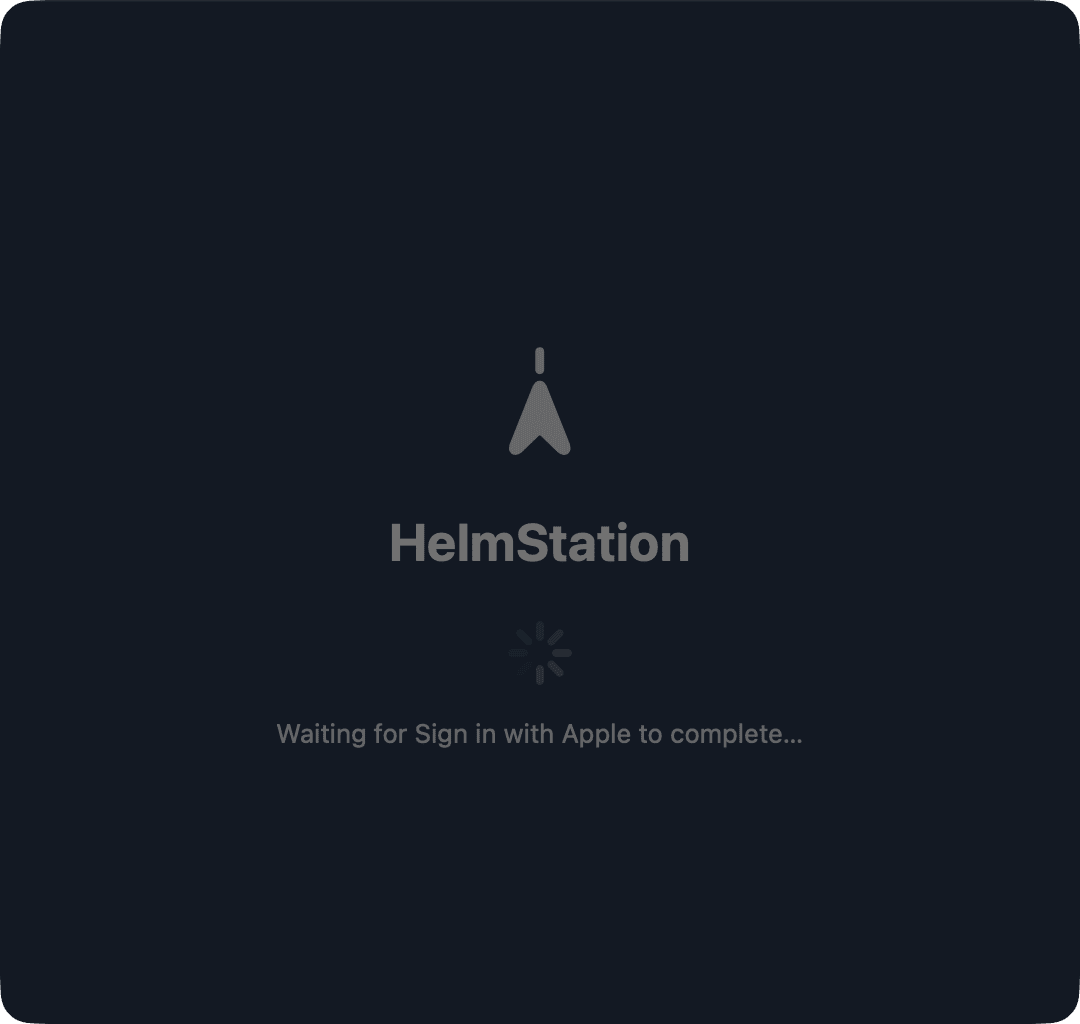
Apple shares your name and email address with HelmStation only the first time you sign in. If you choose to hide your email, HelmStation receives a private relay address that forwards to your real inbox.
If you cancel Apple’s prompt, the window shows Sign in to continue. Click Sign In with Apple to try again, or Quit HelmStation.
If HelmStation can’t reach its servers while you sign in, it shows Couldn’t reach HelmStation. Nothing has been changed: your account, license and charts are intact. Click Close and check your internet connection. HelmStation tries again the next time you open it.
If you deleted your HelmStation account in the past and sign in again with the same Apple Account, HelmStation shows No HelmStation account found, with the steps for starting a new account. See Your HelmStation Account.
After the first time, HelmStation signs you in by itself whenever you open it, so you normally won’t see the sign-in window again.
Signing in with a different Apple Account
HelmStation’s charts on a Mac belong to one Apple Account. HelmStation treats a change of Apple Account on the same Mac as a change of owner. This can happen when you switch Apple Accounts in System Settings, take over a Mac that wasn’t erased, or restore a backup onto a Mac signed in to another Apple Account.
When HelmStation opens and finds that the Mac is signed in to a different Apple Account from the one its content belongs to, the Different Apple Account window appears right after you sign in, before anything is changed. Until you choose, the rest of HelmStation is put away and the menu offers only Quit.
- Quit HelmStation, the default, quits without changing anything on this Mac. If you signed in with the wrong Apple Account, change it in System Settings, then open HelmStation again. HelmStation asks again each time it opens with the other Apple Account.
- Continue with This Apple Account removes the previous account’s content from this Mac and loads yours.
Continue with This Apple Account removes these from this Mac:
- all of the previous account’s HelmStation Store charts, both active and expired.
- its NOAA charts.
- its subscription, purchase and license records on this Mac.
- this Mac’s 3rd Party ENC User Permit, if it has one.
For the previous account, this means the following:
- Charts with an active HelmStation Store subscription stay with that account. They download again when it signs in to HelmStation, on this Mac or another.
- Removing expired charts is permanent. They can’t be downloaded again.
- NOAA districts it had enabled on this Mac need to be enabled again.
- Third-party S-63 charts stay on the Mac, but they won’t open until their vendor reissues them for a new 3rd Party ENC User Permit. You can request a new permit in Chart Manager.
Waypoints, routes, tracks and settings are not removed.
One HelmStation user per Mac. HelmStation works with one Apple Account, in one macOS user account, on each Mac. macOS lets several people share a Mac, each with their own user account, and you’re welcome to do that, but only one of them can run HelmStation. If HelmStation is opened in a second macOS user account with a different Apple Account, the Another HelmStation Account window asks before anything changes, and continuing takes the Mac from the first account for good. If the two users keep switching, the Mac passes from one account to the other each time, and third-party charts and charts from expired subscriptions stop working permanently, for both accounts. Make sure anyone else who uses your Mac knows this. See If this Mac belongs to another HelmStation account.
Folder access and MacENCx64 migration
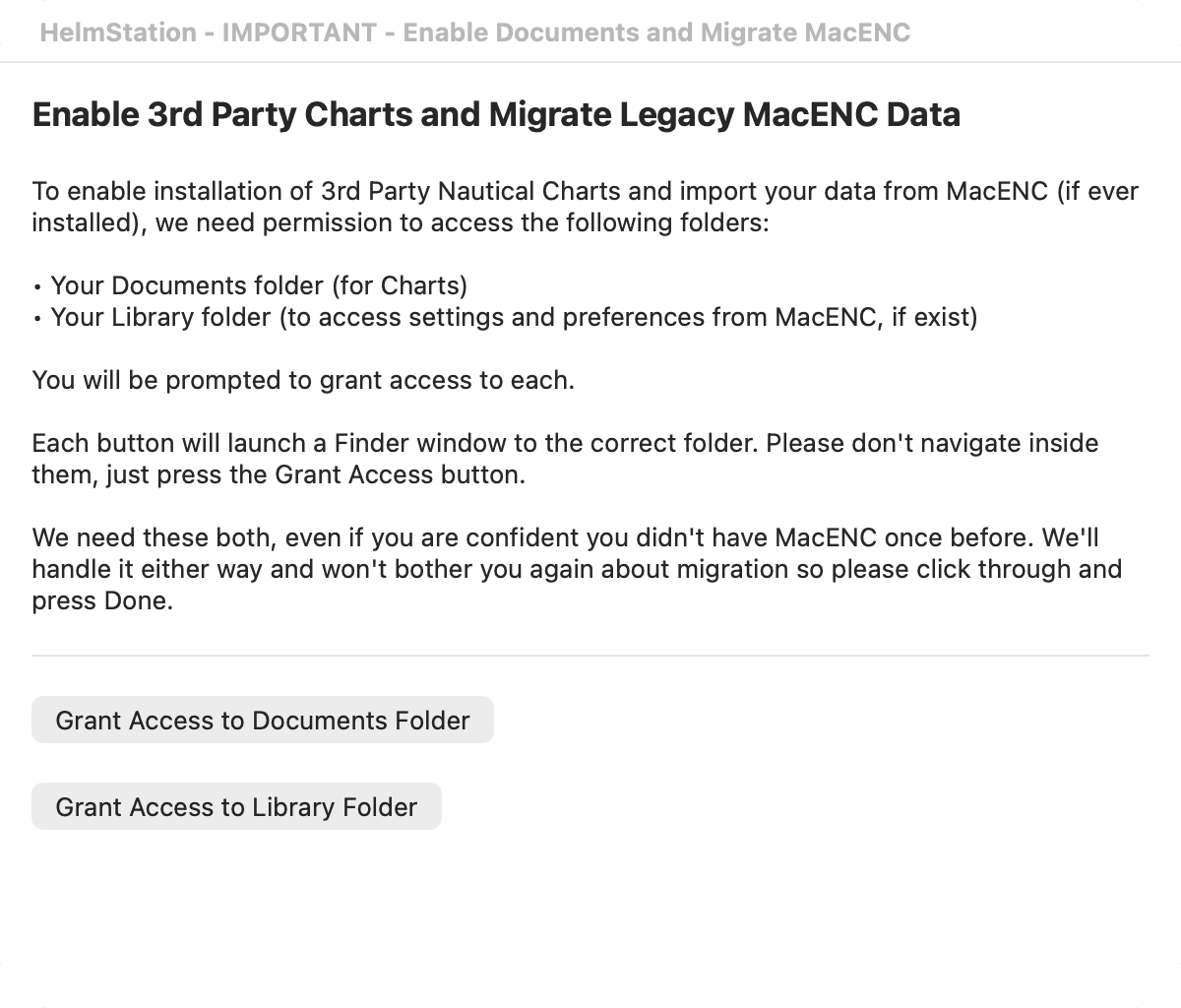
Next, the HelmStation - IMPORTANT - Enable Documents and Migrate MacENC window appears. It appears on every Mac, whether or not MacENCx64 was ever installed, and it asks for access to two folders:
- Your Documents folder. Third-party ENC charts must be kept here. HelmStation can only open chart catalogs stored in your Documents folder. MacENCx64 also kept its charts here.
- Your Library folder. This is where MacENCx64 kept its settings and data. HelmStation looks here for anything to bring across.
HelmStation needs both, even if you have never used MacENCx64.
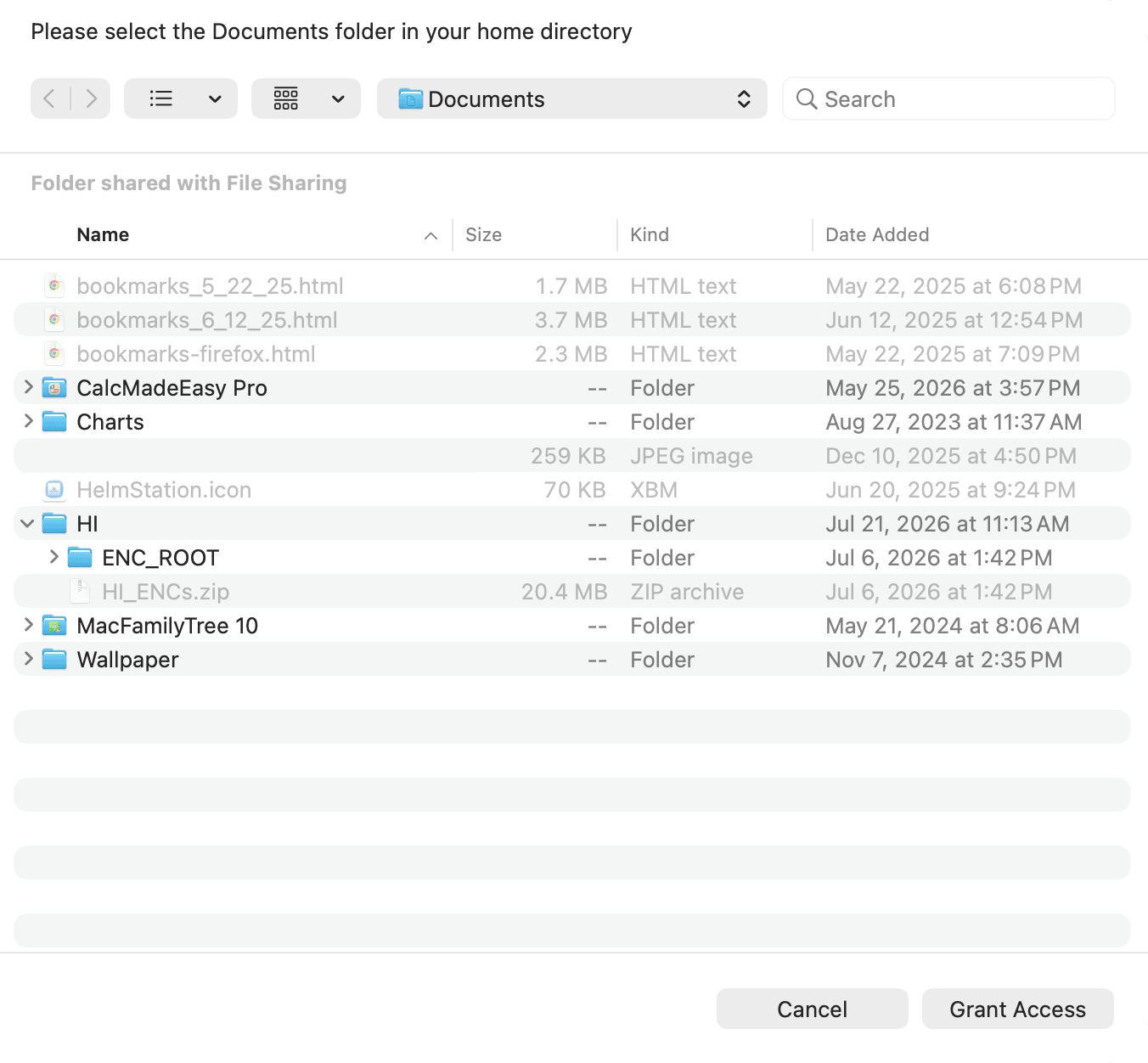
- Click Grant Access to Documents Folder. A folder window opens, already showing your Documents folder, with the message “Please select the Documents folder in your home directory”. Don’t open any folders. Just click Grant Access.
- Click Grant Access to Library Folder. The folder window shows your Library folder, with the message “Please select your Library folder to access legacy data”. Again, just click Grant Access.
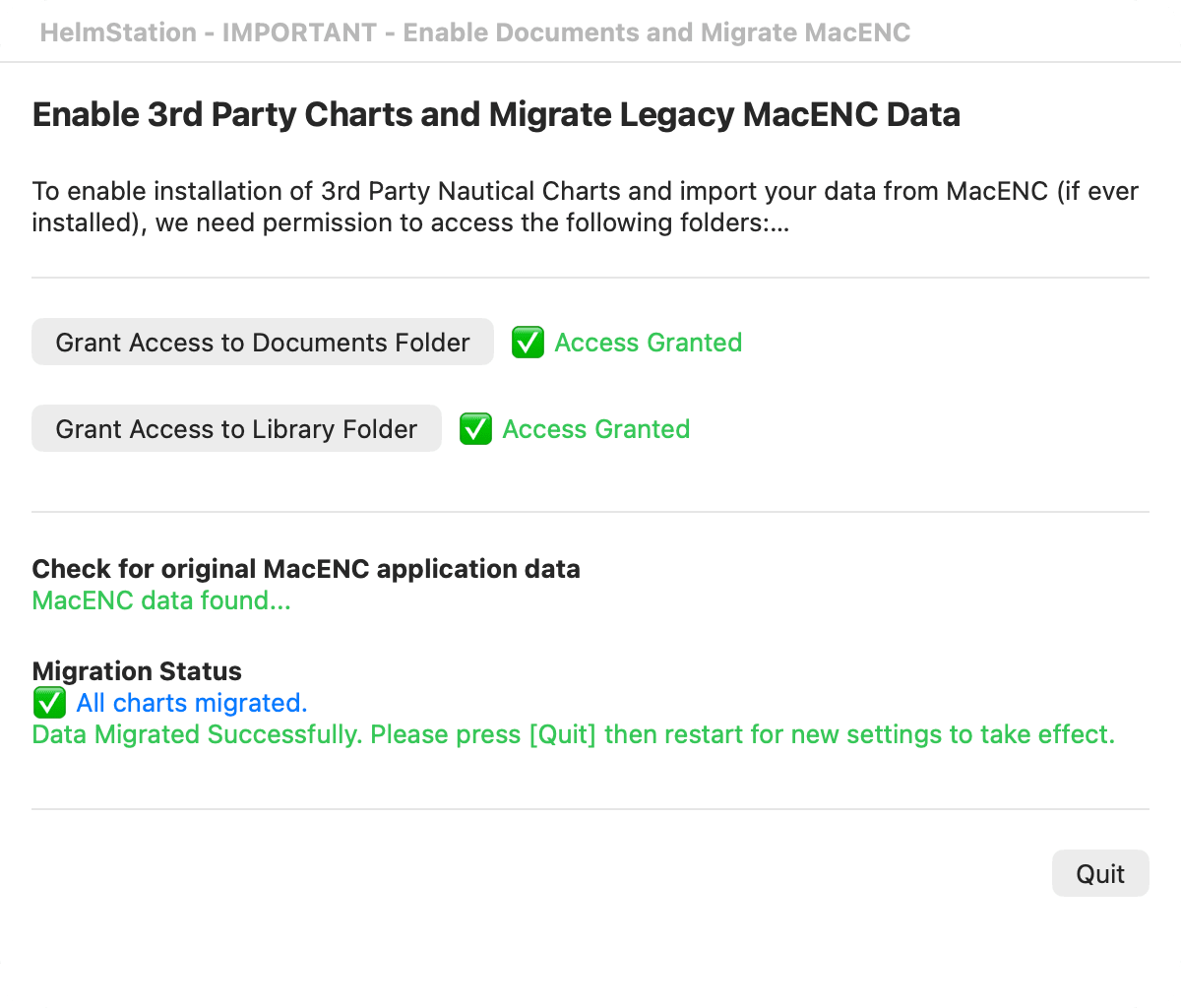
✅ Access Granted appears beside each button once it’s done.
HelmStation then checks this Mac for MacENCx64 data.
If this Mac has MacENCx64 data
The window shows MacENC data found…, and under Migration Status it shows the progress of copying and unpacking your charts. This can take some time if you have many charts. When it’s finished, the window shows ✅ All charts migrated. and “Data Migrated Successfully. Please press [Quit] then restart for new settings to take effect.”
Click Quit, then open HelmStation again.
HelmStation brings across:
- your settings.
- your waypoints, routes, tracks and annotations.
- your ENC charts and their permits, including your 3rd Party ENC User Permit.
- your MacENCx64 registration.
Charts from subscriptions that had expired but still worked in MacENCx64 come across on this Mac only. Your other Macs get only your active subscriptions, which HelmStation downloads again from your account.
HelmStation copies this data. It doesn’t change or remove anything in MacENCx64. The migration window appears only once on each Mac: whatever the outcome, clicking Quit or Done finishes it for good.
If the migration can’t finish
If any part of the migration fails, the window says “Sorry, your MacENC data could not be fully migrated, and migration cannot be run again. HelmStation support can connect your MacENC registration to your HelmStation account remotely; anything else will need to be set up anew. Please contact support.”
Click the button at the bottom of the window. It reads Quit if HelmStation had already brought some data across, in which case open HelmStation again afterwards; otherwise it reads Done. Then contact support. Support can connect your MacENCx64 registration to your HelmStation account, so that your registration benefits apply. Anything that didn’t come across, such as settings, waypoints or routes, you set up again in HelmStation. See Getting Support.
If there’s no MacENCx64 data
If HelmStation finds no MacENCx64 data on this Mac, the window shows MacENC not detected. and Migration not needed. Finished. If this Mac’s MacENCx64 data was already brought across to HelmStation before, it shows MacENC data was already migrated to HelmStation. instead. Click Done to continue.
The next time you open HelmStation
HelmStation signs you in by itself and the folder access window doesn’t appear again. If you migrated from MacENCx64, this is the launch where HelmStation carries your MacENCx64 registration and chart subscriptions over to your HelmStation account. See What’s New for MacENCx64 Users and Chart Account and Delivery.
Using HelmStation offline
HelmStation needs an internet connection the first time you open it, to sign you in, set up your account and check your license. After that, it opens without one and works with the charts and data already on your Mac.
Some setup, such as adding this Mac to your account, can finish the second time you open HelmStation, so keep your Mac connected for that launch too if you can. If it isn’t, HelmStation carries on with what it has and fetches the rest the next time it opens with an internet connection. Chart updates and new charts always need a connection to download.
Restore Access to Documents
macOS can occasionally stop honoring the Documents access you gave HelmStation. This can happen over time, after a change to macOS, or after a change to your login or keychain. When it does, HelmStation opens the HelmStation - IMPORTANT - Restore Access to Documents window the next time you open it. HelmStation doesn’t display any third-party ENC charts until you restore access.
- Click Grant Access to Documents Folder. A folder window opens, already showing your Documents folder, with the message “Please select the Documents folder in your home directory.”
- Don’t open any folders. Just click Grant Access.
- When ✅ Access Granted appears, click Done.
Your license
After the folder access step, HelmStation checks your license. If you don’t have one yet, the HelmStation License window opens so you can start the free 14-Day Sea Trial or buy a Full License. If you have already bought a Full License with your Apple Account, HelmStation normally finds it by itself. MacENCx64 Registered Users can redeem a Full License at no charge. See Trial and License.
What next
- Chart Sources explains the ways to get charts: the HelmStation Store, the NOAA Chart Service and third-party ENCs.
- The HelmStation Window is a tour of the chart window, toolbar and menus.