Help Docs
HelmStation Online Documentation
GPS and Position
Your GPS tells HelmStation where you are, which way you are going and how fast. To connect your GPS, see Connecting Your Instruments.
The GPS window
Choose GPS > Connect (⌘G) to open the GPS window.
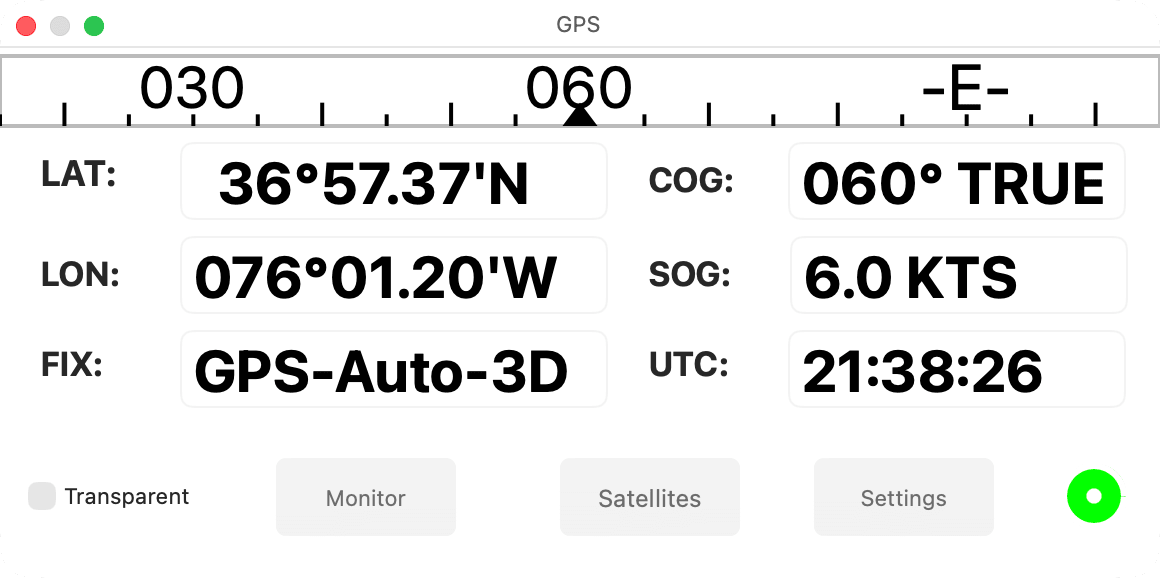
| Field | Shows |
|---|---|
| LAT, LON | Your latitude and longitude |
| COG | Course over ground, followed by TRUE or MAG (see Magnetic variation). Slightly smoothed, it holds its last value below 0.25 knots |
| SOG | Speed over ground |
| UTC | The time reported by your GPS, in UTC |
| FIX | How good the position is: GPS, DGPS (differential GPS) or, in red, Invalid when the GPS has no fix. If your GPS reports its satellites, FIX shows more, for example GPS-Auto-3D |
Positions and speeds use the units you choose with Select… in the Units group of HelmStation > Settings… (⌘,). HelmStation doesn’t use a position the GPS marks as invalid.
The compass shows 90° of the card, with your course over ground at the center. During a Goto, a red dot marks the bearing to the waypoint, and when you are more than 0.01 NM (about 20 m) off the course line, an arrow at one end shows which way to steer back: red, pointing to port, or green, pointing to starboard.
The round light is green while HelmStation receives GPS data it reads, yellow when sentences arrive but none it reads, and red when nothing arrives. See Checking that data is arriving.
Transparent makes the window and its Satellites, Waypoint and Simulate drawers see-through, so the chart shows behind them. HelmStation remembers the setting.
Resize the window and the figures grow with it, for reading from the helm. View > Low Light darkens their backgrounds. The window hides while another app is active. For Settings and Monitor, see Connecting Your Instruments.
Satellites
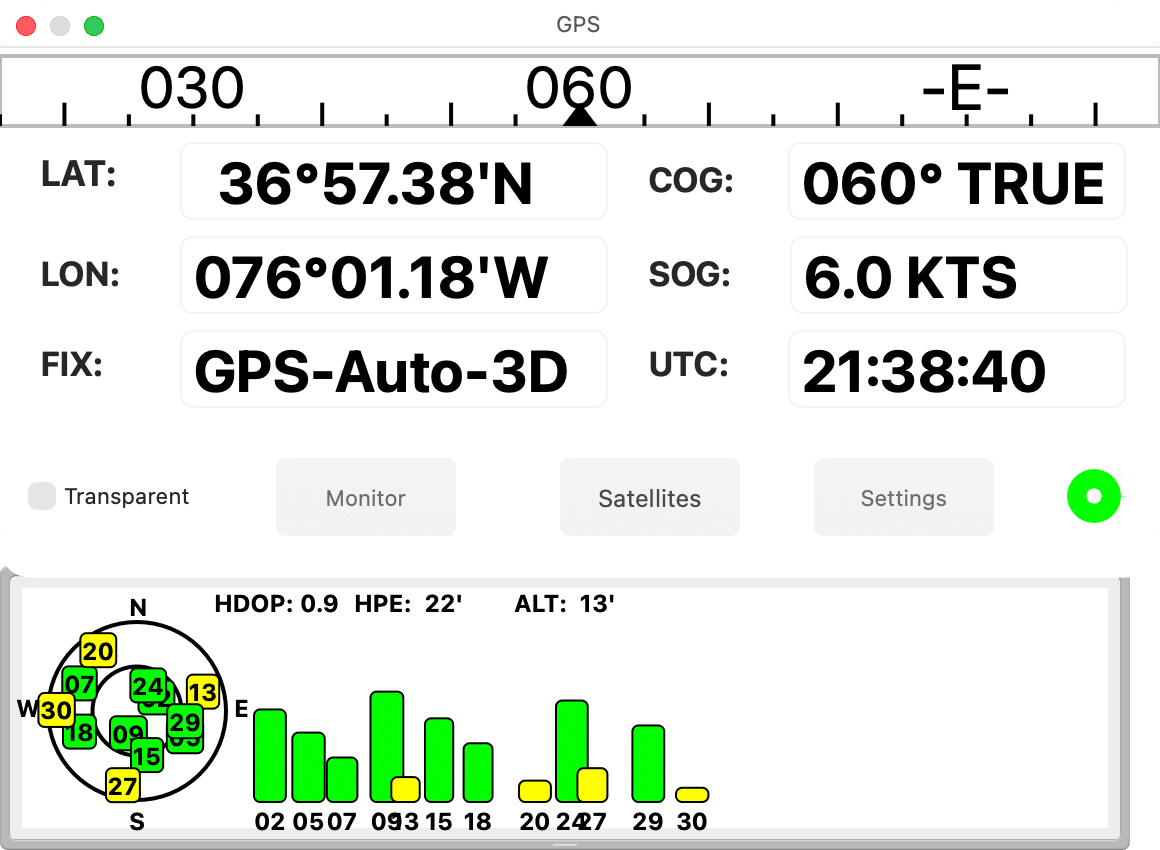
Click Satellites to open the Satellites drawer. It fills in if your GPS reports its satellites.
- The sky view places each satellite by number: north at the top, the horizon at the outer circle, overhead at the center.
- The bars beside it show signal strength: green for strong, yellow for weaker, red for a satellite that isn’t being received.
- HDOP shows how well spread the satellites are. Lower is better.
- HPE shows an estimate of the horizontal position error, worked out from HDOP.
- ALT shows the altitude reported by your GPS.
The Waypoint drawer
When a GPS or chart plotter connected to HelmStation navigates to a waypoint of its own, the Waypoint drawer opens below the GPS window, and HelmStation comes to the front each time the GPS starts on a new waypoint. It shows what the GPS reports:
- NAME shows the waypoint’s name.
- BTW and DTW show the bearing and distance to the waypoint.
- VMG shows the velocity made good towards the waypoint.
- XTE shows the cross-track error, how far you are off the course line.
With Goto - Make Active Waypoint on, and no Goto already active in HelmStation, HelmStation adds the waypoint to the “Imported” group of the Waypoints window and makes it HelmStation’s Goto. Turn it off to watch the figures only. It’s on each time HelmStation opens. See Waypoints.
The drawer closes when the GPS stops navigating. If a USB Serial GPS sends no waypoint information for 20 seconds, HelmStation also cancels a Goto it took from the GPS.
Your boat on the chart
Once HelmStation has your position, it draws your boat as a triangle pointing along your course over ground, with a green dot at your exact position. Until there is a course, the boat is a circle. A velocity vector, a line ahead of the boat, can show where you will be after a set number of minutes at your present course and speed.
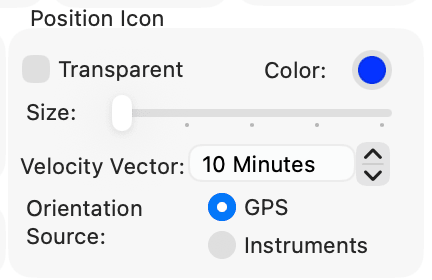
The Position Icon group of HelmStation > Settings… sets how the boat looks:
- Transparent shows an outline only.
- Size and Color set the boat’s size and fill. Color is unavailable while Transparent is on.
- Orientation Source sets which way the boat points. GPS points the boat along your course over ground; Instruments along the heading from your compass (see Instruments).
- Velocity Vector sets the vector’s length in minutes, up to 60, or Off.
AIS targets use the same size, color, transparency and velocity vector (see AIS Targets and Settings). To keep the chart centered on your boat, see Following your boat.
Magnetic variation
View > True Bearings sets whether courses and bearings, including COG, BTW and the compass, are shown true (on) or magnetic (off). Figures are followed by TRUE or MAG.
For magnetic, HelmStation takes the variation from your GPS; if your GPS doesn’t report it, HelmStation works it out for your position. To use your own value, such as the one on your chart, turn on Manual in the Variation group of Settings and set the value with the arrows. The group shows the variation in use, for example 12.5°W, or TRUE while View > True Bearings is on.
Alarms
GPS > Anchor Alarm becomes available once HelmStation has your position. The Depth Alarm is in the Instruments menu. If a USB Serial GPS sends no position for 1.5 minutes, HelmStation warns you and removes the boat from the chart. See Alarms.
Practicing without a GPS
Simulating
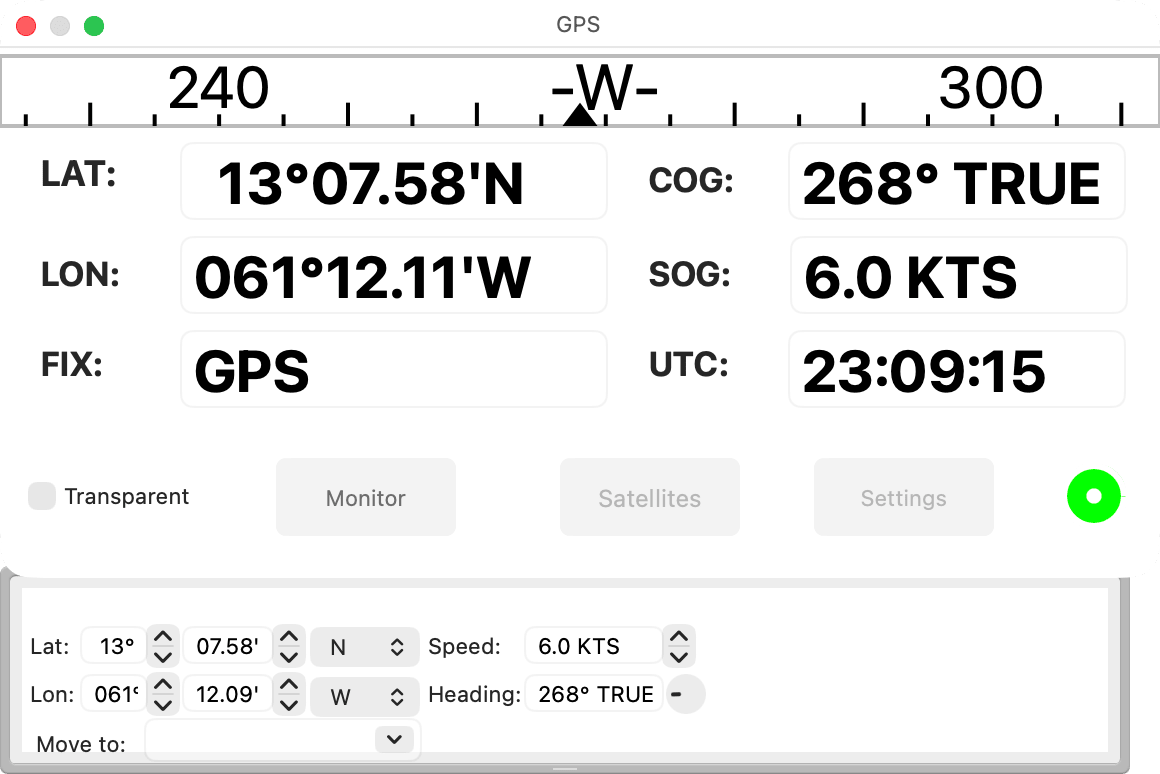
Choose GPS > Simulate. It isn’t available while a USB Serial GPS is connected or a file is playing. The GPS window opens with the Simulate drawer below it.
- Set Speed with the arrows, up to 99.9 knots.
- Turn the Heading dial, once Speed is 0.5 knots or more.
- In Lat and Lon, set degrees and minutes with the arrows, and choose N or S and E or W, to move the boat.
- In Move to, choose a waypoint to move the boat there.
Everything that uses your position works as it would with a GPS, including Goto, alarms and, with Track > Capture on, your track. The simulation starts from your last position, speed and course, from your GPS or your last simulation; the very first time, at the center of the chart. The simulator also sends heading, boat speed, depth, water temperature and wind, which the Instruments window shows if it reads from the GPS connection (see Sharing one port).
To stop simulating, close the GPS window. GPS > Connect is unavailable until you do.
Playing back a recording
Choose GPS > File… and select a text file of NMEA 0183 sentences, one per line, such as a data logger’s log. HelmStation plays it at a steady pace, about seven lines a second, whatever its recorded timing, and beeps at the end. While it plays, HelmStation doesn’t read a USB Serial GPS, and GPS > File… and GPS > Simulate are unavailable. Instrument and AIS sentences in the file reach those windows only if they read from the GPS connection.