Help Docs
HelmStation Online Documentation
Waypoints
A waypoint is a named position on the chart. Use waypoints to mark places, to build routes, and to navigate: a Goto takes you to a waypoint and shows your progress.
The Waypoints menu
| Command | What it does |
|---|---|
| Open | Opens the Waypoints window |
| Show (⌘A) | Shows or hides your waypoints on the chart |
| Save (⌘S) | Saves your changes to waypoints |
| Arrival Alarm | Warns you when you reach the waypoint of a Goto. See Alarms |
| Cross Track Alarm | Warns you when you stray from your course line during a Goto. See Alarms |
| Transfer > To File > CSV…, GPX… or KML… | Saves the waypoints listed in the Waypoints window to a file |
| Transfer > From File… | Adds waypoints from a file |
Creating waypoints
- On the chart. Control-click (or right-click) where you want the waypoint and choose New > Waypoint.
- By double-clicking. Click “Measure Line Mode”
 or “Waypoint Move Mode”
  , the third and fourth buttons of the chart toolbar, and double-click an empty spot on the chart. The waypoint may also join a route; see Routes.
 - In the Waypoints window. Click New. The waypoint is placed at your boat’s position when HelmStation has one from your GPS, and otherwise at the center of the chart.
New waypoints are named WP0001, WP0002 and so on, and join the group selected in the Waypoints window unless that is All. The Waypoints window opens with the new waypoint selected, and Waypoints > Show turns on.
The Waypoints window
Choose Waypoints > Open. Groups are listed on the left, and the waypoints of the selected group on the right.
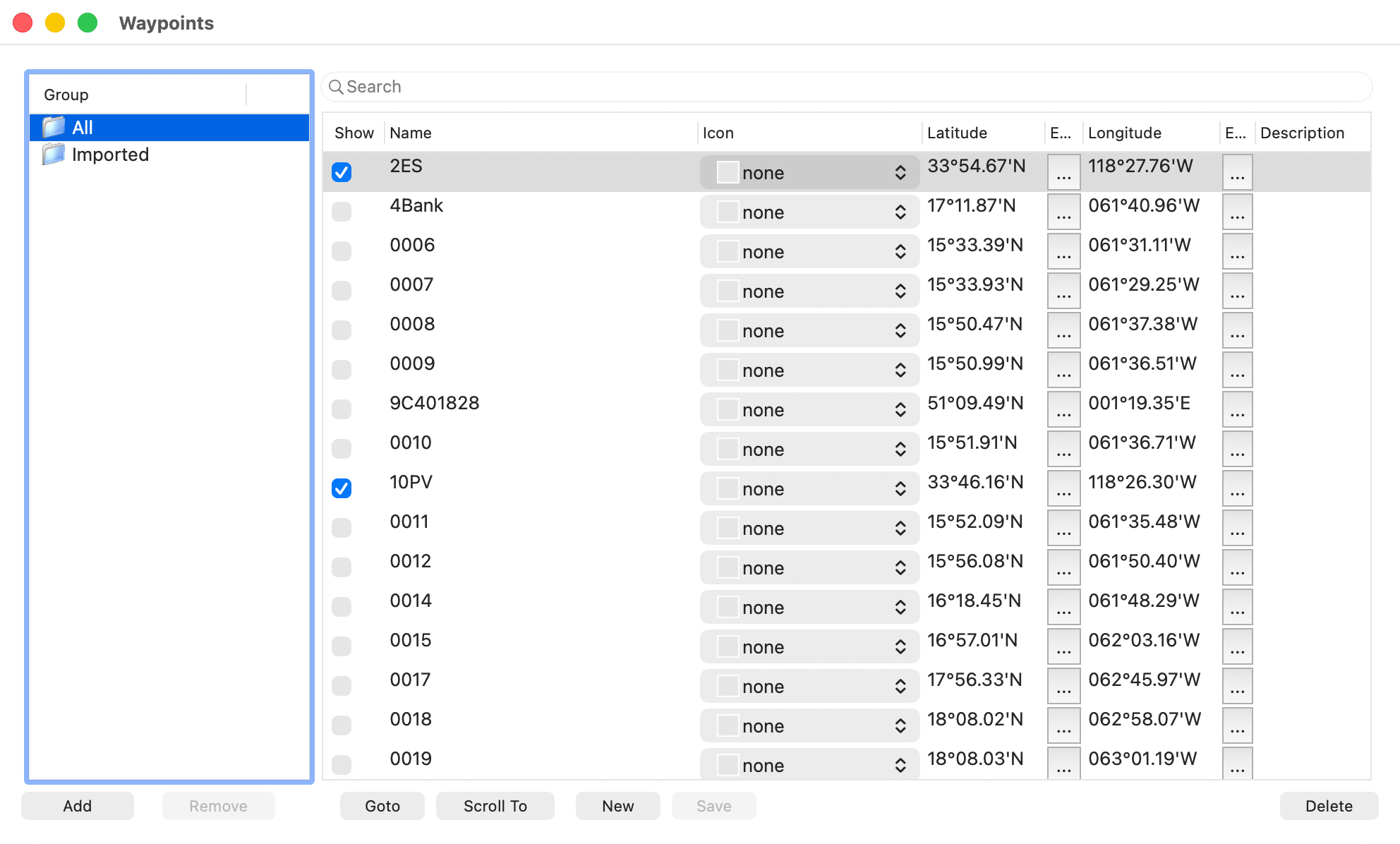
For each waypoint, the list has these columns:
- Clear the Show box to hide the waypoint on the chart.
- To change the Name or Description, select the waypoint, then click its name or description. Each name must be unique.
- The Icon column shows the symbol drawn with the waypoint on the chart.
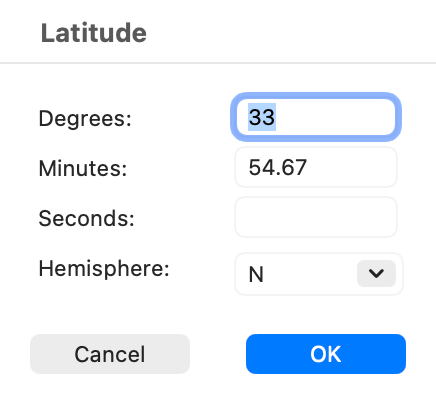
- To change the Latitude or Longitude, click … in the Edit column beside it, fill in the Position Input window and click OK. Its Degrees, Minutes and Seconds fields follow the Position format in the Units window (Select… in the Units group of Settings).
- The Groups column lists the groups the waypoint belongs to.
Type in the search field to list only waypoints whose name or description matches.
Below the list, New and Goto work as described on this page, Save saves your changes, and Scroll To centers the chart on the selected waypoint. Delete deletes the selected waypoints when All is selected, and removes them from any routes too. With another group selected, it only takes them out of that group. There is no confirmation.
Groups
All lists every waypoint. Imported collects waypoints added from files, and those made when you create a route from a track or an annotation. Click Add to make a new group (GP0001, GP0002 and so on). To rename a group, select it and click its name. All and Imported can’t be renamed. Remove removes the selected group, but not its waypoints.
To put waypoints in a group, select them and drag them onto the group’s name. A waypoint can belong to several groups.
Selecting a group lists only its waypoints, and only those are drawn on the chart. The waypoint of a Goto, and the waypoints of the route shown with Routes > Show Selected, are always drawn.
To save a group’s waypoints as a GPX file, drag the group to a folder in the Finder. The file is named waypoints.gpx.
Icons
The Icon menu offers none and 69 symbols, among them marina services (dock, diesel, water, ice), navigation marks (buoys, cans, cardinal marks, beacons, wrecks, rocks), plain colors and weather symbols.
Waypoints on the chart
A waypoint appears as a dot, with its icon if it has one and its name on a yellow label (orange with View > Low Light on). You work with it by its name:
- Rename. In Measure Line Mode or Waypoint Move Mode, double-click the name, type a new one and press Return.
- Select. ⌘-click the name to select the waypoint in the Waypoints window.
- Move. Click “Waypoint Move Mode”, then drag the waypoint by its name.
- Other actions. Control-click the name for Goto, Edit (opens the Waypoints window with the waypoint selected), Add to Route, Delete (the same as Delete in the Waypoints window) and Hide (clears its Show box).
Moving or renaming a waypoint changes every route that uses it.
Going to a waypoint
A Goto needs a position from your GPS. See GPS and Position.
- Select a waypoint in the Waypoints window and click Goto, or Control-click a waypoint on the chart and choose Goto.
- To head for a spot with no waypoint, Control-click it and choose Goto. HelmStation puts a waypoint named “Goto” there, or moves its earlier “Goto” waypoint, and starts the Goto.
Starting a Goto this way ends any other. On the chart, a red line runs from where the Goto began to the waypoint, a blue line runs from your boat, and the waypoint is marked in red. The Arrival Alarm turns on and draws a red circle of the Waypoint Arrival Distance around the waypoint, and the Navigation window opens.
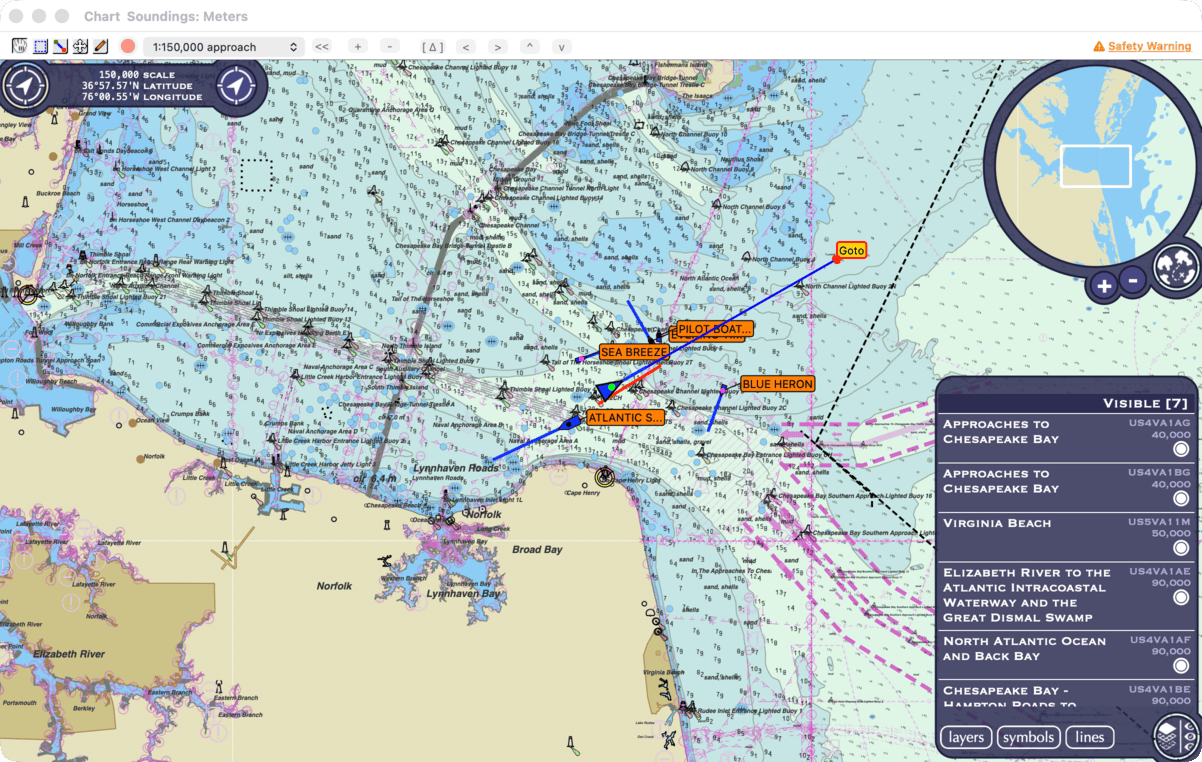
While a Goto is under way you can’t edit, rename, delete or hide its waypoint, though you can still move it. HelmStation can also send steering information for the Goto to an autopilot; see Network Connections.
To end the Goto, click Cancel Goto in the Navigation window. A Goto also ends if HelmStation loses your GPS position. If you close the chart window or quit during a Goto, HelmStation asks “Cancel active waypoint?”. Click Yes to end the Goto, or No to carry on.
If you follow your GPS’s own Goto with Goto - Make Active Waypoint in the GPS window, HelmStation’s Goto controls are unavailable until it ends.
The Navigation window
Choose Window > Navigation (⇧⌘N) to show or hide it. Its tabs appear when they have something to show:
- Waypoint, during a Goto, shows the waypoint’s Name and Description, the Bearing and Distance to it from your boat, Velocity (your velocity made good towards it), Time To Go at that velocity, and Cross Track, how far you are to one side of the line from where the current leg began. Velocity and Time To Go are blank while you are stopped.
- Route appears while you follow a route. See Routes.
- Proximity, whenever HelmStation has a GPS position and you have waypoints, lists every waypoint, nearest first, with its Name, Bearing, Distance and Time To Go. The waypoint of a Goto is shown in red.
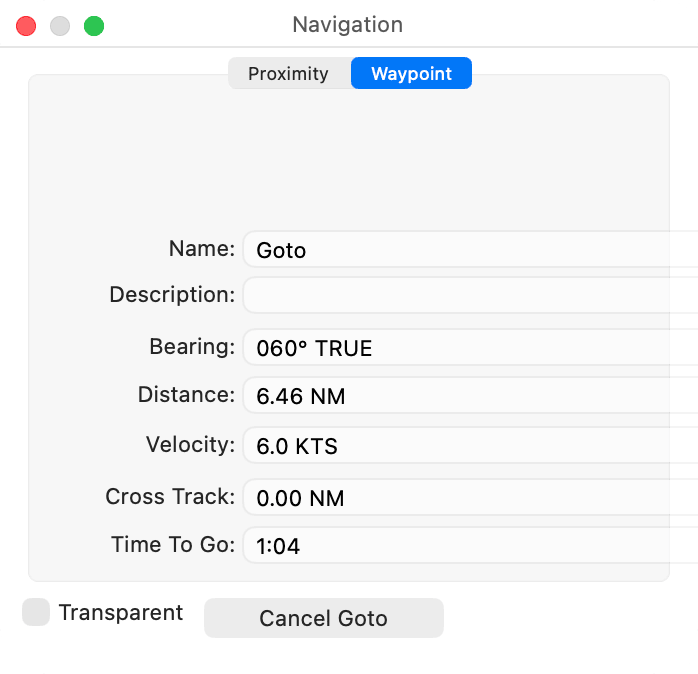
Select Transparent to make the window partly see-through. The window hides while you are using another app.
Saving and files
Changes to waypoints are kept only when you save them: click Save or choose Waypoints > Save (⌘S). If you quit with unsaved changes, HelmStation asks “Waypoints have changed. Save?”. Click Save or Don’t Save.
Saving to a file. Choose Waypoints > Transfer > To File and a format. HelmStation saves the waypoints listed in the Waypoints window: those in the selected group that match any search. See File Formats.
Adding from a file. Choose Waypoints > Transfer > From File… and pick a CSV, GPX, KML or KMZ file. HelmStation adds the waypoints to the Imported group and selects it. A waypoint with the same name as one you already have moves yours to the position in the file, rather than adding a second one. Any routes in a GPX, KML or KMZ file are added too. Save afterwards to keep them. You can also open a GPX, KML or KMZ file from the Finder with Open With > HelmStation.
A CSV file has one waypoint per line: name, latitude, longitude and, optionally, a description, separated by commas. Positions use the Position format set in the Units window.
Where waypoints are kept
- On this Mac. Waypoints stay on the Mac where you made them, not in your HelmStation account. To use them on another Mac, move them in a file.
- From MacENCx64. If you moved from MacENCx64, HelmStation brought your waypoints and groups across with the rest of your data.
- Support data. Your waypoints are included if you click Upload support data in Help > Contact Support.