Help Docs
HelmStation Online Documentation
HelmStation Store
The HelmStation Store is where you browse and buy charts. Open it with File > HelmStation Store. Purchases are made with your Apple Account, and each chart’s price is shown on its buy button in your local currency.
Buying charts needs a Full License. During the 14-Day Sea Trial you can browse the whole catalog, and a banner reminds you: “Trial License: Browse charts freely, but a full license is required to purchase.” See Trial and License.
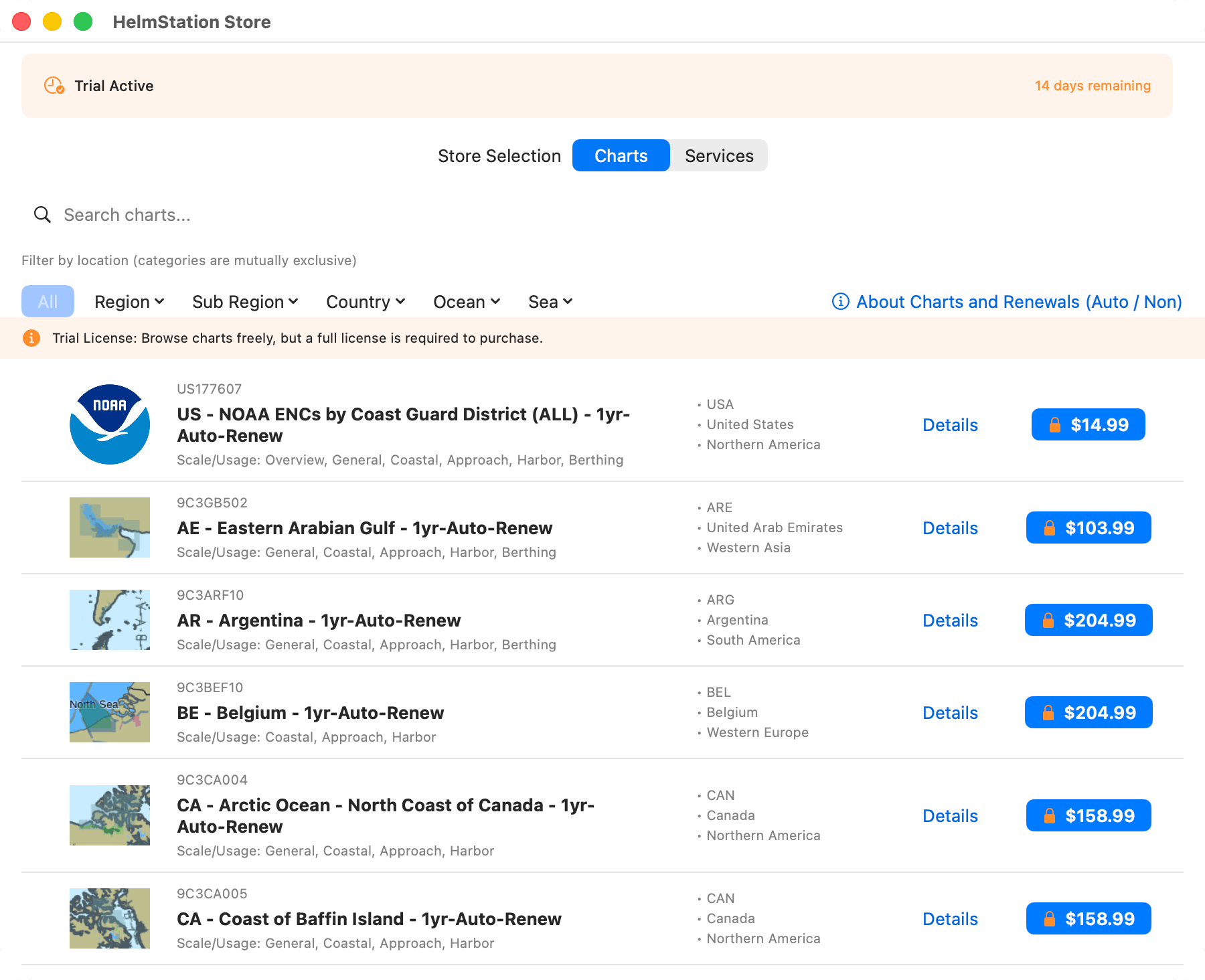
The store window
The bar at the top shows your license. Below it, the Charts tab holds the chart catalog. The Services tab shows “Coming Soon” and has nothing to buy yet.
Finding charts
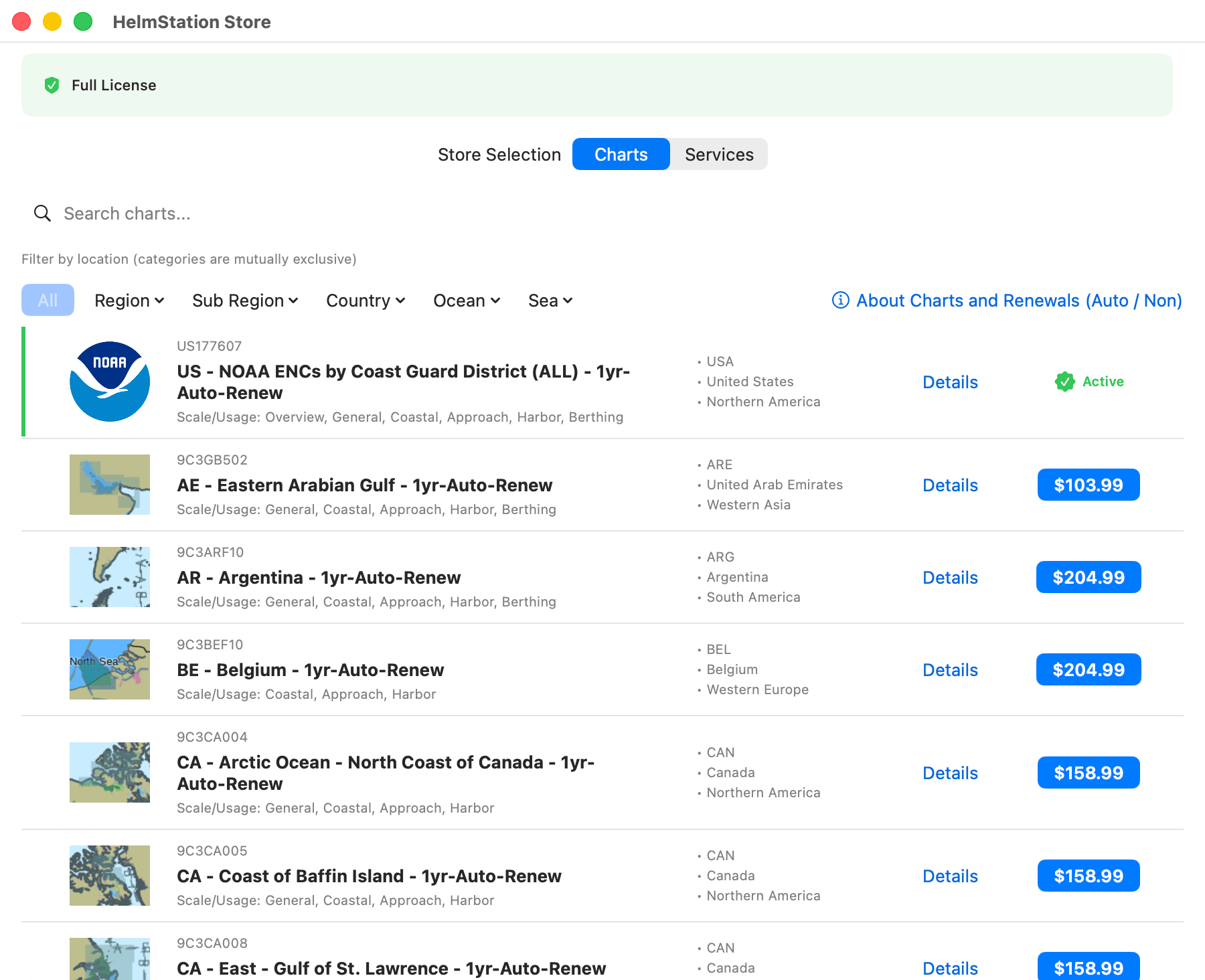
- Search. Type in the “Search charts…” field. It matches chart names, descriptions, producers and sea names.
- Filter by location. Use the Region, Sub Region, Country, Ocean and Sea menus. You can tick several items in one menu, and the number ticked appears beside its name. As the note “Filter by location (categories are mutually exclusive)” says, the menus don’t combine: choosing an item in one clears your choices in the others. Ocean offers Arctic, Atlantic, Indian, Pacific and Southern.
- All clears the location filters.
The list shows the charts that match both your search and your filter.
Chart rows
Each row shows the chart’s product code (SKU), its name, its scale bands, and the country, region or sea it belongs to. The name ends with the renewal type, “1yr-Auto-Renew” or “1yr-Non-Renew”. At the right, each row has the following:
- Details opens the Details sheet.
- The button showing the price buys the chart. A lock on it means you don’t have a Full License.
- Active, with a green check, replaces the price when you already own the chart and its subscription is active.
The Details sheet
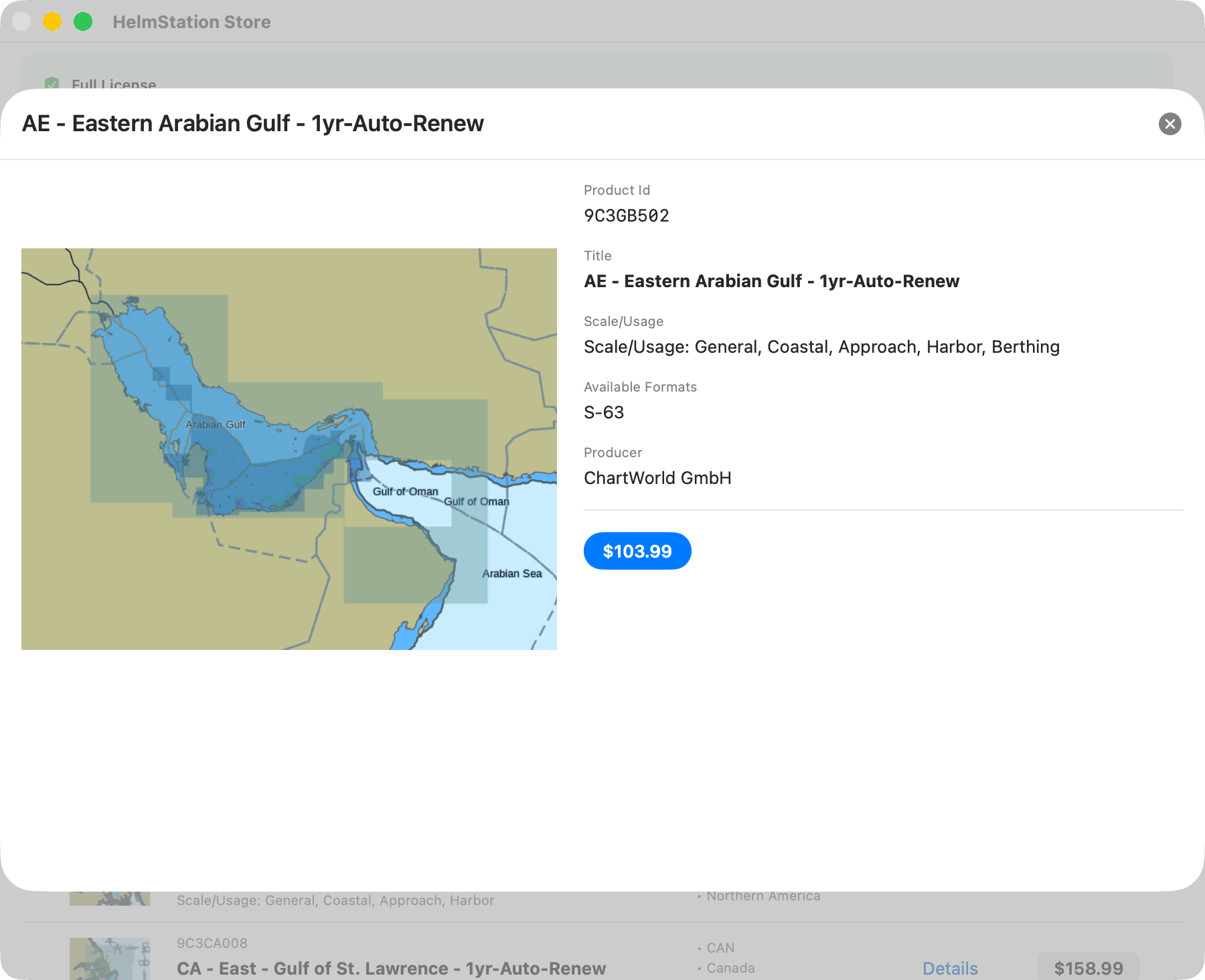
The Details sheet shows a larger image of the chart and its Product Id, Title, Scale/Usage, Available Formats and Producer. Some charts list more details, such as a Bounding Box. Below them is the price button or, for a chart you own, “Active Subscription”.
Auto-Renew and Non-Renew
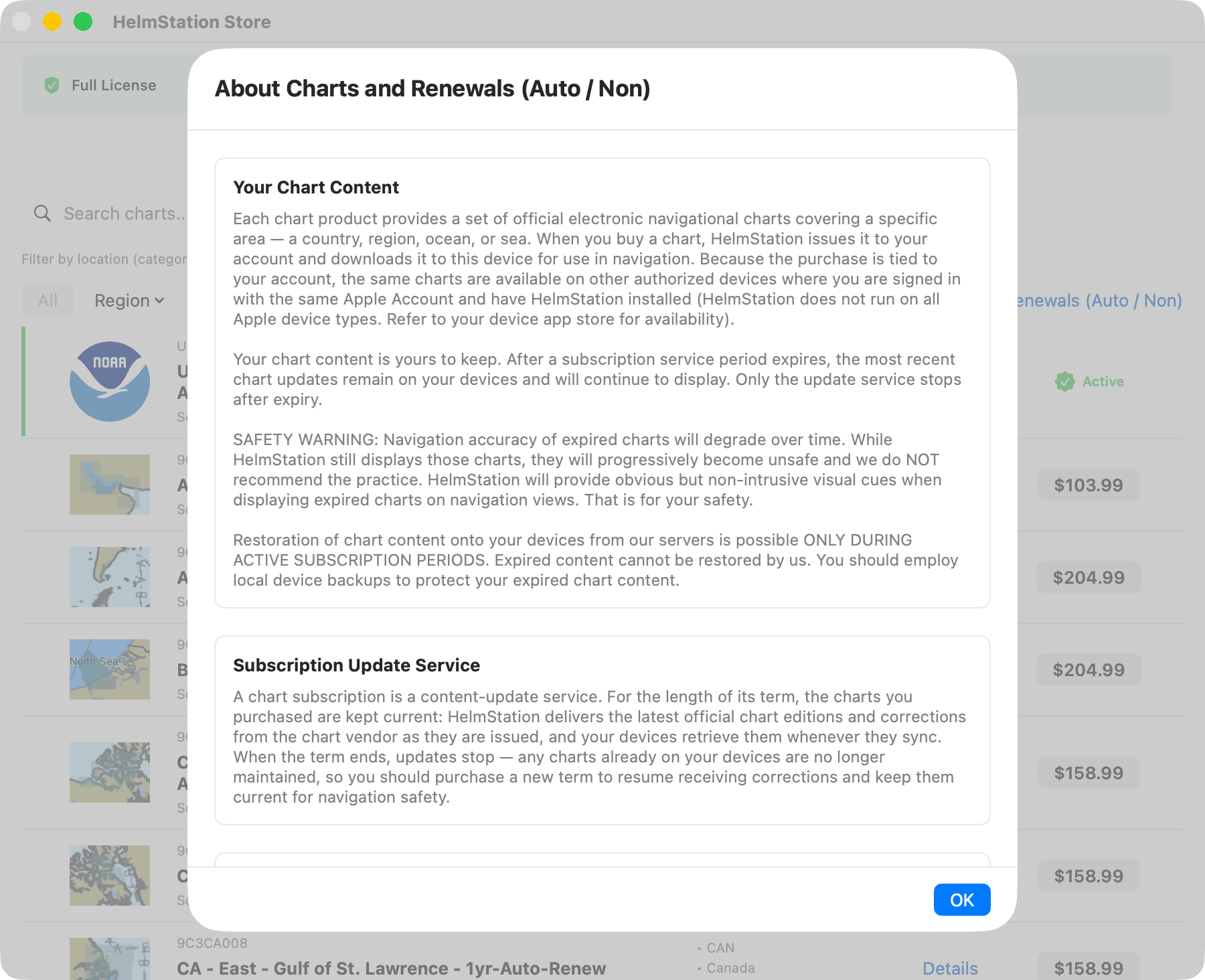
Click About Charts and Renewals (Auto / Non), at the right end of the filter row, for the full explanation. Here is a short summary:
- A chart purchase gives your account the official charts for an area, plus an update service for the term. HelmStation downloads them to this Mac and to your other authorized Macs signed in with the same Apple Account.
- Auto-Renew renews at the end of every term until you cancel it, in the App Store or with Purchases & Refunds… in Manage Account & Data Privacy. After you cancel, updates continue until the paid term ends.
- Non-Renew is a single term that ends by itself. To carry on, buy another term once it has ended.
- When a term ends, your charts stay and still display, but they are no longer updated. See Expired Charts.
Buying a chart
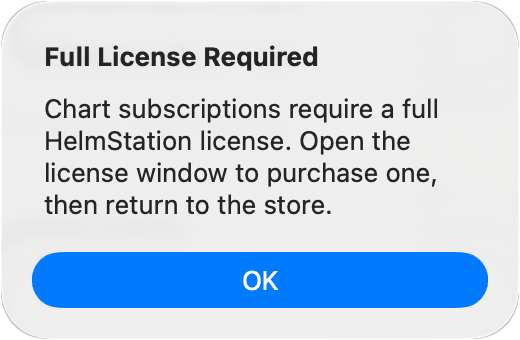
- Click the price button on the chart’s row or in its Details sheet. Without a Full License, the Full License Required alert appears instead; click OK to open the License window.
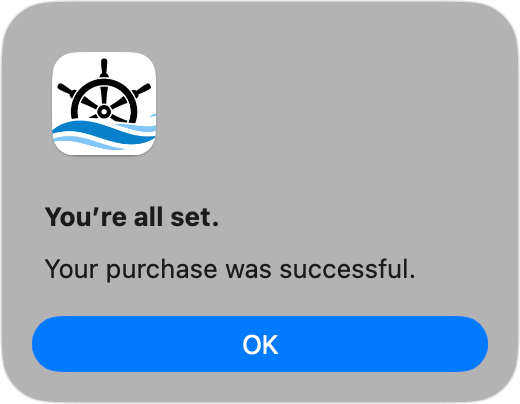
- Confirm the purchase with your Apple Account. When it’s done, Apple shows “You’re all set. Your purchase was successful.” Click OK.
- The row shows Active. HelmStation prepares your charts and downloads them. Follow their progress in Chart Account and Delivery.
If you cancel along the way, nothing is charged.
After you buy
Up to two notices can follow a purchase, one after the other.
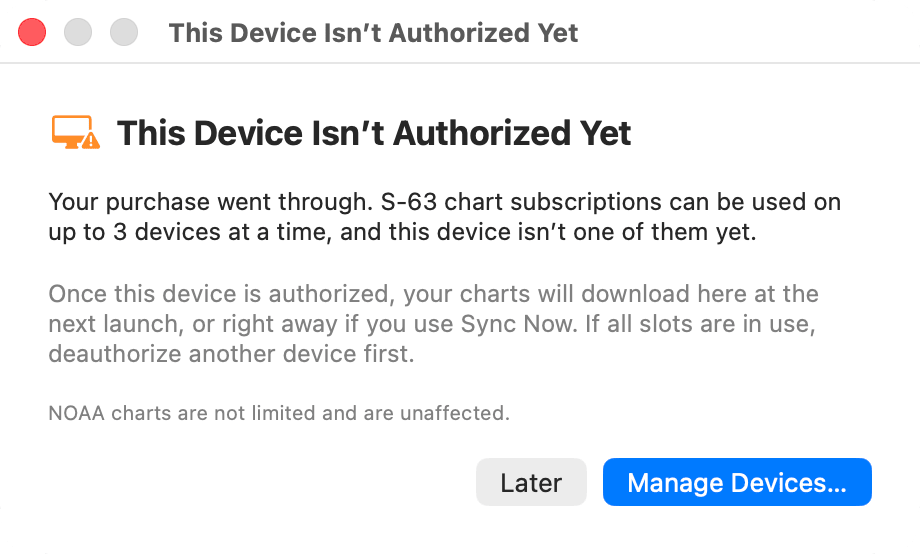
This Device Isn’t Authorized Yet appears when this Mac isn’t one of your authorized Macs for S-63 charts. Your purchase went through. Once the Mac is authorized, the charts download here the next time HelmStation opens, or straight away if you click Sync Now in File > HelmStation Chart Account. Manage Devices… opens the Authorized Devices list. Later closes the notice. See Devices and New Macs.
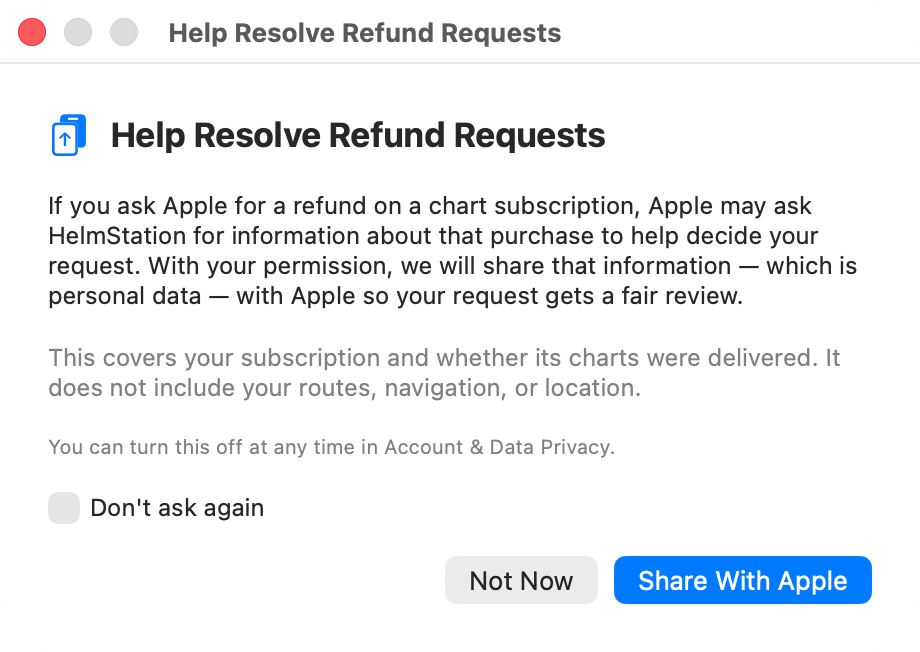
Help Resolve Refund Requests asks whether we may share information about a chart purchase with Apple if you ask Apple for a refund. The notice explains what is shared.
- Share With Apple turns refund data sharing on.
- Not Now closes the notice. It asks again after your next chart purchase.
- To stop being asked, tick Don’t ask again, then click Not Now.
Change this at any time under Refund Data Sharing in Manage Account & Data Privacy. See Your HelmStation Account.
When a purchase can’t go ahead
Before you buy a Non-Renew chart, HelmStation checks with our servers that you don’t already have it. If it can’t go ahead, a “Purchase problem” alert explains why. Apple isn’t asked, so nothing is charged.
| The message begins | What it means |
|---|---|
| “You already own this chart.” | The subscription is active. There’s nothing to buy. |
| “You purchased this chart on another device.” | It’s already on your account and will appear here. Don’t buy it again. |
| “You have already purchased this chart and it is being prepared now.” | Wait. It appears when it’s ready. |
| “You have already purchased this chart, but preparing it did not complete.” | Don’t buy it again. Contact support and quote the reference in the message. |
| “HelmStation could not confirm this purchase with our servers” | Check your internet connection and try again. |
Already purchased on this Apple Account means you bought this Auto-Renew chart earlier with the same Apple Account, under a HelmStation account since deleted. Apple won’t sell the same subscription twice, and nothing was charged. The old subscription may still be billing: cancel it in your Apple subscription settings, then buy the chart once it has ended.
Your purchase is recorded means HelmStation couldn’t confirm a Non-Renew purchase with our servers straight away. It finishes by itself the next time HelmStation runs. Don’t buy that chart again on any Mac.
A Purchase problem alert reading “Account ID not available.” means HelmStation hasn’t finished setting up your account on this Mac. Nothing is charged. Quit and reopen HelmStation, then try again. If the message still appears after a second restart, contact support.
This chart was already active means you bought a Non-Renew chart you already had active. The second purchase wasn’t applied and delivered nothing, so ask Apple for a refund: Request Refund from Apple… opens Apple’s refund page in your browser. The purchase also stays listed in Purchases & Refunds… under “Not Delivered — Refund Available”.
Quitting while a purchase is finishing
If you quit before a Non-Renew purchase has been confirmed with our servers, HelmStation shows A chart purchase is still finishing and names the charts. Quitting is safe, but don’t buy those charts again on another Mac.
- Quit quits. The purchase finishes the next time HelmStation runs.
- Re-Sync with HelmStation keeps HelmStation open and tries now, then reports Purchase confirmed or Still could not reach our servers. Either way, it’s safe to quit.
NOAA Chart Service
The NOAA Chart Service is sold here too, as a yearly Auto-Renew subscription, and also needs a Full License. After buying it, choose your districts in File > NOAA Charts. See NOAA Chart Service.