Help Docs
HelmStation Online Documentation
Getting Support
The Help menu has three ways to get help:
- Help > HelmStation Help (⌘?) opens this help.
- Help > www.helmstation.com opens the HelmStation website in your browser.
- Help > Contact Support opens the Contact Support window, where you can contact our support team and, when they ask, send them diagnostic data.
If something isn’t working as expected, Troubleshooting may have the answer.
The Contact Support window
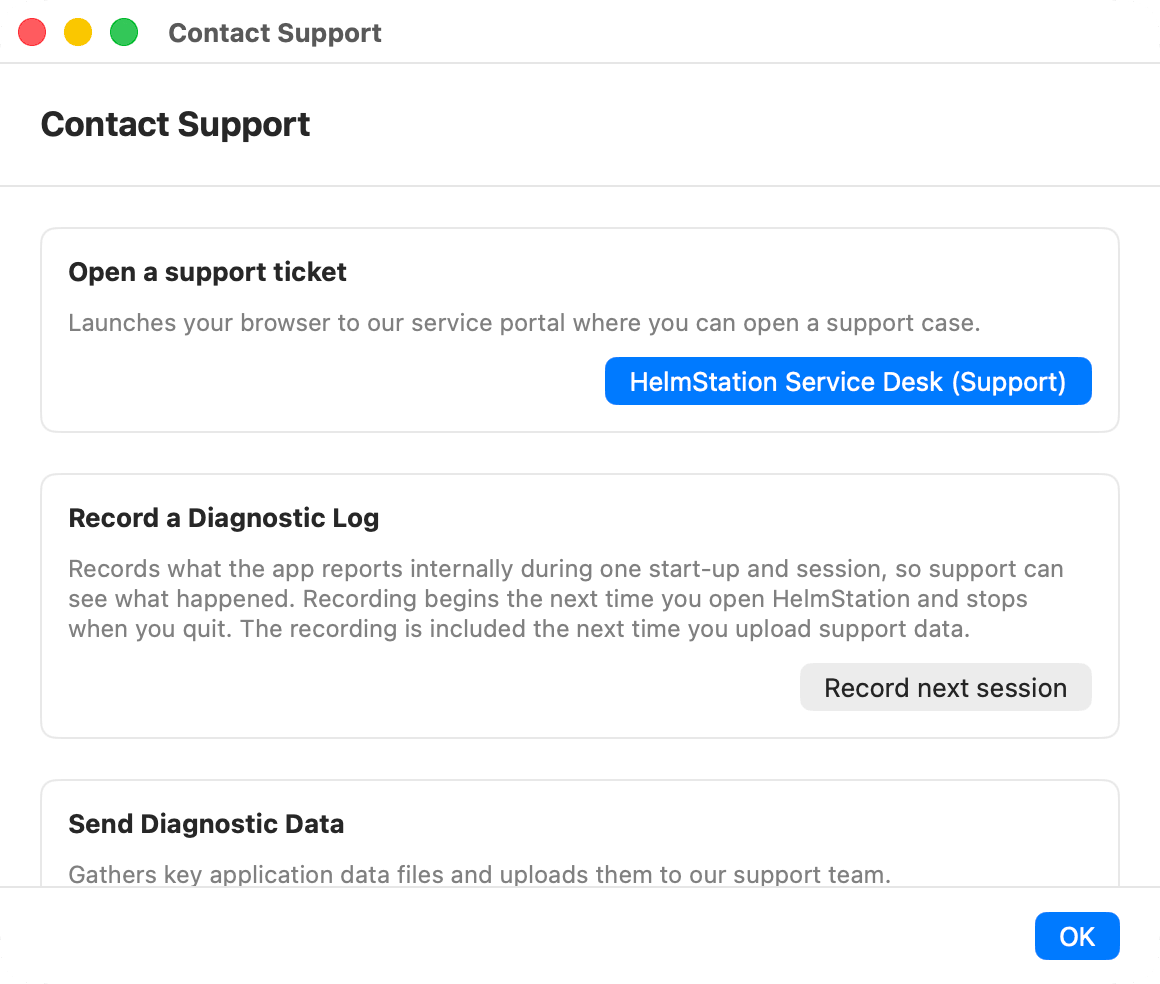
The window has three sections. Click OK when you’re done.
Contact support
Click HelmStation Service Desk (Support) to open the HelmStation contact page  in your browser. From there you can reach our support team.
Always start here. The other two sections are for when a support engineer working on your case asks for them.
Record a Diagnostic Log
Some problems happen while HelmStation is starting up. To help with these, support may ask you to record a session. HelmStation then records what it reports internally from the moment it opens until you quit, and support can read what happened.
- Click Record next session. The Only on request by support sheet opens.
- Select the checkbox “Support has requested this, and I agree to include my waypoint, route, and track data”, then click Record next session.
- The window shows “Recording is armed. Quit HelmStation and open it again, then reproduce the problem. When you are done, use Upload support data.”
- Quit HelmStation, open it again, and do whatever makes the problem happen.
- Choose Help > Contact Support and click Upload support data (see below).
Only one session is recorded: the next time you open HelmStation. Later sessions aren’t recorded unless you set it up again. Recording sends nothing by itself. The recording stays on your Mac until you upload it, and HelmStation deletes it from your Mac once the upload succeeds.
If the sheet shows “Recording could not be set up. Please try again, or contact support if it keeps failing.”, click Record next session again.
Send Diagnostic Data
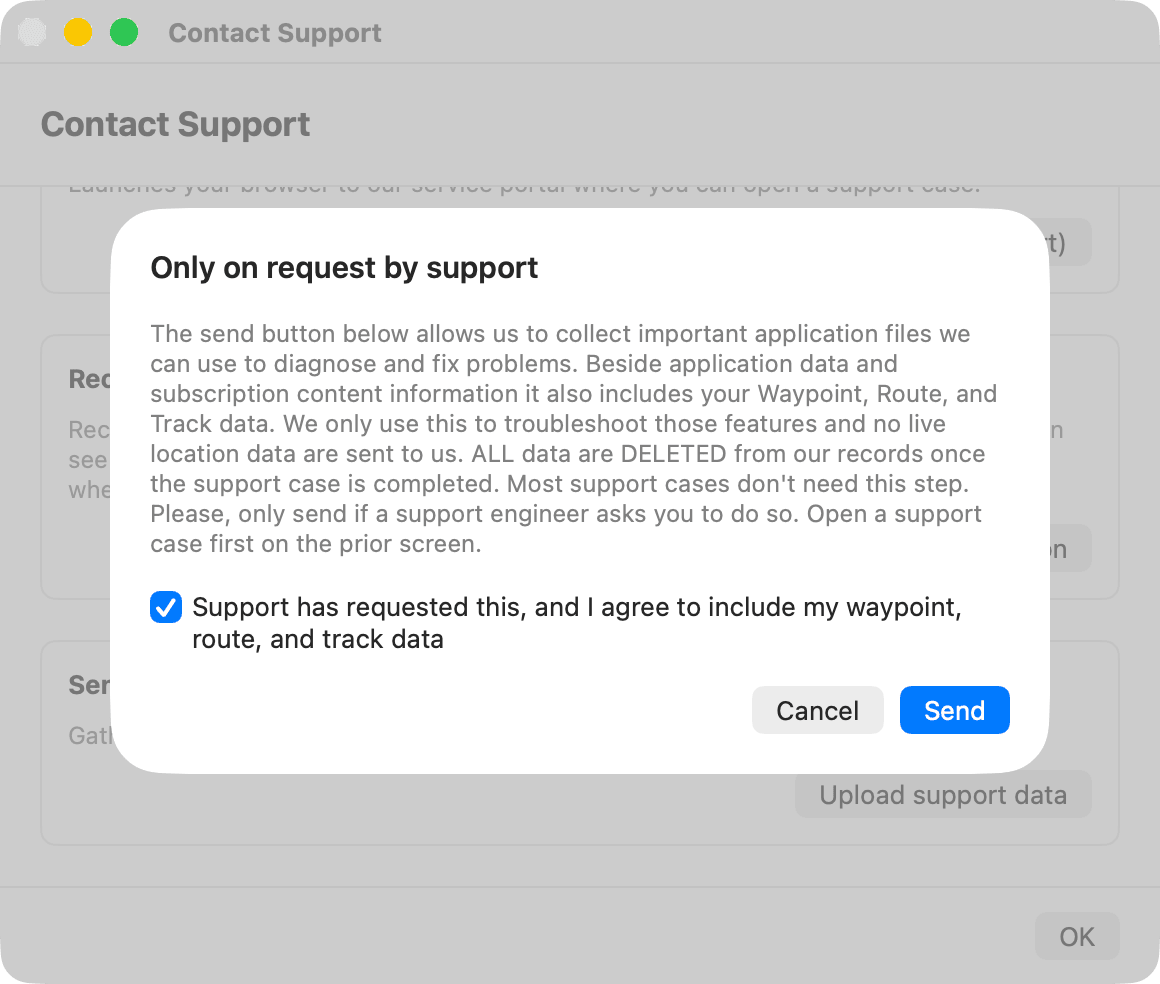
Upload support data sends a copy of HelmStation’s data files to our support team. Most support cases don’t need this. Please send it only when a support engineer asks you to, after you have contacted us.
- Click Upload support data. The Only on request by support sheet opens and explains what’s included.
- Select the checkbox “Support has requested this, and I agree to include my waypoint, route, and track data”. Send stays unavailable until you do.
- Click Send. HelmStation shows “Collecting and sending support data…”.
When the upload is complete, the sheet closes and the window shows “Support data sent. Thank you.” It may help to let support know you’ve sent it.
If the upload fails, the sheet shows “Could not send support data. You can still reach us through the Service Desk.” Check your internet connection and click Send again, or click Cancel.
The checkbox is cleared each time the sheet opens, so every upload and every recording is a deliberate choice.
When to contact support
Contact support through the HelmStation contact page in these cases:
- You have a question or a problem with HelmStation, your account, your charts or a purchase.
- You are a MacENCx64 Registered User and haven’t received the coupon for your Full License, for example because your email address has changed. Ask for one when you contact us.
- A HelmStation message asks you to contact support. Here are some examples:
- A Purchase problem message begins “You have already purchased this chart, but preparing it did not complete.” It gives a reference. Quote the reference when you contact us, and don’t buy the chart again.
- Restore Subscription Purchases, in File > HelmStation Chart Account, reports “Your subscriptions could not be restored to this account.”
- The MacENCx64 migration reports “Sorry, your MacENC data could not be fully migrated, and migration cannot be run again.” Support can connect your MacENCx64 registration to your HelmStation account remotely. See Installing and First Launch.
- Requesting a 3rd Party ENC User Permit fails with “Failed to obtain third party permit. Please try again or contact support.”
Refunds are handled by Apple, not by HelmStation support. See Trial and License and Your HelmStation Account.
What to include
To help us help you quickly, include:
- your account ID, shown as Helm Account ID in File > HelmStation Chart Account.
- the exact wording of any message HelmStation showed, or a screenshot of it.
- what you were doing when the problem happened.