Help Docs
HelmStation Online Documentation
Expired Charts
A chart subscription is an update service. When its term ends, the subscription has expired: HelmStation keeps the charts on your Mac and continues to display them, but they no longer receive corrections.
Expiry applies to charts from the HelmStation Store, including the NOAA Chart Service. Charts you added yourself in Chart Manager are never marked as expired, and neither are NOAA charts kept from a MacENCx64 registration. While Apple is retrying a failed renewal payment (Billing Issue in the Chart Account window), your charts are not treated as expired.
Safety warning
Expired charts are not safe to navigate by. From the day a subscription expires, your charts stop receiving the corrections that chart producers issue for new wrecks, moved or discontinued buoys and lights, changed depths and new restrictions. The longer a chart has been expired, the further it drifts from the real world.
HelmStation still shows expired charts so that your content isn’t taken away from you, not because they are fit for navigation. We do not recommend navigating on expired charts.
- Before a passage, check that the charts you will rely on are current. The Safety Warning link in the chart window tells you at a glance whether any of your charts have expired.
- Renew when HelmStation tells you a chart has expired. A Non-Renew chart can be bought again once its current term has ended.
- Treat an expired chart as a reference only, and cross-check it against current official sources.
How HelmStation marks expired charts
Safety Warning in the chart window
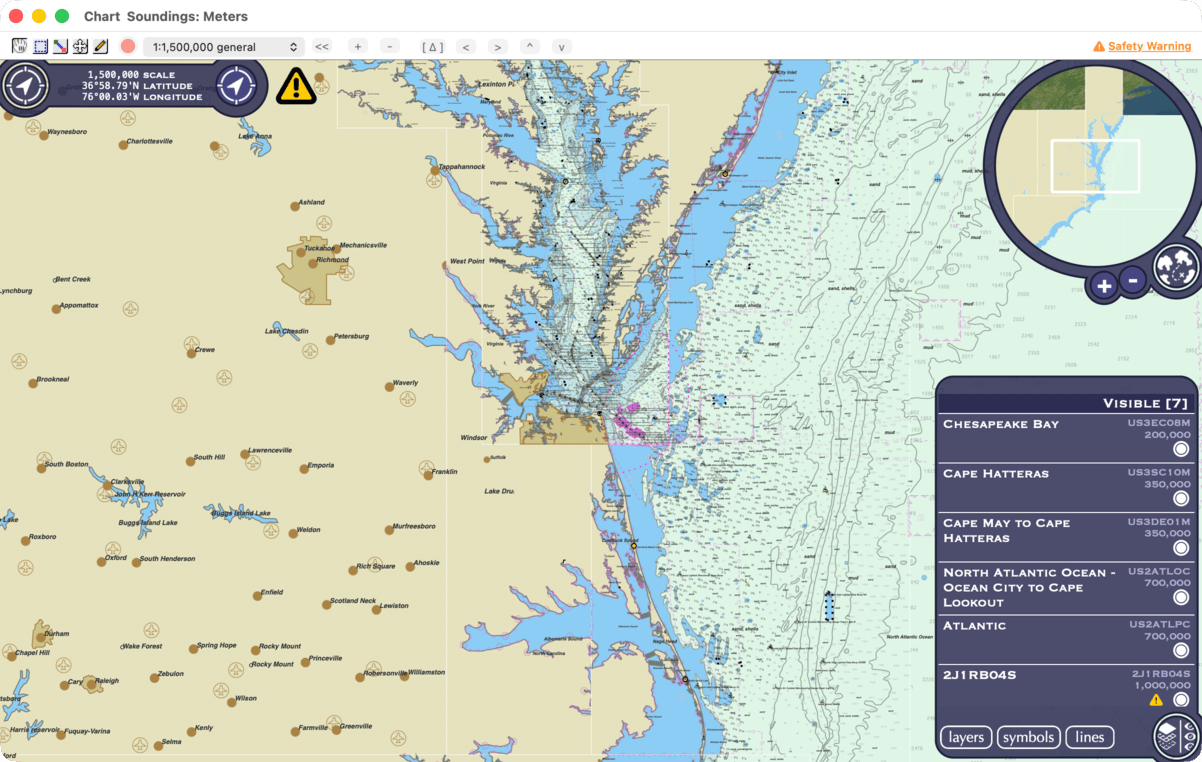
While any of your charts has expired, an amber Safety Warning link appears at the right end of the chart window’s toolbar, whether or not those charts are in view. Hover over it to see “Safety warning — you have expired charts. Click for details.” Click it to open the About Expired Charts window.
Caution triangle on the chart
A yellow caution triangle appears at the top left of the chart, beside the chart’s own controls, whenever expired charts are showing in the view. It disappears when you move away from them. Hover over it to see “Expired charts are in view — their updates have stopped. Click to highlight them.” Click it and the expired charts in view flash, so you can see where they are.
The list of charts in view
In the list of charts in view, at the bottom right of the chart, each expired chart carries a small yellow triangle. Hover over it for the safety warning and “Update service ended” with the date. Clicking a chart’s row flashes it on the chart. See What the Chart Shows.
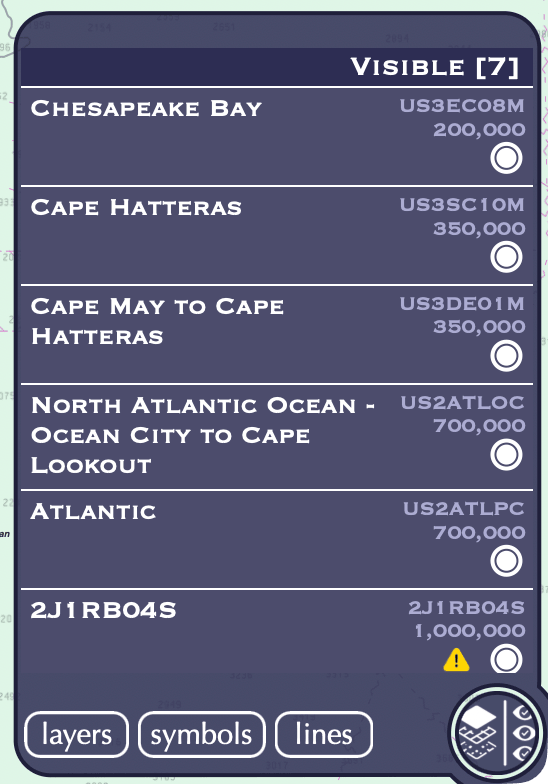
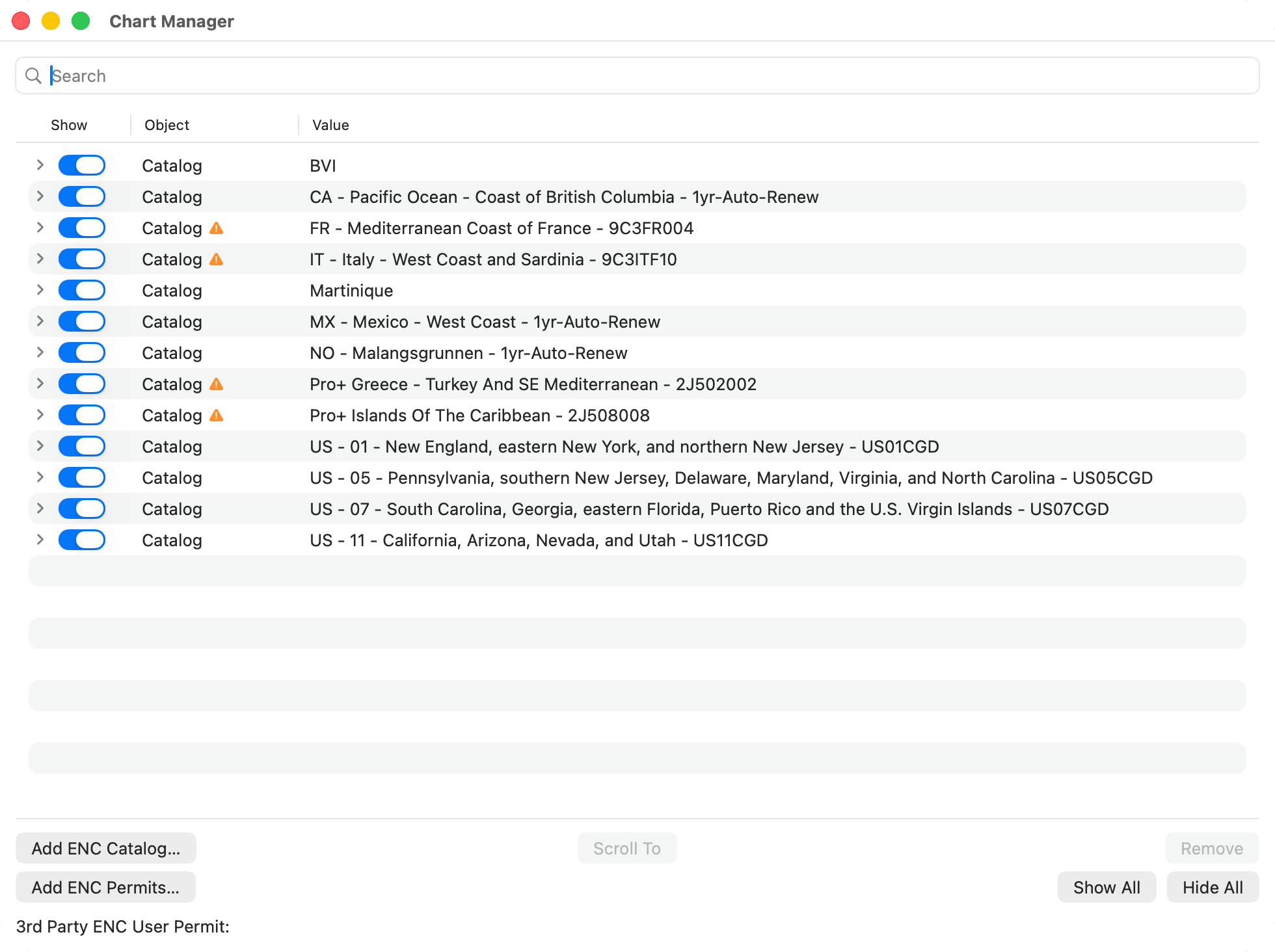
Chart Manager
In File > Chart Manager, an expired chart’s catalog row has an amber warning triangle beside Catalog in the Object column. Hover over it for the safety warning and the date the update service ended. Click it to open About Expired Charts. See Chart Manager and Third-Party ENCs.
The Chart Account window
In File > HelmStation Chart Account, an expired subscription’s row is grayed out, shows Expired in the Subscription and Status columns, and gives its end date under Expires. See Chart Account and Delivery.
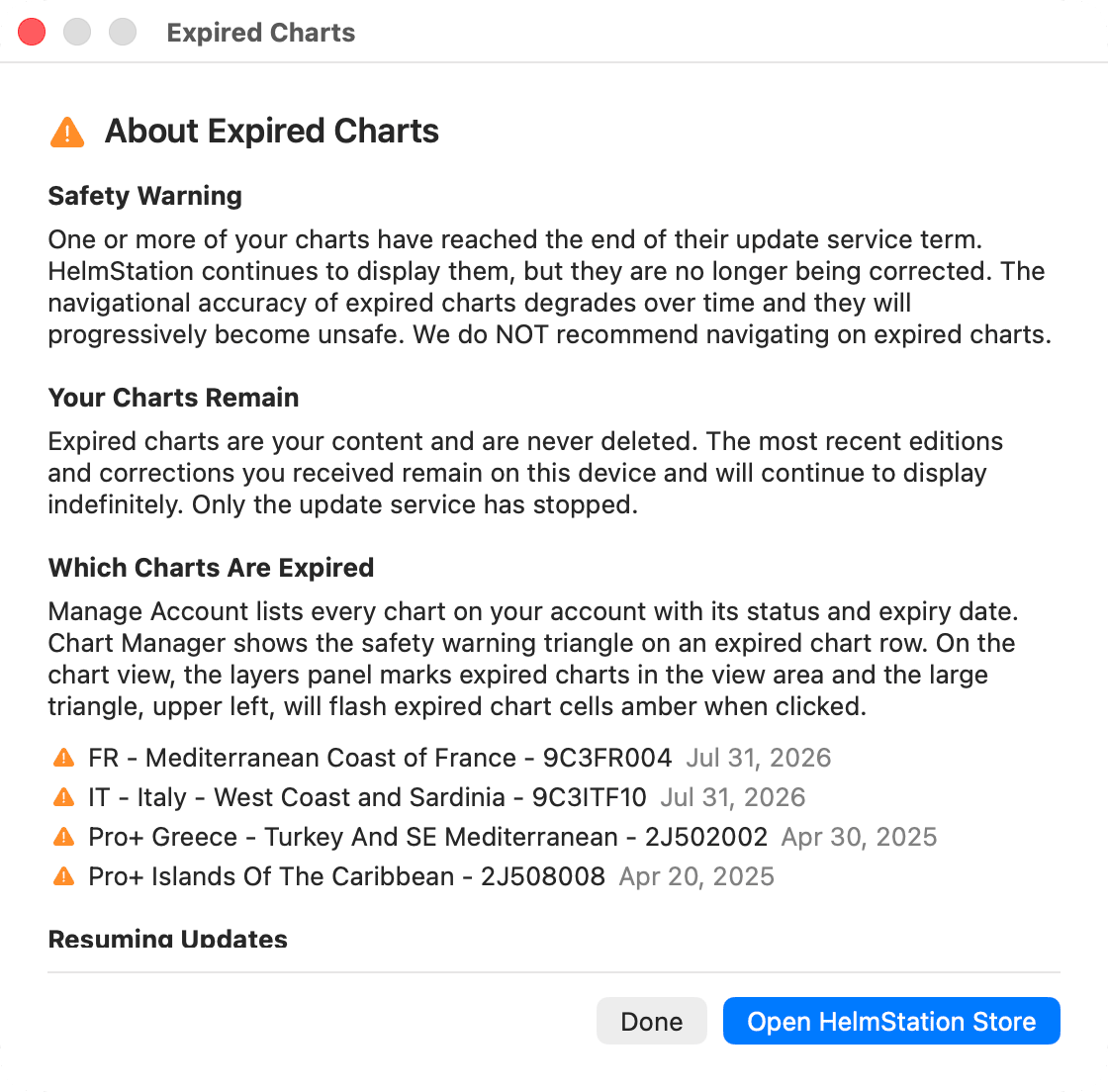
The About Expired Charts window
About Expired Charts explains what expiry means, in four sections: Safety Warning, Your Charts Remain, Which Charts Are Expired and Resuming Updates. Under Which Charts Are Expired it lists each of your expired charts with the date its update service ended.
- Open HelmStation Store closes the window and opens the store, where you can buy a new term.
- Done closes the window.
What is kept and what is removed
Kept. Expiry never deletes charts. On each Mac where they are installed, your expired charts stay, with the last editions and corrections you received, and continue to display. Deauthorizing a Mac doesn’t remove them either: it affects only charts with active subscriptions. See Devices and New Macs.
Removed. HelmStation Store charts, expired or not, are removed in these cases:
- Refund or revocation. When Apple refunds or revokes a chart subscription, its charts stop displaying once HelmStation learns of it, and are deleted the next time HelmStation starts. This happens on every Mac signed in to your account.
- Deleting your HelmStation account. Your charts are removed from all your Macs. See Your HelmStation Account.
- Continuing with a different Apple Account on the Mac. HelmStation asks first. If you continue, the previous account’s charts, active and expired, are removed from that Mac. Removing its expired charts is permanent. See Your HelmStation Account.
Keep a backup
We can deliver chart content to your Macs only while a subscription is active. Once it has expired, we can’t restore the charts for you, and Restore Subscription Purchases brings back only active subscriptions. If an expired chart is deleted, or the Mac it’s on is lost or damaged, you may not be able to get it back.
To protect expired charts you want to keep, back up your Mac regularly with Time Machine. Time Machine backs up HelmStation’s data, including your charts, and restoring it to the same Mac brings your expired charts back.
Moving to a new or different Mac is another matter:
- Active HelmStation Store charts are delivered again automatically to every authorized Mac, so you don’t need a backup for them.
- Expired HelmStation Store charts aren’t delivered to a new Mac, and aren’t guaranteed to work there even if you restore them from a backup.
- Third-party S-63 charts you bought from another provider are locked to the Mac their user permit was issued for. They won’t work on another Mac.
Keep your old Mac until you’re sure you no longer need its expired charts. See Devices and New Macs.
Renewing
To start receiving updates again, buy a new term in the HelmStation Store. Open HelmStation Store in the About Expired Charts window takes you there, and an expired chart’s row shows its price again.
- Auto-Renew charts renew by themselves unless you cancel them. If one has expired, buy it again.
- Non-Renew charts can be bought again once the current term has ended. Until then the store shows the chart as Active.
After you buy, HelmStation delivers the latest editions to your authorized Macs. The warnings clear once HelmStation has synced the renewed subscription. To sync straight away, click Sync Now in File > HelmStation Chart Account. See HelmStation Store.