Help Docs
HelmStation Online Documentation
NOAA Chart Service
The NOAA Chart Service delivers the official US NOAA ENCs, in S-57 format, organized by US Coast Guard District. You choose the districts you want, and HelmStation downloads the charts, installs them and keeps them up to date.
NOAA charts don’t count toward the three-Mac limit that applies to S-63 charts from the HelmStation Store. See Devices and New Macs.
Who has the service
You have the NOAA Chart Service if any of these applies:
- You bought the NOAA subscription in the HelmStation Store. It is an annual Auto-Renew subscription, listed as “US - NOAA ENCs by Coast Guard District (ALL) - 1yr-Auto-Renew”. Like every purchase in the Store, it requires a Full License.
- Your 14-Day Sea Trial is active. The trial includes a preview of the service.
- HelmStation carried over your MacENCx64 registration during migration. You need no subscription, your access doesn’t expire, and it applies on all your Macs.
A Full License on its own does not include the NOAA Chart Service. See Chart Sources and Trial and License.
Opening NOAA Charts
Choose File > NOAA Charts.
If you have the service, the NOAA Charts window opens.
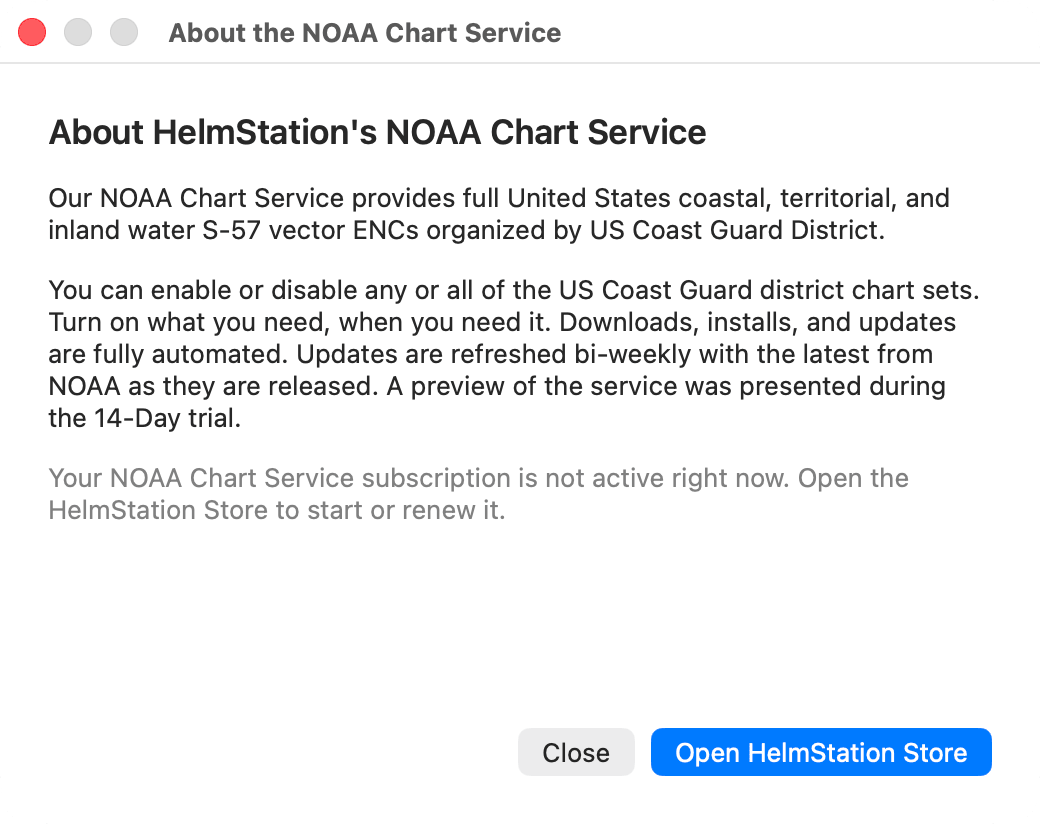
If you don’t, the About the NOAA Chart Service window opens instead. It describes the service and tells you that your NOAA Chart Service subscription is not active right now. Click Open HelmStation Store to buy or renew the subscription, or click Close.
The NOAA Charts window
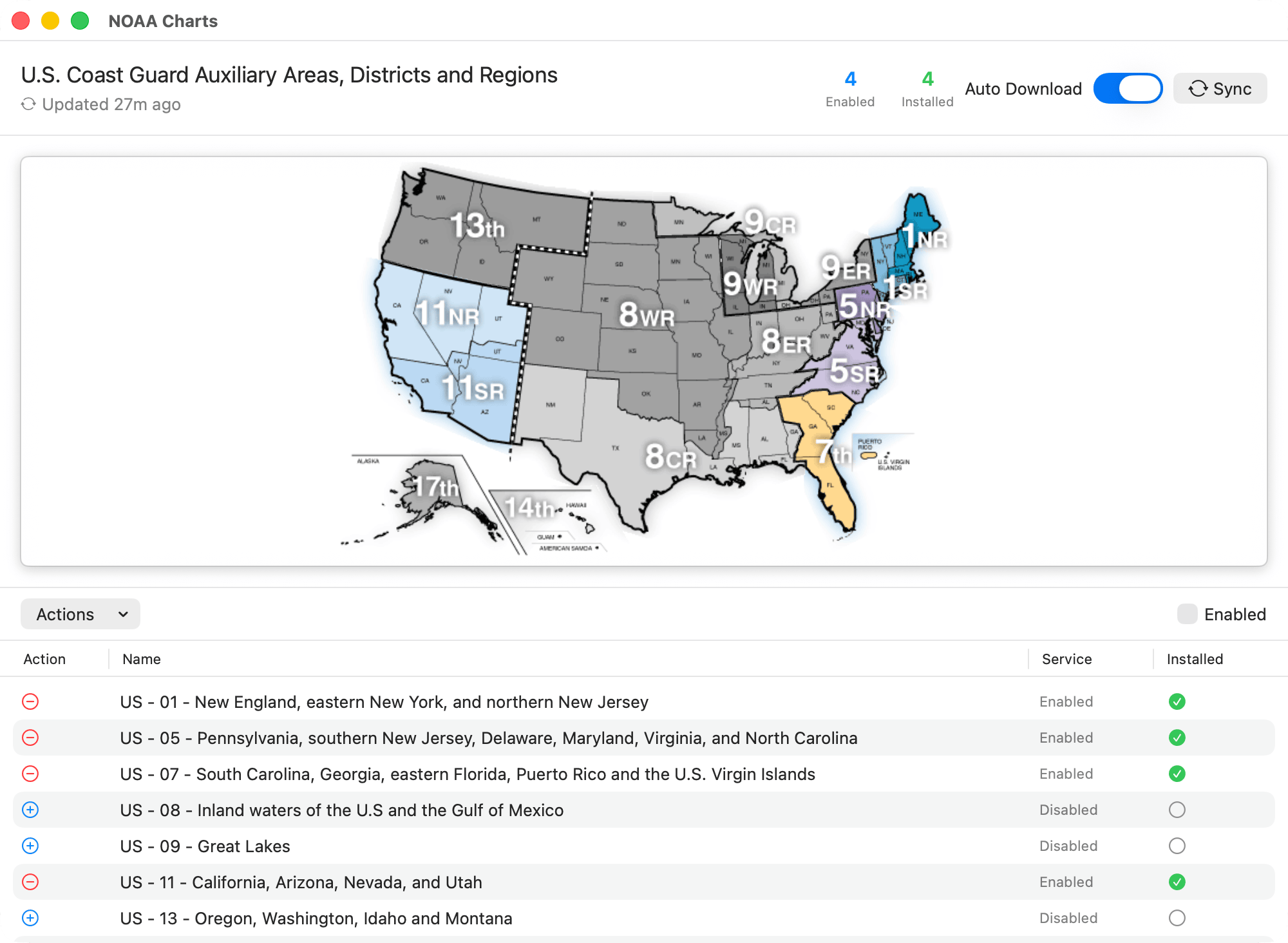
The header shows the title “U.S. Coast Guard Auxiliary Areas, Districts and Regions” and, beneath it, how long ago HelmStation last synced with the service successfully, for example “Updated 27m ago”. While a sync is running, its progress and then its result appear on the next line. Beside the title are three counts:
- Enabled counts the districts you have turned on.
- Installed counts the districts whose charts are installed on this Mac.
- Updates counts the installed districts with a newer NOAA edition waiting. This count appears only when there is at least one.
At the right are the NOAA Auto Download switch and the Sync button. See Keeping NOAA charts up to date.
The map shows the districts. Enabled districts are in color and the rest are gray. The map is for display only: you turn districts on and off in the table below it.
The table lists the districts, one per row:
| Column | What it shows |
|---|---|
| Action | A + button to enable the district, or a − button to disable it. The button is dimmed if the district is currently unavailable from the service. |
| Name | The district number and the area it covers, for example “US - 01 - New England, eastern New York, and northern New Jersey” |
| Service | Enabled or Disabled |
| Installed | A green check mark when the district’s charts are installed. An orange ↓ arrow when the district is enabled but its charts aren’t downloaded yet: hover over it to see “Not downloaded yet. Press Sync to download.” A spinning indicator while the district’s charts are downloading. An empty circle when the district isn’t enabled, or a cross if the district is unavailable |
Above the table, the Actions menu has Enable All and Disable All. Select Enabled, on the right, to list only the districts you have turned on.
Choosing districts
To enable a district, click its + button, or choose Actions > Enable All. HelmStation downloads the district’s charts and installs them, so you need an internet connection. If the download doesn’t finish, the district shows the orange ↓ arrow. Click Sync to try again.
To disable a district, click its − button, or choose Actions > Disable All. Disabling a district deletes its charts from this Mac straight away, and HelmStation doesn’t ask you to confirm. To get them back you have to enable the district again and download it. Don’t disable a district you are navigating with.
Your choice of districts applies to this Mac only. On each of your other Macs, choose districts in that Mac’s NOAA Charts window.
If you migrated from MacENCx64, the NOAA districts you had installed are already enabled and installed.
Keeping NOAA charts up to date
The service is refreshed every two weeks with NOAA’s latest updates. HelmStation brings your enabled districts up to date at two moments: when it opens, and when you click Sync. Leaving HelmStation running doesn’t refresh your charts. To catch up without restarting, click Sync.
Auto Download, in the NOAA Charts window, controls what happens when HelmStation opens:
- With it On (the default), HelmStation downloads and installs any enabled district that is missing or has a newer NOAA edition.
- With it Off, nothing downloads when HelmStation opens. Sync still downloads when you click it.
This switch covers NOAA charts only. HelmStation Store charts have their own Auto Download switch in File > HelmStation Chart Account. NOAA chart sets are large, so on a slow or metered connection you may want one kind of chart to download automatically and not the other. See Chart Account and Delivery.
Sync refreshes the district list from the service. It then downloads every enabled district that isn’t installed, is older than NOAA’s current edition, or has lost its files from your Mac. Missing charts are restored in place, without restarting. While it works, the header shows “Checking for chart updates…” and then, if there’s anything to fetch, “Downloading 2 district(s)…” (the number varies). It finishes with one result:
| Message | What it means |
|---|---|
| “All enabled charts are installed and up to date.” | There was nothing to do. |
| “Installed or updated 2 district(s).” | Missing or newer districts were downloaded and installed. |
| “2 district(s) could not be downloaded. Try Sync again later.” | Some downloads failed. Your other districts are unaffected. |
| “2 district(s) already downloading.” | Those districts were already being downloaded, for example because you just enabled them. |
| “Sync failed. Please check your connection.” | HelmStation couldn’t reach the service. |
| “The NOAA chart service is not active on this account.” | You don’t have the NOAA Chart Service. See Who has the service. |
When your access ends
Your NOAA subscription expires. The NOAA charts on your Mac stay and keep displaying, but they stop updating and HelmStation marks them as expired charts. File > NOAA Charts opens the About window instead of the NOAA Charts window, so you can’t change districts. Renew the subscription in the HelmStation Store to start updates again. Expired charts become less accurate over time and are not safe to navigate by. See Expired Charts.
Your Sea Trial ends, or Apple refunds your NOAA subscription. HelmStation removes the NOAA charts from your Mac. It detects the change when it opens with an internet connection, and removes the charts the next time you open it after that.
Your access comes from a MacENCx64 registration. It doesn’t end, and your NOAA charts are never removed or marked as expired.