Help Docs
HelmStation Online Documentation
Chart Manager and Third-Party ENCs
Chart Manager lists every chart catalog HelmStation knows about: your HelmStation Store charts, your NOAA charts, and ENCs you have installed yourself from other chart providers. Use it to choose which catalogs show on the chart, to find a cell, and to install third-party ENCs.
HelmStation Store and NOAA charts appear in Chart Manager too, but HelmStation installs and updates them for you, so you never add them here. See Chart Sources, Chart Account and Delivery and NOAA Chart Service.
To open Chart Manager, choose File > Chart Manager (⌘F). Choosing it again while Chart Manager is the front window closes it.
The Chart Manager window
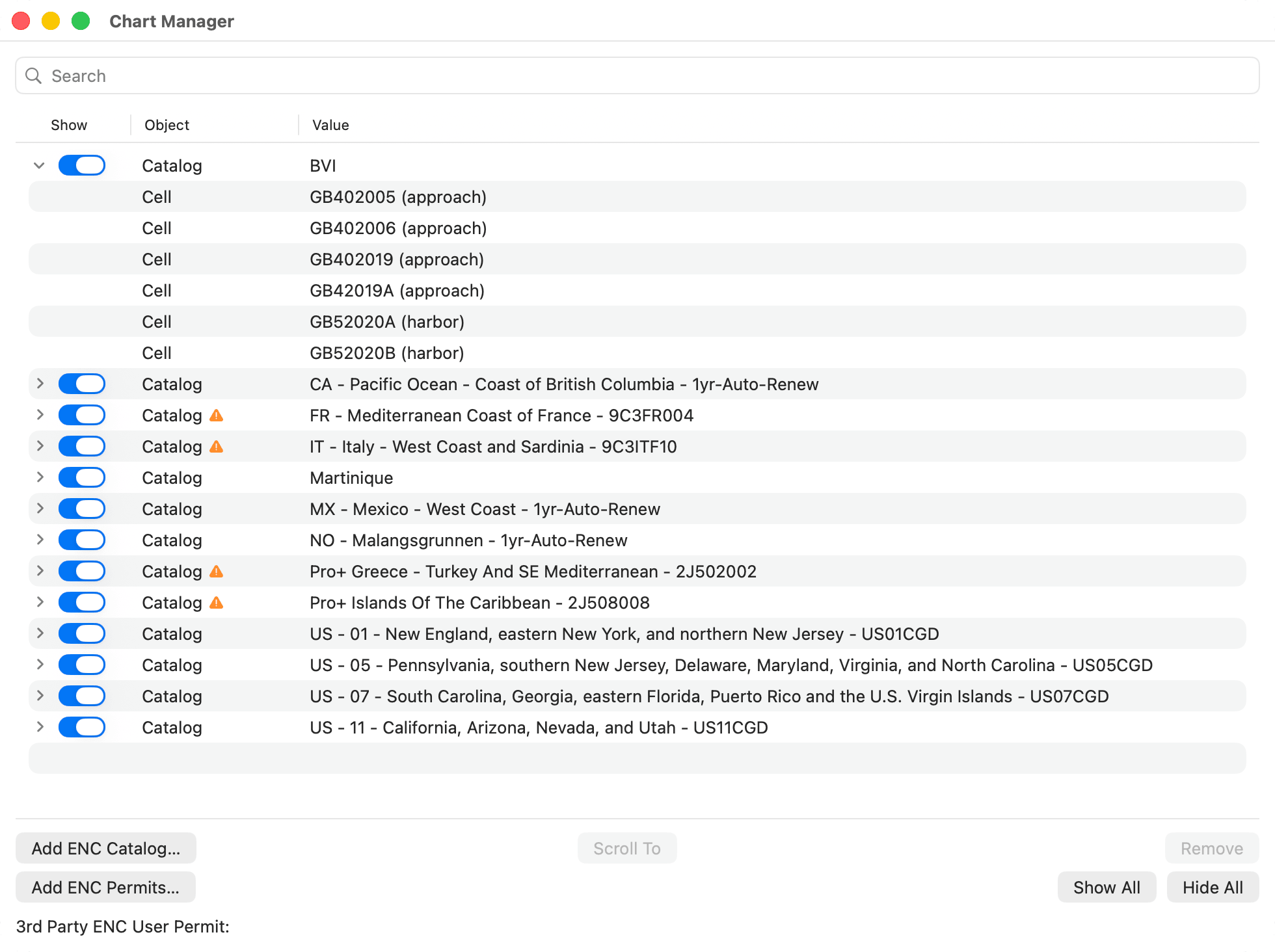
ENCs come in catalogs. A catalog is a set of chart cells delivered together, with an index file named CATALOG.031. Each catalog is a row in the list, in alphabetical order, and the list has three columns:
- Show is a switch that shows or hides the catalog on the chart.
- Object shows Catalog or Cell.
- Value shows the catalog’s name. For a cell, it shows its title and cell name, followed by the kind of chart it is, such as (harbor), (approach) or (coastal).
Click the triangle beside a catalog to list its cells. Only catalogs that are shown have one.
To find a cell, type part of its name or title in the search field at the top. Only the matching cells are listed, and the catalogs that hold them open by themselves. The search looks at cells only, not at catalog names. Clear the field to go back to the full list.
An amber warning triangle beside Catalog marks a chart whose subscription has expired. Hold the pointer over it to see when its update service ended, and click it to find out more. See Expired Charts.
Below the list are the buttons, and at the bottom of the window the 3rd Party ENC User Permit line, described under S-63 encrypted ENCs: permits below.
Showing and hiding catalogs
Turn a catalog’s Show switch off to take it off the chart, and on to bring it back. Show All and Hide All do the same for every catalog in the list, including your HelmStation Store and NOAA charts.
HelmStation loads and draws only the catalogs that are shown, and lists only their cells. Showing just the catalogs you need for the passage at hand gives HelmStation less to do as you move around the chart. Where two catalogs cover the same waters, for example your NOAA charts and a set from another provider, show only the one you want to navigate by.
Scroll To
Select a cell and click Scroll To. The chart moves to that cell, at a scale that suits it. Scroll To works on cells, not on catalogs.
Renaming a catalog and finding its files
Right-click a catalog’s name for two commands:
- Edit Chart Name gives the catalog a name of your own. Type it and click OK. A catalog you add is listed at first under the location of its CATALOG.031 file, so a shorter name makes the list easier to read. HelmStation Store and NOAA charts keep the names HelmStation gives them, and don’t offer this command.
- Show in Finder opens a Finder window with the catalog’s CATALOG.031 file selected.
Removing a catalog
Select a catalog and click Remove. It comes off the list and off the chart straight away. Remove doesn’t delete anything: the chart files stay where they are on your Mac. If you want to delete them too, choose Show in Finder first so you know where they are, then move the folder to the Trash once the catalog is removed. To use a removed catalog again, add it again with Add ENC Catalog….
You can’t remove HelmStation Store or NOAA charts here. If you try, HelmStation shows the Managed Chart alert. It manages Store charts through your subscriptions, and NOAA charts through the districts you choose in File > NOAA Charts. To keep one of them off the chart, turn off its Show switch.
Installing third-party ENCs
You can use S-57 ENCs, and S-63 encrypted ENCs, bought or downloaded directly from other chart providers. HelmStation doesn’t support raster charts (RNC, BSB/KAP).
Where to keep them
Keep third-party charts inside your Documents folder. HelmStation has permission to open charts only there. When you add a catalog, anything outside Documents is dimmed, and a catalog from anywhere else is refused with “Charts Must Be in Your Documents Folder”. A folder for each set inside Documents/Charts/ENC keeps them tidy.
If your Documents folder is in iCloud Drive (Desktop & Documents Folders in iCloud settings) with Optimize Mac Storage on, macOS can remove the local copies of files in Documents to save space, and that includes third-party charts. Keep your third-party chart folders on this Mac: in the Finder, Control-click the folder and choose Keep Downloaded. HelmStation Store and NOAA charts aren’t affected: HelmStation keeps them in its own storage, not in your Documents folder.
Adding a catalog
- Download the set from your provider and, if it’s zipped, unzip it into its own folder inside Documents, for example in Documents/Charts/ENC. Keep the set’s ENC_ROOT folder, with the CATALOG.031 file in it, as the provider supplied it.
- In Chart Manager, click Add ENC Catalog…. The panel opens in Documents/Charts/ENC if you have that folder, otherwise in Documents.
- Choose the CATALOG.031 file in the set’s ENC_ROOT folder, or the folder that contains ENC_ROOT, and click Add.
The catalog appears in the list under the location of its CATALOG.031 file. Right-click it and choose Edit Chart Name to give it a shorter name. S-63 encrypted charts also need their permits before they display (see below).
Adding a catalog doesn’t need a Full License, so you can use unencrypted S-57 charts during the 14-Day Sea Trial.
S-63 encrypted ENCs: permits
S-63 charts are encrypted, and open only with permits made for your Mac. Two things are involved:
- Your 3rd Party ENC User Permit identifies this Mac. You give it to the chart provider when you buy, and the provider uses it to make permits that work only on this Mac.
- The ENC permits your provider sends you unlock the cells you bought. They come in a file named PERMIT.TXT, the only permit file HelmStation reads.
Requesting your user permit
Request a user permit only when you are ready to buy S-63 charts from another provider. HelmStation Store charts don’t need one.
- Click Request Permit, beside 3rd Party ENC User Permit at the bottom of Chart Manager. The Request 3rd Party ENC User Permit window explains what the permit is for.
- Click Request a Permit. HelmStation requests your permit over the internet.
- The window closes, and your permit appears beside 3rd Party ENC User Permit. Select it and copy it (⌘C) to give to your provider.
Once this Mac has a permit, Request Permit no longer appears. The permit belongs to this Mac: each of your Macs needs its own, and charts bought with it work only on this Mac. See Devices and New Macs.
Adding ENC permits
Click Add ENC Permits…, choose the permit file your provider sent, and click Add. HelmStation shows Import Complete when it has read the permits, or Import Incomplete if the file couldn’t be read or held no permits it could use. New permits are added to the ones HelmStation already has, and HelmStation keeps them, so it doesn’t need the file again.
What needs a Full License
Requesting a user permit and adding ENC permits both need a Full License. Without one, Request a Permit and Add ENC Permits… show Full License Required. See Trial and License.
Updating third-party ENCs
HelmStation reads a catalog’s list of cells when you add it. When your provider issues new editions or updates, download your complete, current set and put it in place of the old one:
- Unzip the new set into a new folder inside Documents.
- In Chart Manager, right-click the old catalog and choose Show in Finder, so you know where its files are.
- Select the old catalog and click Remove.
- Add the new set with Add ENC Catalog…, and any new permits your provider sent with Add ENC Permits….
- Once the new charts display, move the old folder to the Trash if you no longer need it.