Help Docs
HelmStation Online Documentation
Connecting Your Instruments
HelmStation reads your boat’s NMEA 0183 data: position from a GPS, readings such as depth, heading and wind from your instruments, and targets from an AIS receiver. This page explains how to get that data into HelmStation. For what each window shows once it’s connected, see GPS and Position, Instruments and AIS Targets.
How the data reaches your Mac
HelmStation reads NMEA 0183 sentences, either from a serial port on your Mac or over your boat’s network.
- NMEA 0183 devices connect through a USB-to-serial adapter. A GPS or AIS receiver with its own USB cable usually plugs straight in and appears as a serial port. Plug the adapter or device in, and install any driver its maker supplies, before you open HelmStation.
- An NMEA 2000 network needs a gateway that converts its data to NMEA 0183. HelmStation doesn’t read NMEA 2000 directly.
- A multiplexer combines several NMEA 0183 devices into one stream, so a single port can carry position, instrument and AIS data. Connect it to the GPS window and let the other windows share its port (see Sharing one port).
- A Wi-Fi or Ethernet gateway or multiplexer sends NMEA 0183 over the network. See Network Connections.
The GPS, Instruments and AIS windows
Each kind of data has its own window, which you open with its Connect command:
- GPS > Connect (⌘G).
- Instruments > Connect (⌘I).
- AIS > Connect.
Connect opens the window and connects it with its current settings. If no port has been chosen yet, the window’s settings drawer opens so you can choose one. There is no Disconnect command: you disconnect by closing the window (see Startup, closing and sleep).
Each window has a Settings button, which opens its settings drawer, and a Monitor button (see Checking that data is arriving).
Choosing a port and rate
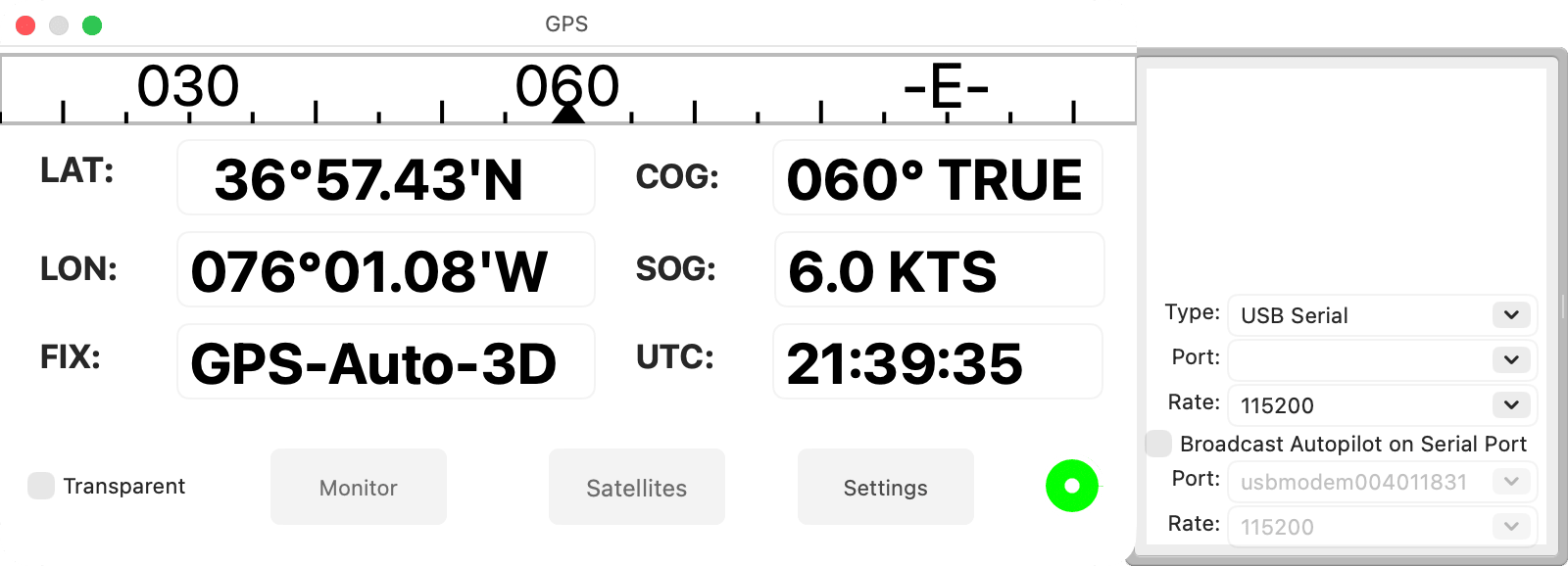
Click Settings and choose the following:
- Port is the serial port the device is connected to. USB adapters usually have “usbserial” or “usbmodem” in their name.
- Rate is the speed the device sends at, from 4800 to 115200. It must match the device. Most NMEA 0183 devices send at 4800; AIS receivers usually send at 38400.
- Type (GPS only) is USB Serial for a GPS on a serial port, or TCP/IP Network when the GPS data comes over the network. With TCP/IP Network, Port and Rate are dimmed and HelmStation doesn’t open a port for the GPS.
Once Port and Rate are both chosen, HelmStation connects, or reconnects, as soon as you change these settings. If it can’t open the port, it shows “Unable to open port:” followed by the port’s name.
The GPS settings drawer also holds the autopilot output settings. See Steering an autopilot.
Sharing one port
When one cable or multiplexer carries more than one kind of data, the Instruments and AIS windows can read from a connection another window already has open:
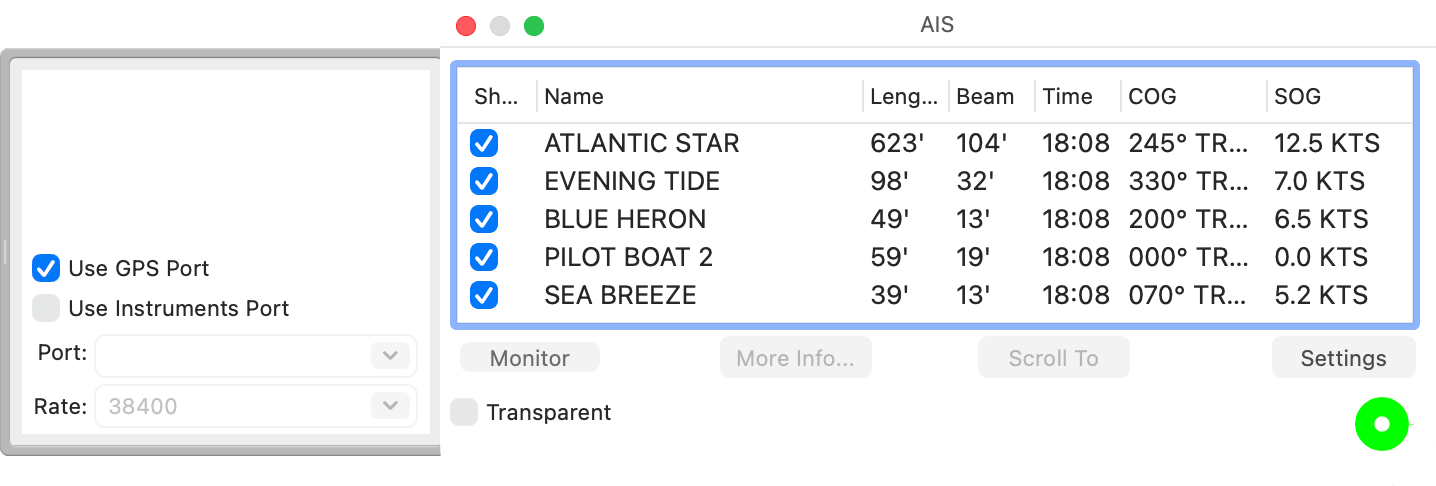
- Use GPS Port (Instruments and AIS settings) reads the data arriving on the GPS window’s connection, including data from the network client. Both windows start with this on.
- Use Instruments Port (AIS settings) reads the data arriving on the Instruments window’s own port.
With either on, the window’s Port and Rate are dimmed, its Connect command just opens the window, and it gets data whenever the window it shares with is connected. Turn on only one of the two. Share a port this way rather than choosing the same port in two windows.
What differs by window
| GPS | Instruments | AIS | |
|---|---|---|---|
| Connect | GPS > Connect (⌘G) | Instruments > Connect (⌘I) | AIS > Connect |
| Data from | Its own port, or the network | Its own port, or Use GPS Port | Its own port, Use GPS Port or Use Instruments Port |
| Closing the window | Disconnects a USB Serial GPS while Disconnect when Closed is on | Disconnects its own port | Disconnects its own port |
| Settings window (⌘,) | Connect at Startup, Disconnect when Closed | Connect at Startup | Connect at Startup |
| Main sentences | GGA, GLL, RMC, VTG, ZDA, GSA, GSV, GSS, RMB, BWC, BOD, XTE, WPL, RTE, APA, APB | DBT, DPT, HDG, HDM, HDT, MTW, MWV, VHW, VWR, VWT | VDM, VDO |
Startup, closing and sleep
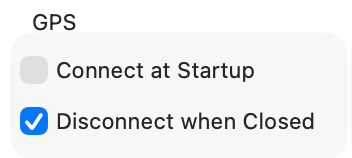
Choose HelmStation > Settings… (⌘,). The GPS, Instruments and AIS groups each have Connect at Startup, off unless you turn it on. With it on, HelmStation connects that window shortly after it opens, as if you had chosen its Connect command.
Disconnect when Closed, in the GPS group, is on unless you change it. While it’s on, closing the GPS window disconnects a USB Serial GPS. Turn it off to keep the GPS connected, and your position on the chart, with its window closed. Closing the Instruments or AIS window always disconnects it if it has a port of its own. See Settings.
When your Mac goes to sleep, HelmStation closes the GPS, Instruments and AIS windows and the ports they have open. When the Mac wakes, each window with Connect at Startup on connects again; the others wait until you choose Connect. With a USB Serial GPS, a Goto in progress is canceled when the Mac sleeps, unless the GPS has Connect at Startup on.
Closing windows and sleep also affect alarms. See Alarms.
Checking that data is arriving
Each window has a round indicator that shows what it’s receiving:
- Red means no data.
- Yellow means NMEA sentences are arriving, but none that this window reads.
- Green means the window is receiving sentences it reads.
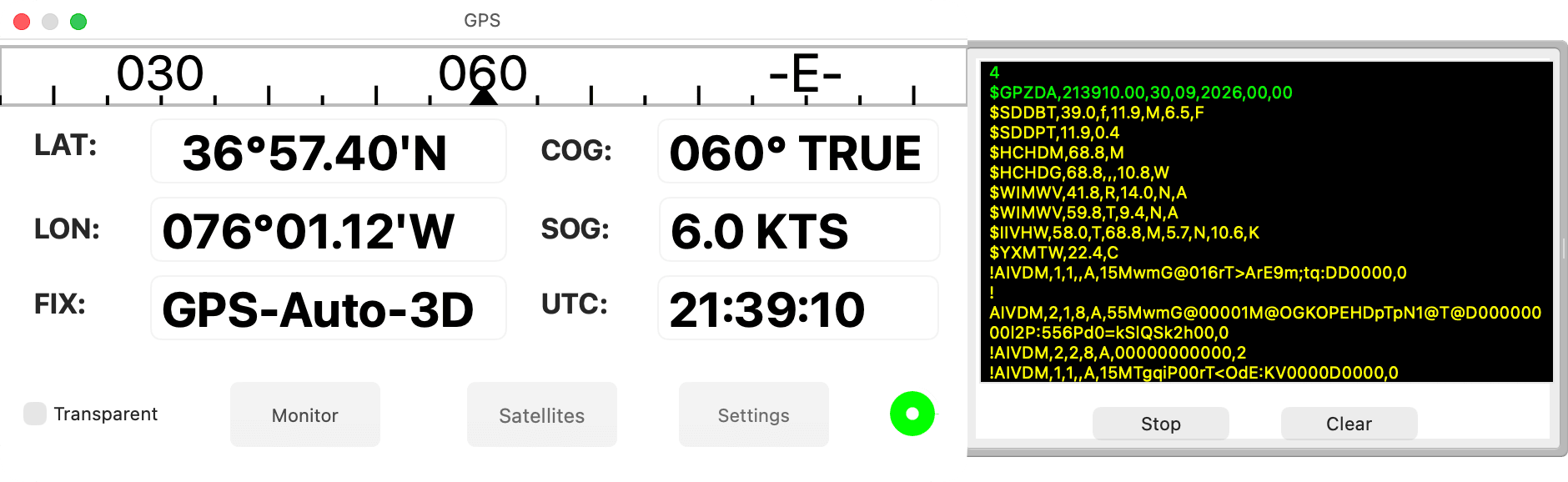
To see the sentences themselves, click Monitor, then Start in the monitor drawer. The button changes to Stop. Each sentence appears as it arrives: green for sentences the window reads, yellow for others. Clear empties the list, and closing the drawer stops the monitor.
The monitor shows only complete, valid NMEA sentences. If it stays empty while your device is sending, check the port and rate.
If nothing arrives
- The right port. The adapter is plugged in, with any driver installed, before you open HelmStation, and it’s chosen in Port. If GPS > Connect stays dimmed while you aren’t simulating, HelmStation found no serial port.
- The right rate. Rate matches what the device sends at. With the wrong rate, the monitor stays empty.
- The right type. For a GPS on a serial port, Type is USB Serial.
- NMEA 0183 output. The device is switched on and set to send NMEA 0183, and its output is wired to the adapter’s input.
- The right window. If the monitor shows only yellow sentences, the device may be sending data another window reads, such as depth arriving on the GPS window’s port. Turn on Use GPS Port in the window that reads it.
- One app per port. No other app, such as another navigation program, is using the same port.
- Local network access. For a network connection, HelmStation is allowed to use your local network. See Allowing local network access.
Simulating and replaying
To try HelmStation without a GPS, GPS > Simulate provides simulated positions, and GPS > File… plays back NMEA data saved in a file. See GPS and Position.