Help Docs
HelmStation Online Documentation
Your HelmStation Account
Your HelmStation account links what you buy with your Apple Account to your charts, so HelmStation can deliver them, keep them up to date and restore them on your other Macs. HelmStation creates it the first time you sign in with Apple (see Installing and First Launch). Sign in with the same Apple Account on each of your Macs and they all share the one account.
The Manage Account & Data Privacy window explains what HelmStation holds about you, what it’s used for, and how to correct or delete it.
Manage Account & Data Privacy
Choose File > HelmStation Chart Account, then click Manage Account & Data Privacy. The window has three parts: Your Data, Before You Delete Your Account and Delete Account. Click Done to close it.
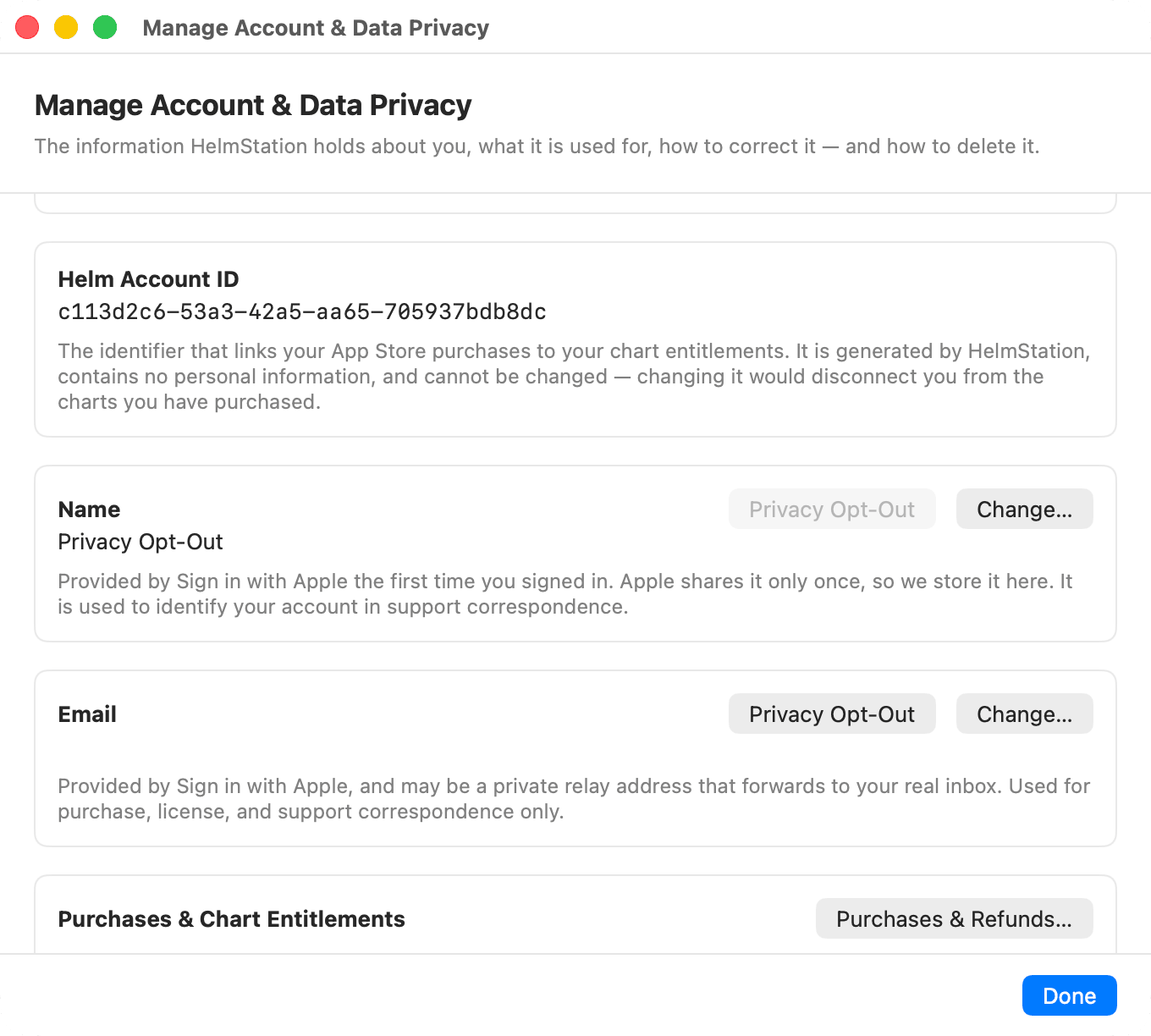
Helm Account ID
This is your account’s identifier. HelmStation generates it, it contains no personal information, and it can’t be changed.
Name and Email
Apple gives HelmStation your name and email only once, when you first sign in, so HelmStation keeps them here. The email may be a private relay address from Apple that forwards to your real inbox. HelmStation uses them only for support, purchase and license correspondence.
- Change… lets you type a new value and Save it. If HelmStation can’t reach its servers, nothing changes. Your Apple Account isn’t affected.
- Privacy Opt-Out replaces the value with “Privacy Opt-Out”. HelmStation asks you to confirm, because this can’t be undone: Apple won’t provide the original again. You can still type in a value later with Change…. Your account, license and charts are not affected.
A change or opt-out made on this Mac reaches your other Macs the next time HelmStation opens on each of them.
Purchases & Chart Entitlements
Click Purchases & Refunds… to see what you have bought. Billing is handled by Apple, and HelmStation never sees your payment details.
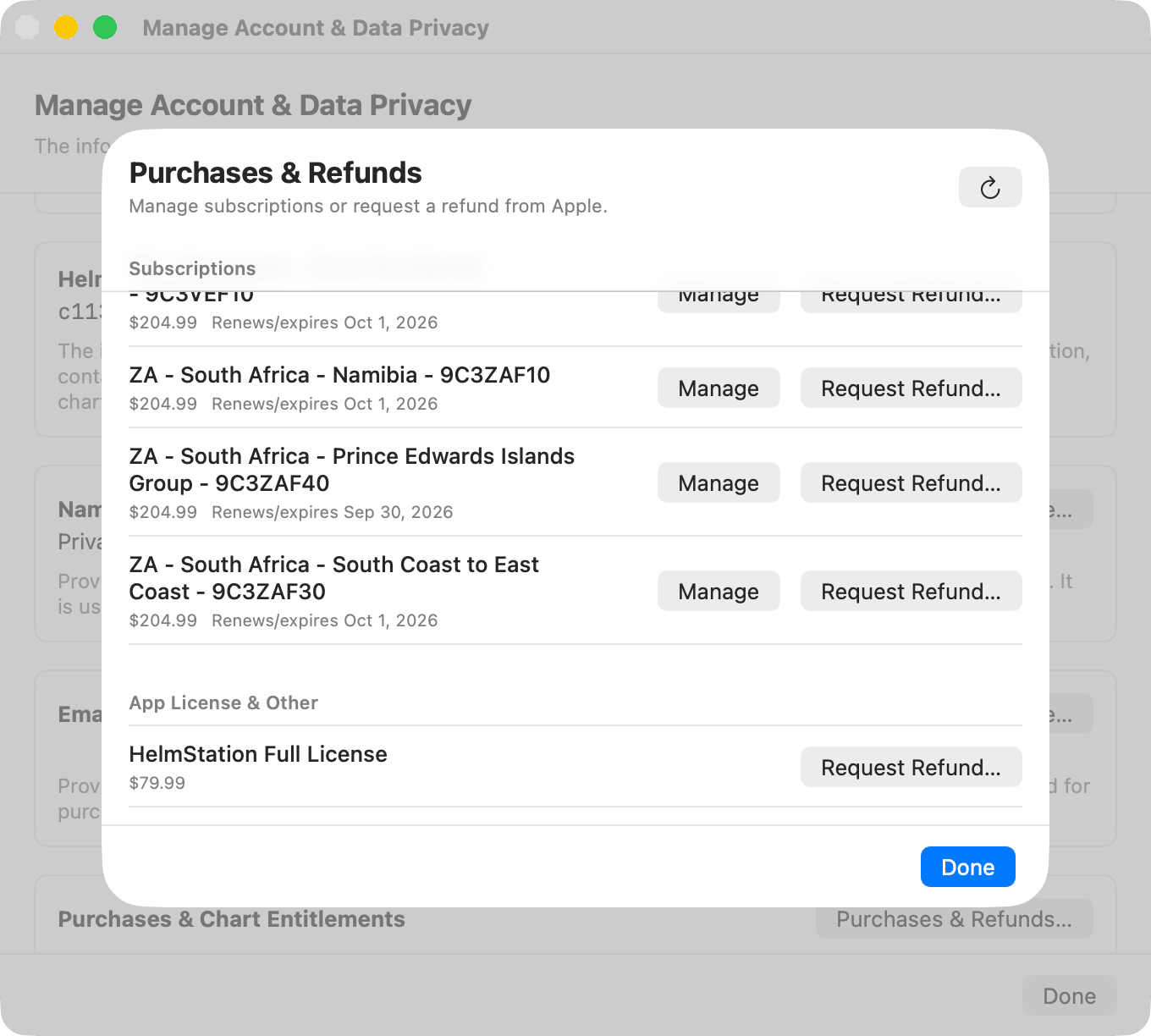
- Subscriptions shows each subscription’s price and the date it renews or expires, with Manage and Request Refund….
- App License & Other lists your Full License, with Request Refund…. The 14-Day Sea Trial shows as Free and has no refund button.
- Not Delivered — Refund Available appears only if you were charged for a chart you already had an active subscription for. Nothing was delivered for it, so ask Apple for a refund.
Only Apple can grant a refund. Request Refund… opens Apple’s refund page in your web browser, and HelmStation tells you which item to find there. Manage opens Apple’s subscription settings, where you can cancel a subscription.
If Apple refunds a chart subscription, HelmStation removes that chart from your Macs. For refunds of the Full License or the NOAA subscription, see Trial and License and NOAA Chart Service.
Refund Data Sharing
When you ask Apple for a refund on a chart subscription, Apple can ask HelmStation about the purchase. This setting decides whether HelmStation answers; the window explains what is shared. Click Enable or Turn Off. The setting belongs to your account, so it applies on all your Macs.
After you buy a chart subscription, the Help Resolve Refund Requests notice may ask you. Click Share With Apple or Not Now, or select Don’t ask again to stop the question on this Mac.
Authorized Devices
This shows how many of your Macs are authorized for S-63 charts from the HelmStation Store. Click Manage… to change them. See Devices and New Macs.
Deleting your account
Deletion is permanent. Read Before You Delete Your Account first. In short, deleting your account means the following:
- Every HelmStation Store and NOAA chart is removed, from this Mac and from all your other Macs. HelmStation goes back to an unlicensed, first-launch state that is not suitable for navigation. Don’t delete your account while under way.
- Your chart purchases can’t be restored, even to a new account.
- Third-party charts and permits you added yourself are not removed, but they can no longer be used, with HelmStation or with any other navigation software.
- Your Full License is held by Apple and comes back when you sign in again.
- If your NOAA Chart Service access came from a MacENCx64 registration, it ends. It doesn’t come back with a new account.
- Deleting doesn’t cancel your subscriptions. Apple keeps billing Auto-Renew subscriptions until you cancel them. Click Manage My Subscriptions in the App Store… and cancel them first.
To delete your account, click Delete My Account…, select “I understand this cannot be undone, and that my chart purchases cannot be restored.”, type DELETE, then click Delete Everything. To back out, click Keep My Account.
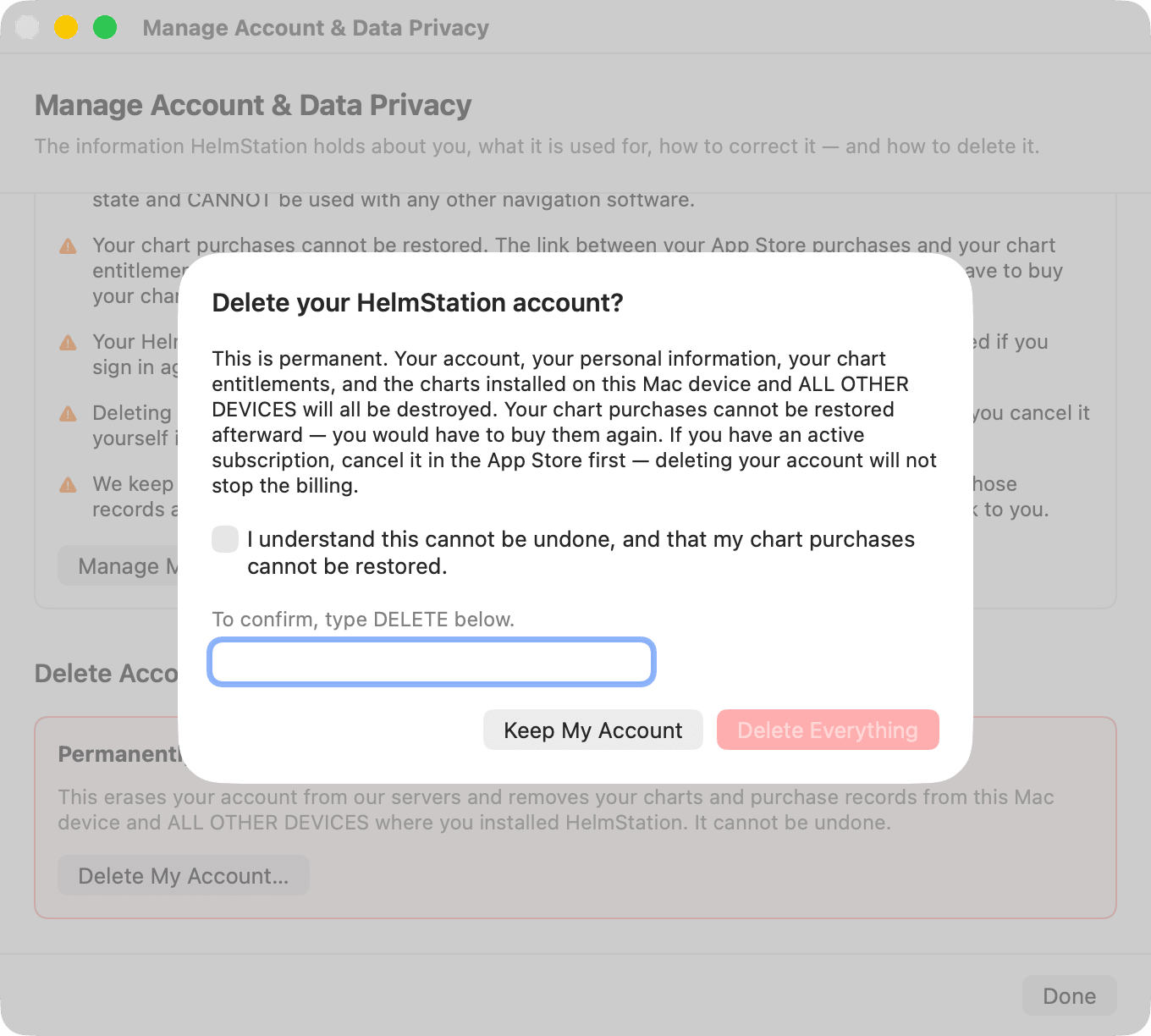
If HelmStation can’t reach its servers, nothing is deleted. Otherwise it hides its windows and shows Your account has been deleted, with only Quit HelmStation. The screen also reminds you that your Apple Account is still connected to HelmStation, and how to disconnect it in System Settings.
On your other Macs, the next time HelmStation opens with an internet connection, it removes the account, its charts and the keys used to open them, and shows This account was deleted.
Signing in after deleting your account
If you open HelmStation with an Apple Account whose HelmStation account was deleted, you see No HelmStation account found. The old account can’t be rebuilt. To start a new one, first disconnect HelmStation from your Apple Account, as the notice explains:
- Open System Settings and click your name at the top.
- Choose the Sign in with Apple section.
- Select HelmStation in the list, then turn off Sign in with Apple for it.
- Close and restart HelmStation to sign in again.
Open System Settings… opens System Settings for you. Quit HelmStation quits.
You then start a brand-new account. Charts bought under the deleted account can’t be restored, but your Full License comes back automatically. If you didn’t expect this notice, contact support through the HelmStation contact page  before you sign in again.
Using a different Apple Account on this Mac
A Mac holds one account’s content at a time. If HelmStation opens on a Mac signed in to a different Apple Account from the one its content belongs to, the Different Apple Account window asks before anything changes:
- Quit HelmStation changes nothing.
- Continue with This Apple Account removes the previous account’s charts from this Mac, both active and expired, along with its NOAA charts, its records on this Mac, and the Mac’s 3rd Party ENC User Permit.
Active HelmStation Store subscriptions stay with the previous account and download again when it signs in. Removing expired charts is permanent. See Signing in with a different Apple Account.